How to Make a Scanned PDF Searchable With OCR
Make a scanned PDF searchable with OCR. Learn how OCR works, how to improve accuracy, and how to run it offline so documents stay on your computer.
Quick answer
To make a scanned PDF searchable, run OCR (optical character recognition), which reads the text in the page images and adds an invisible text layer. ConvertFast has an OCR & Searchable PDF tool in PDF Tools that does this on your computer, so the scan is not uploaded.
You scan a stack of paper and get a PDF. It looks right, but you cannot search it, copy a line, or select a word. That is because each page is just an image. The computer sees pixels, not letters.
OCR turns those pixels into text. The result is a searchable PDF that looks identical but also contains a text layer. This guide explains how it works, how to get better accuracy, and what to check afterward.
- Scan at a sensible resolution, commonly around 300 DPI for text
- Make sure pages are straight and upright
- Remove dark borders and shadows
- Pick the document's language
- Keep an untouched copy of the original scan
- Compress after OCR, not before
What OCR does to a scanned PDF
A scanned page is an image. OCR analyzes it, recognizes characters and words, and then adds them to the PDF as an invisible layer placed behind or over the image. What you see stays the same, but the file now supports search, selecting and copying, and screen readers.
OCR is a best guess, not a guarantee. Clean, printed text in a common language usually works well. Handwriting, faded print, unusual fonts and photos of pages taken at an angle are harder and produce more mistakes.
Make a scanned PDF searchable with ConvertFast
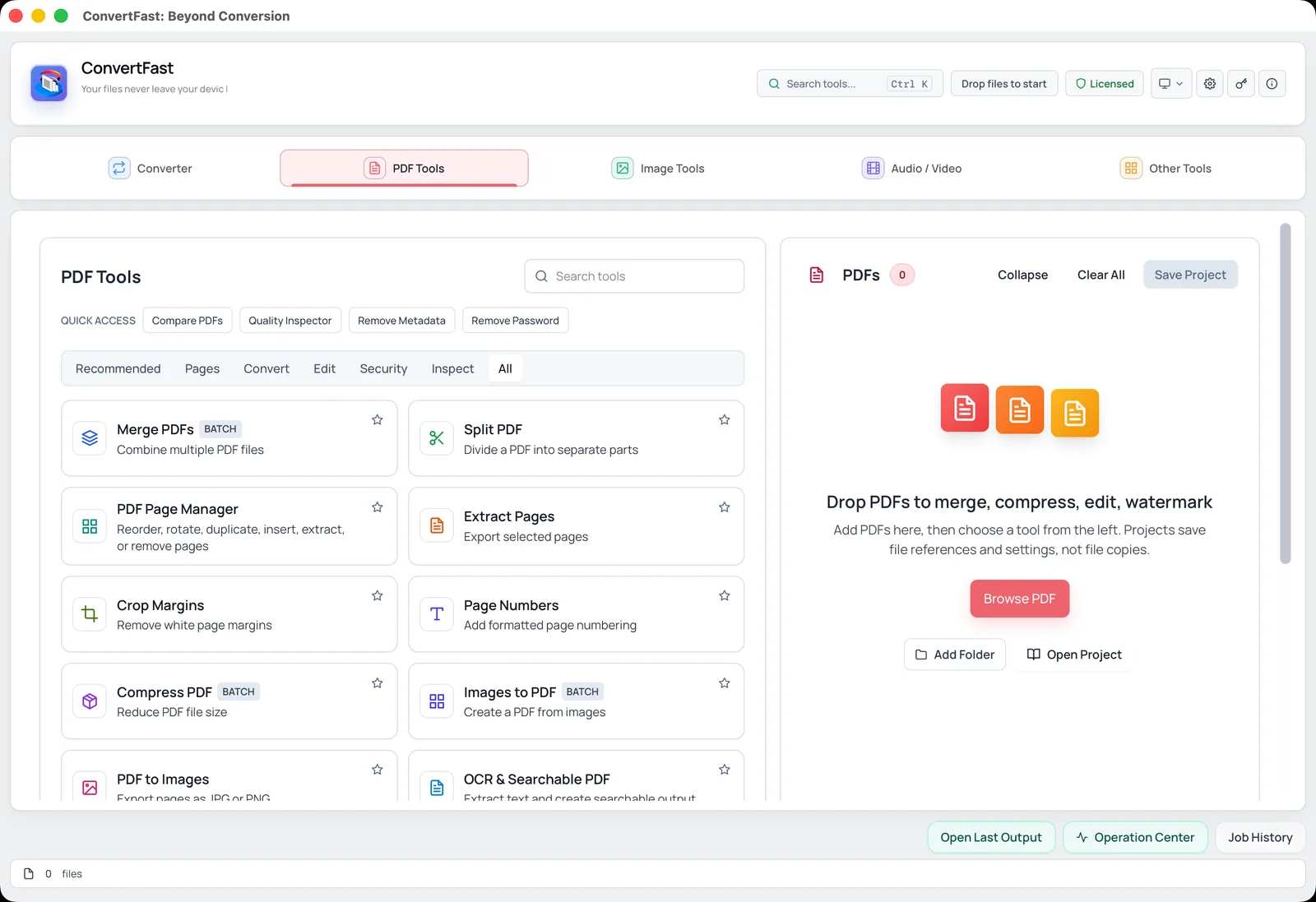
PDF Tools in ConvertFast includes OCR & Searchable PDF. It runs on your own computer, which matters for scans of IDs, medical letters, contracts or financial records. You do not need to hand those images to a website to read them.
Menu wording may vary slightly between versions, so follow the labels in the app.
- 1Open ConvertFast and go to the PDF tab.
- 2Choose OCR & Searchable PDF and add your scanned file.
- 3Select the language of the document.
- 4Run the OCR and save the output as a new PDF.
- 5Open the result and use the search function to look for a word you know is on a page.
- 6Select a paragraph and paste it into a text editor to check how accurate the recognition was.
Prepare the scan for better accuracy
Most accuracy problems start before OCR. Scan at a resolution that keeps small text crisp; roughly 300 DPI is a common choice for printed documents, and very small print may need more. Very low resolution loses letter shapes, and very high resolution creates huge files without much gain.
Straight pages matter. A skewed scan makes lines of text slope, which confuses recognition. The Scan Cleanup (deskew) tool in the Image Tools can straighten page images. Dark edges, shadows and creases also add noise. If your pages are phone photos, retake them flat and evenly lit when you can.
- Use black text on a light background where possible.
- Avoid scanning two pages as one image.
- Use the correct language so the engine matches the right dictionary.
- Re-scan faded pages with a higher contrast setting if your scanner offers one.
Check the OCR result
Searchable does not mean perfectly correct. Look for typical errors: the number 0 read as the letter O, 1 read as l, broken words at line ends, and columns merged across the page. For documents where numbers matter, such as invoices, compare key figures against the image.
Try the search function with a few distinctive words from different pages. If those are found, the layer is working. If whole pages are missing, those pages may have been blank, rotated or too faint, and are worth re-scanning.
| Problem | Likely cause | Fix |
|---|---|---|
| Words not found | Wrong language or faint print | Select the right language, rescan at higher contrast |
| Garbled lines | Skewed or curved pages | Deskew with Scan Cleanup, rescan flat |
| Numbers misread | Small or smudged print | Rescan at higher resolution and verify manually |
| Columns mixed | Complex layout | Check the text; split pages if needed |
| Handwriting ignored | OCR is built for print | Retype or accept as image |
File size, merging and splitting
OCR keeps the page images and adds text, so the file does not shrink. If you need a smaller file afterward, compress the searchable PDF; see reduce PDF file size for email for sensible settings, and review readability after compression.
If you have a batch of loose scans, merge PDF files without uploading into one document first and run OCR once. If one scan contains several documents, split the PDF into separate pages or ranges before or after OCR. Scanned TIFF files can be turned into PDFs first, as covered in TIFF to PDF for scanned documents.
Privacy and sensitive scans
Scans tend to contain the most sensitive paperwork you own. Uploading them to a website to extract text means a third party briefly holds the full images. A local tool avoids that. If you share the searchable PDF, consider also removing hidden author details with remove metadata from PDF and adding a password with password protect PDF offline.
Frequently asked questions
What is the difference between a scanned PDF and a searchable PDF?
A scanned PDF contains only page images, so you cannot search or copy text. A searchable PDF has the same images plus a hidden text layer created by OCR, so search, selection and copying work. The page looks the same either way.
Does OCR work offline?
It can, if the tool runs locally. ConvertFast's OCR & Searchable PDF runs on your computer, so you do not need to upload scans. This is useful for private documents and when you are working without a reliable internet connection.
How can I improve OCR accuracy?
Start with a good scan: straight, evenly lit, roughly 300 DPI for normal text, with good contrast. Choose the correct language, deskew crooked pages, and avoid shadows. After running OCR, spot-check numbers and names against the image.
Can OCR read handwriting?
General OCR is built for printed text and handles handwriting poorly, if at all. Neat block capitals sometimes work, but cursive usually does not. For handwritten notes, plan to retype what you need or keep the pages as images.
Will OCR make my PDF file bigger?
Slightly, because it adds a text layer, but the page images remain the bulk of the file. If you need a smaller file, compress the PDF after OCR and check that the text still looks clear and search still finds words.