How to Split a PDF Into Separate Pages or Ranges
Split a PDF into separate pages, page ranges or extracted pages on your own computer. Step-by-step guide with tips for naming and keeping the original.
Quick answer
To split a PDF into separate pages, open it in a PDF tool, choose Split PDF, and pick whether to make one file per page or to split by page ranges. ConvertFast does this on your computer, saving the pieces as new files and leaving the original untouched.
A long PDF is not always what you need. Maybe you want to send only page 4 of a report, break a scanned stack into one file per document, or pull a few pages out of a manual. Splitting lets you do that without retyping or re-scanning anything.
There are three related jobs: split everything into single pages, split into chunks by range, and extract specific pages. This guide explains which to use, how to do each locally, and how to avoid common mistakes.
- Divides one file into several files
- Good for one file per page or fixed ranges
- Everything ends up in some output file
- Useful for breaking a scanned batch into documents
- Pulls out only the pages you choose
- Good when you need a few pages from many
- Produces one new file with those pages
- Useful for sending a single section
Choose the right method for your goal
Start by asking what you want at the end. If you need every page as its own file, split by single page. If you want a 60-page document as three 20-page parts, split by range. If you only need pages 3 to 5 and 12, extract them.
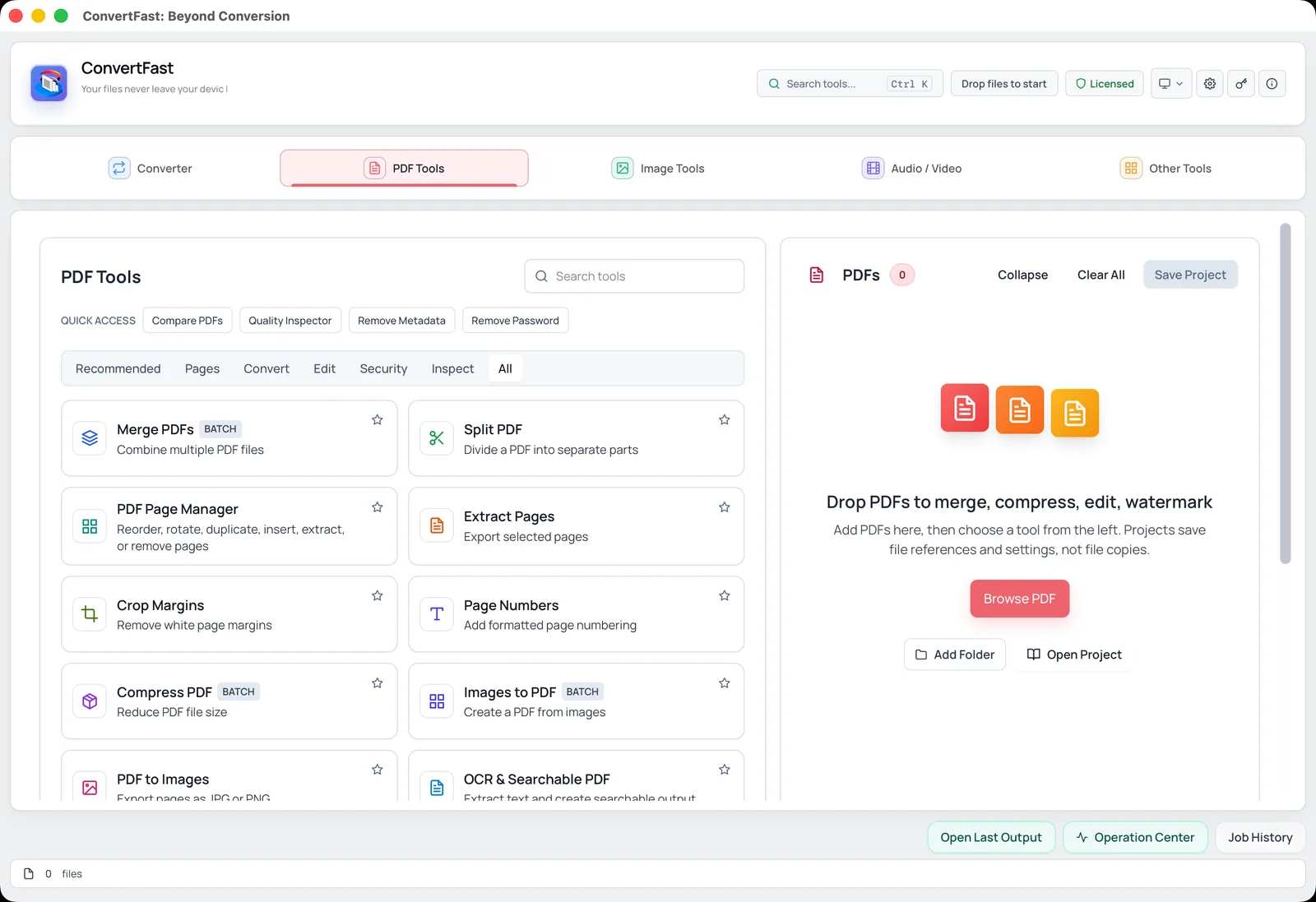
ConvertFast's PDF Tools has dedicated functions for each. The split PDF page describes splitting, and the extract pages from PDF page covers pulling out chosen pages. For reordering, rotating or removing pages inside a single file, the PDF Page Manager is the better fit.
Split a PDF step by step
The wording of options can vary slightly between app versions, so match the labels you see. The sequence is the same.
Before you start, copy the PDF somewhere safe or make sure you know where the original is. Splitting creates new files and does not normally alter the source, but a backup removes any doubt.
- 1Open ConvertFast and go to the PDF tab.
- 2Select Split PDF and add the document.
- 3Choose how to split: each page separately, or by page ranges such as 1-5, 6-10.
- 4Pick an output folder, preferably an empty one, so the new files are easy to find.
- 5Run the split and open the results folder.
- 6Open one or two of the new files to confirm the pages are right.
Page range syntax that works in most tools
Ranges are usually written with hyphens and commas: 1-3 means pages one through three, and 1-3, 7, 10-12 means those pages in one selection. Check the app's example text, since conventions differ slightly between programs.
Page numbers refer to the position in the file, not the number printed on the page. A PDF that starts with a cover and a table of contents may have printed page 1 on file page 3. If you are unsure, count in the viewer using its page counter. If you want to add or fix printed numbers, see add page numbers to PDF.
| You want | Range to enter | Result |
|---|---|---|
| First five pages | 1-5 | One file with pages 1 to 5 |
| A single page | 8 | One file with page 8 |
| Pages 2, 4 and 6 | 2, 4, 6 | One file with those pages |
| Everything except the cover | 2-last page | Remaining pages in one file |
| Each page separately | Split every page | One file per page |
Name the output files so you can find them
Splitting a 100-page file into single pages creates 100 files. Without a plan, you end up with a folder of generic names. Use a dedicated output folder, and if the tool offers a naming pattern, include the original file name and page number.
If the pieces need clean names later, such as invoice numbers, the Bulk Rename Files utility in ConvertFast can apply patterns to many files at once and keeps an undo manifest. See batch rename files on Windows and Mac for the details.
- Output into a new, empty folder.
- Keep the original PDF unchanged.
- Check the first and last output file before sharing the rest.
Splitting scans and sensitive documents
Scanned batches often arrive as one big PDF with many separate documents inside, such as receipts or forms. Splitting them by range turns that into usable files. If the scan has text you need to search, run OCR on the pieces; see make scanned PDF searchable with OCR.
These documents often contain personal data, which is a good reason not to upload them to a website just to cut them apart. A local tool keeps them on your computer. If you need to put pieces back together later, merge PDF files without uploading shows how.
Frequently asked questions
Does splitting a PDF change the original file?
No. Splitting normally creates new files and leaves the source document as it was. It is still smart to keep a backup of important originals, and to save the output into a separate folder so you never confuse the pieces with the whole.
How do I split a PDF into individual pages?
Open a PDF split tool, choose the option that creates one file per page, select an output folder, and run it. In ConvertFast, this is the Split PDF function in PDF Tools. A 20-page document gives 20 single-page files.
What is the difference between splitting and extracting pages?
Splitting divides a file into several new files, such as one per page or per range. Extracting pulls out only the pages you pick into a single new file. Use extraction when you need a few specific pages, and splitting when you want the whole document divided.
Can I split a password-protected PDF?
Usually you must unlock it first. If you own the file and know its password, remove the password, split the document, and add a password again to the pieces if needed. Only do this for files you are authorized to open.
Will splitting reduce quality?
A split typically copies the page content without recompressing it, so quality stays the same. File sizes of the pieces add up to roughly the original, though shared resources like fonts may be repeated in each piece, so the total can be slightly larger.