How to Password Protect a PDF Offline (and Remove It Later)
Password protect a PDF offline without uploading it. Learn how to pick a strong password, add it locally, and remove the password later.
Quick answer
To password protect a PDF offline, open it in a desktop PDF tool, set a password, and save the protected copy. ConvertFast includes password protection in its PDF Tools, so the document is encrypted on your own computer instead of being uploaded to a website first.
Contracts, tax forms, medical letters, scans of ID: some PDFs should not sit in an inbox unprotected. Adding a password is a quick way to make sure only the intended reader can open the file.
The detail that matters is where the protection happens. If you upload the PDF to a website so it can add the password, a copy of the unprotected document has already left your control. Doing it offline avoids that. This guide shows how, how to choose a password that holds up, and how to remove it when it is no longer needed.
- 1Choose a passphraseLong, unique, not reused elsewhere
- 2Open PDF ToolsPick the password protection option
- 3Save a protected copyKeep the original in a safe place
- 4Test and shareOpen it yourself, then send the password separately
Why do it offline
A web service that adds a password has to receive your original file. You then trust that service with the unprotected content, its retention practices, and the connection in between. For a restaurant menu that is irrelevant. For a signed contract it is a real exposure, and the habit of uploading sensitive files is hard to unlearn. See are online file converters safe for the broader risks.
A desktop tool handles the file on your computer. ConvertFast processes its core tasks locally, so a PDF you protect does not need to be uploaded to a website. You still decide where the finished file goes next.
Pick a password that is worth having
The password is the entire security of the file. A short or guessable one can be cracked quickly by automated tools, no matter how good the encryption is. Length matters more than odd characters.
A passphrase made of four or five unrelated words is easy to type and far harder to guess than a short word with a number on the end. Avoid names, birthdays, and anything that appears on the document itself.
- Use at least a dozen characters; longer is better.
- Use a password you do not use for email, banking or anything else.
- Store it in a password manager so you can recover it later.
- Do not put the password in the same email as the file.
How to password protect a PDF with ConvertFast
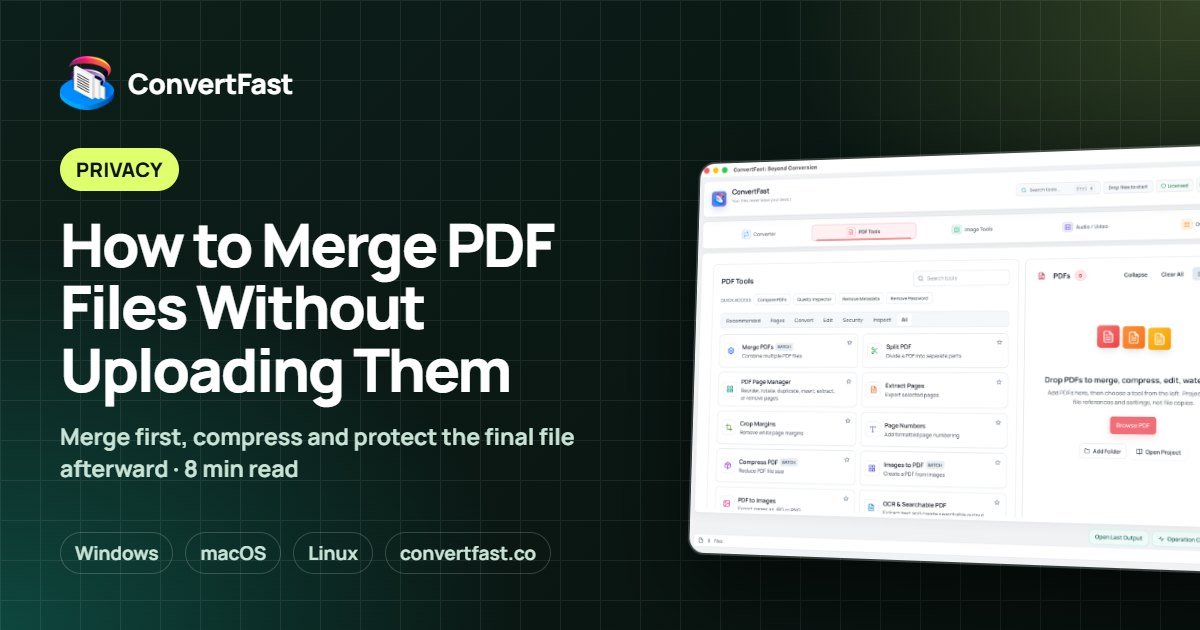
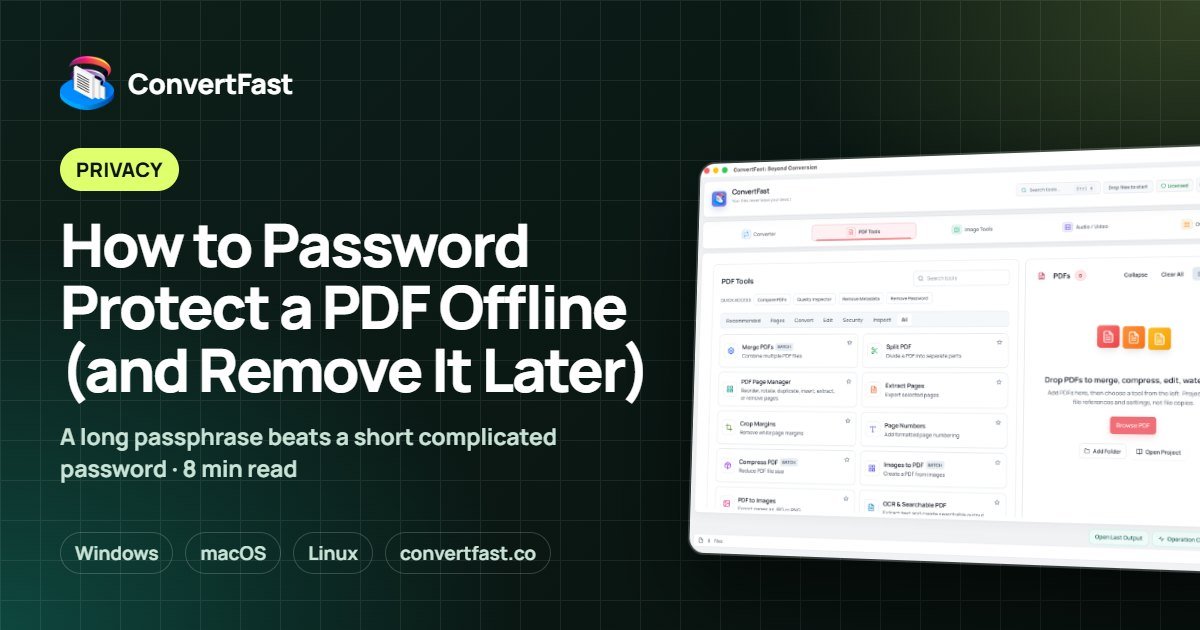
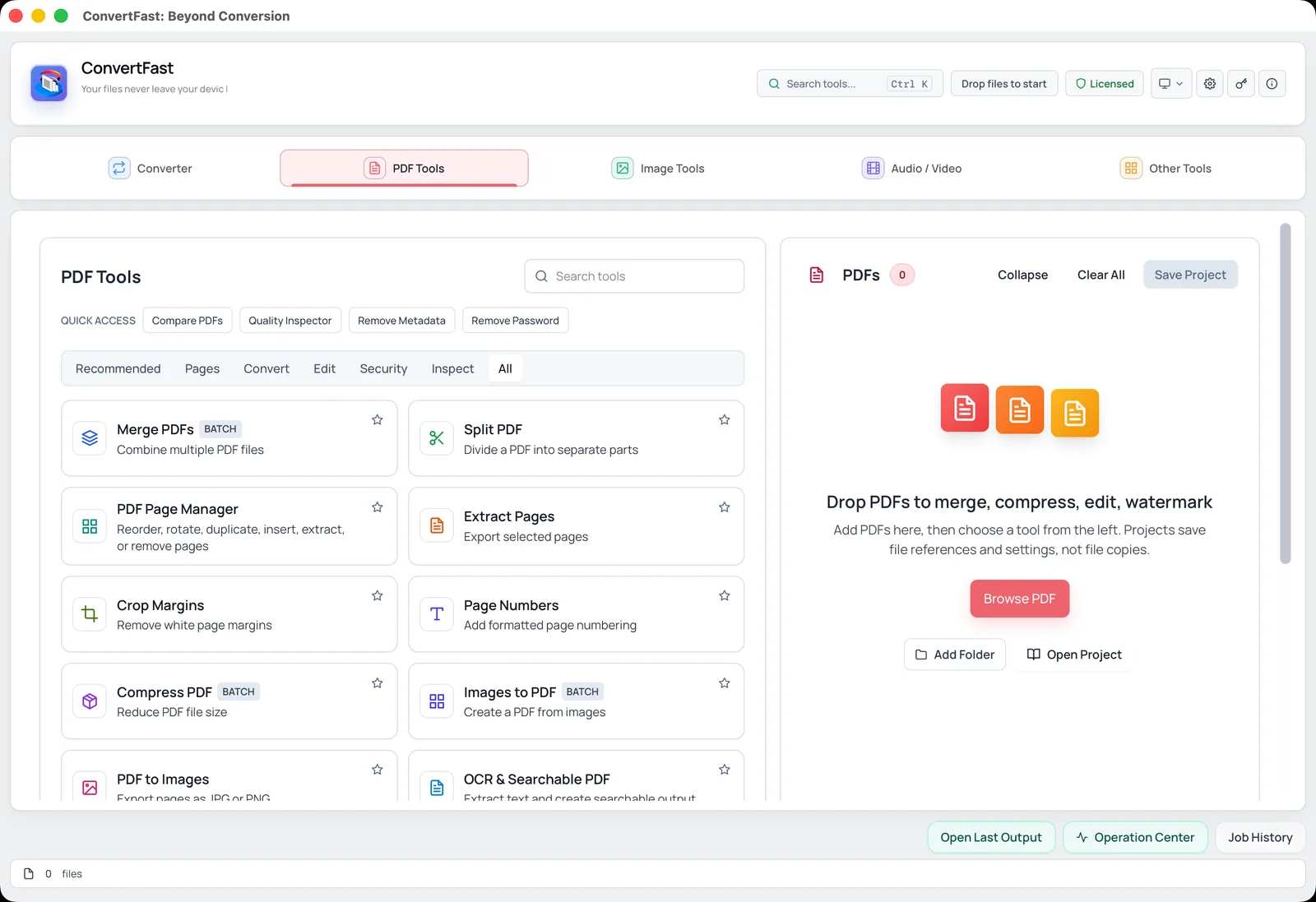
PDF Tools in ConvertFast includes the option to password protect a PDF, along with the reverse operation, remove password. The related pages add password to PDF, password protect PDF, encrypt PDF, and lock PDF file describe the same job under the names people search for.
The steps below follow the usual order. Menu wording can differ slightly, so follow the labels you see in the app.
- 1Open ConvertFast and go to the PDF tab.
- 2Choose the password protection option from the PDF Tools list.
- 3Select the PDF you want to protect.
- 4Enter your password and confirm it.
- 5Save the output as a new file with a clear name, such as contract-protected.pdf.
- 6Open the new file to make sure it asks for the password and opens with it.
Opening password and permission restrictions
A PDF can have an open password, which is needed to view the file, and permission settings that limit actions such as printing or copying. The open password is the part that protects the content. Permission restrictions are a courtesy that some software honors and other software ignores.
If your goal is confidentiality, focus on a strong open password. If your goal is only to discourage casual copying, understand that it is not strong protection.
| Option | What it does | How reliable it is |
|---|---|---|
| Open password | Required to view the file | Strong if the password is strong |
| Permission restrictions | Limits printing, editing, copying | Honored by some apps, ignored by others |
| Both together | Open to view, with extra limits | Open password does the real work |
Remove the password later
Eventually you may want an unprotected version for archiving or editing. If you know the password, the remove PDF password function in PDF Tools saves a copy without it. Only use this on files you own or are authorized to open.
Remember to delete or secure old unprotected copies once you are done. Protecting one file while leaving three unprotected versions in Downloads defeats the purpose.
Other privacy steps before you send a PDF
A password covers the contents, but a PDF also carries hidden information such as author name and the software used. Read remove metadata from PDF if you want that cleaned too. If the file is large, reduce PDF file size for email explains how to shrink it before protecting. If you are combining documents, do that first with merge PDF files without uploading, then protect the final file once.
Frequently asked questions
Can I password protect a PDF without uploading it?
Yes. A desktop tool can add the password on your own computer, so the unprotected file never goes to a website. ConvertFast does this in PDF Tools. You choose the file, enter a password, and save a protected copy locally.
What makes a good PDF password?
Length and uniqueness. A passphrase of several unrelated words, at least a dozen characters, is far stronger than a short word with a number. Do not reuse a password from another account, and keep it in a password manager.
What happens if I forget the password?
Strong PDF encryption is designed so the file cannot be opened without the password, so recovery is usually not possible. Keep an unprotected original in a secure location and store the password in a manager so you are not locked out of your own document.
Does a password stop people from printing or copying?
The open password stops people from viewing the file without it. Permission restrictions on printing and copying are weaker, because some applications ignore them. For real confidentiality, rely on a strong open password rather than on restrictions.
How do I remove a password from my own PDF?
Open the PDF in a tool with a remove password function, enter the current password, and save an unprotected copy. ConvertFast's PDF Tools includes this. Only do it for documents you own or are allowed to open, and secure any unprotected copy afterward.