How to Merge PDF Files Without Uploading Them
Merge PDF files without uploading them anywhere. Learn how to order pages, handle bookmarks and keep private documents on your own computer.
Quick answer
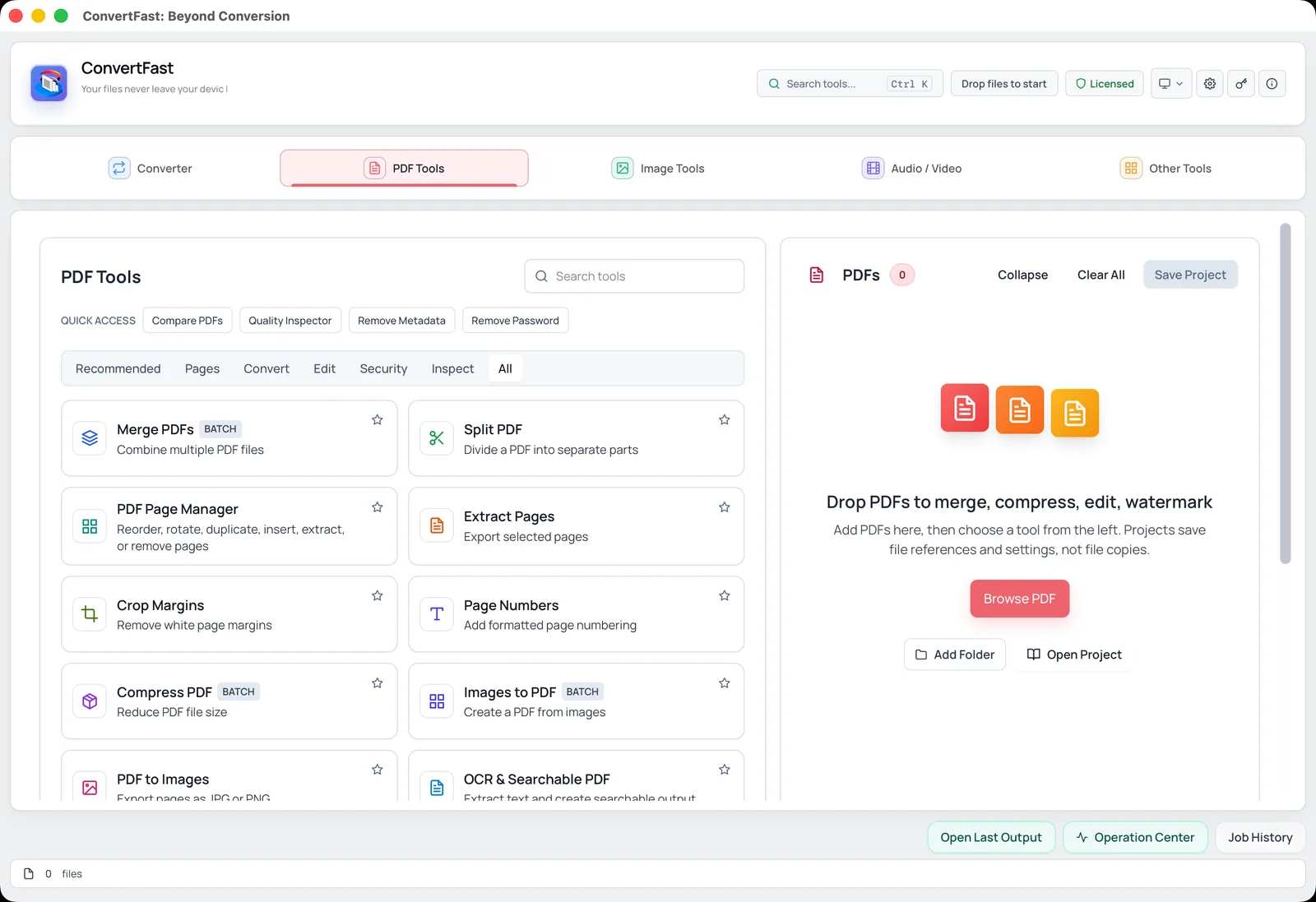
To merge PDF files without uploading them, use a desktop PDF tool that processes files on your computer. In ConvertFast, open PDF Tools, choose Merge PDFs, add your files, set the order, and save one combined PDF locally.
Merging PDFs is one of the most common document jobs: a cover letter and a resume, ten invoices into one statement, scanned pages into a single file. The usual search result is a website that asks you to upload everything first.
That is fine for a public flyer. It is a poor trade for a lease, a medical record or tax paperwork. This guide explains how to merge PDFs on your own computer, how to control order, what happens to bookmarks and page sizes, and what to do after the merge.
| ConvertFast | iLovePDF, Smallpdf | Apple Preview | PDFsam Basic, PDF24 Creator | |
|---|---|---|---|---|
| Files leave your computer | No | Yes, uploaded | No | No |
| Works offline | Yes | No (web sites) | Yes | Yes |
| Merge many files at once | Yes | Varies | Limited | Yes |
| Reorder, rotate, remove pages | Yes, PDF Page Manager | Varies | Basic | Varies |
| Other PDF tools in same app | Yes, split, compress, OCR | Varies | Few | PDF-focused |
| Pricing | One-time | Free with limits, paid plans | Included with macOS | Free |
Why avoid uploading PDFs to merge them
To merge files on a website, the site has to receive every document. Even if the service promises to delete files after a while, you cannot verify what happens on its servers, and you have no say over the connection, logs or backups. For documents containing names, addresses, account numbers or signatures, the safest copy is the one that never moved.
A local merge does the work on your own machine. ConvertFast is a paid desktop app for Windows, macOS and Linux whose core file processing runs locally, so nothing needs to be uploaded. If you want the wider checklist, see are online file converters safe.
How to merge PDFs step by step
The merge PDF tool in ConvertFast sits inside PDF Tools. If you search for it as combine PDF files, it is the same job. Menu labels may differ slightly between versions, so follow what you see in the app.
- 1Collect the PDFs in one folder and rename them so they sort in the order you want, for example 01-cover.pdf, 02-contract.pdf, 03-appendix.pdf.
- 2Open ConvertFast and go to the PDF tab, then open Merge PDFs.
- 3Add your files, or drop the whole set in at once.
- 4Check the order in the list and move anything that is out of place.
- 5Choose where to save the output and start the merge.
- 6Open the result and scroll through it to confirm every page is present.
Get the order right before you merge
Order mistakes are the most common reason people merge twice. Name your files with numeric prefixes so they sort correctly, and remember that a plain alphabetical sort puts 10 before 2 unless you pad with zeros. Use 01, 02, 03 rather than 1, 2, 3.
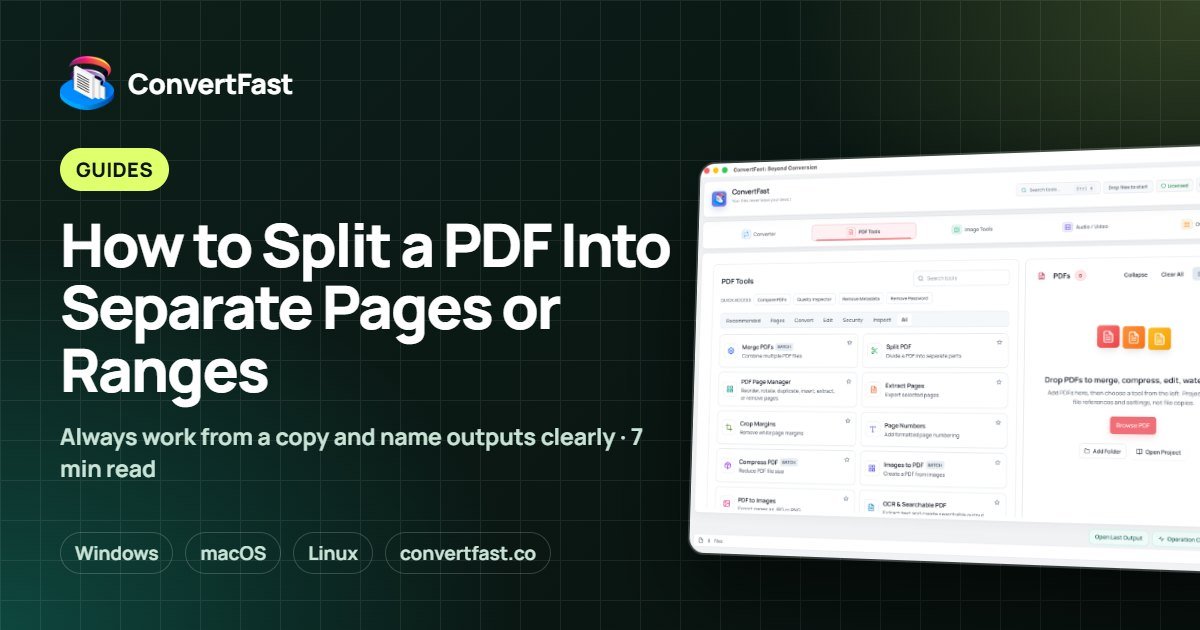
If you only need part of a document, trim it first. The extract pages from PDF function pulls out just the pages you need, so you do not carry unwanted pages into the merged file. If a page is rotated the wrong way, fix it first with rotate PDF.
- Use zero-padded numbers in file names.
- Remove blank or duplicate pages before merging.
- Fix rotation on individual files first.
- Keep your source files; the merge creates a new document.
Page sizes, bookmarks and what to expect
Merging does not resize pages. A letter-size document merged with an A4 document gives a PDF with mixed page sizes, which displays fine but can print oddly. If a uniform size matters, check your sources first.
Bookmarks and links in the source files are handled differently from tool to tool. Do not assume every bookmark carries over. After merging, open the bookmarks panel in your PDF viewer and check, and if you rely on navigation in a long document, rebuild the structure you need. Form fields and signatures can also behave differently after a merge, so merge copies rather than your only signed originals.
Mixing PDFs with other file types
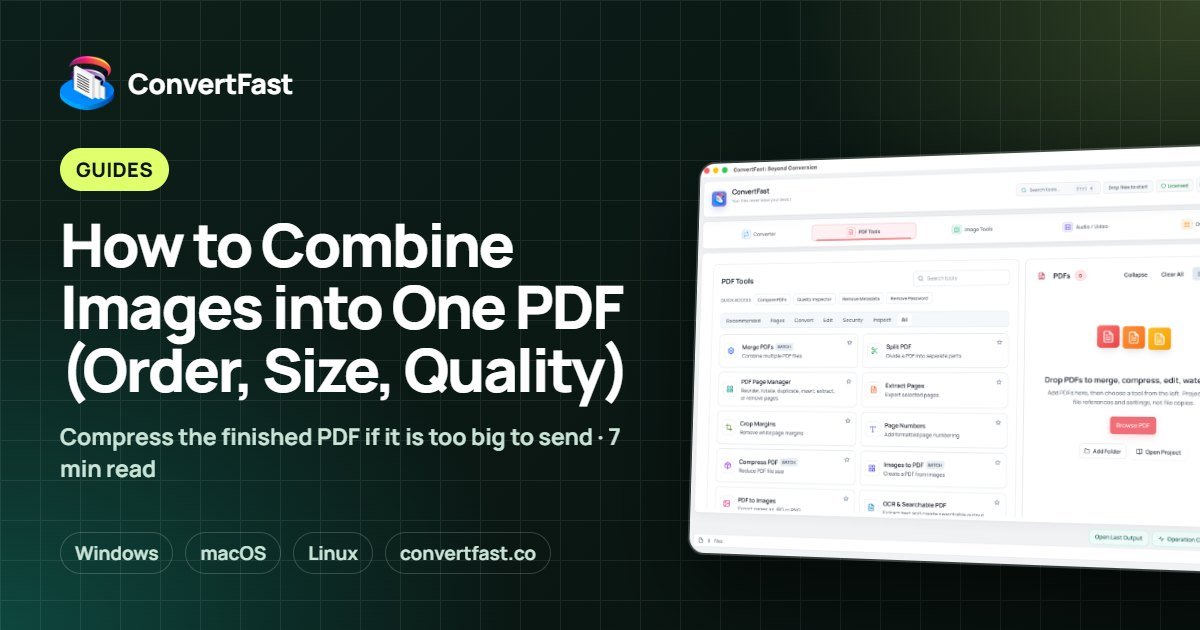
Sometimes your package includes photos, scans or Word files. Convert those to PDF first, then merge. Photos can go through JPG to PDF or PNG to PDF, and Word to PDF handles documents. If you have many pictures, the dedicated guide on combining images into one PDF covers page size and order in detail.
Because ConvertFast handles conversion and PDF tools in one app, you can finish the whole package without moving files between programs.
After the merge: compress, protect, clean
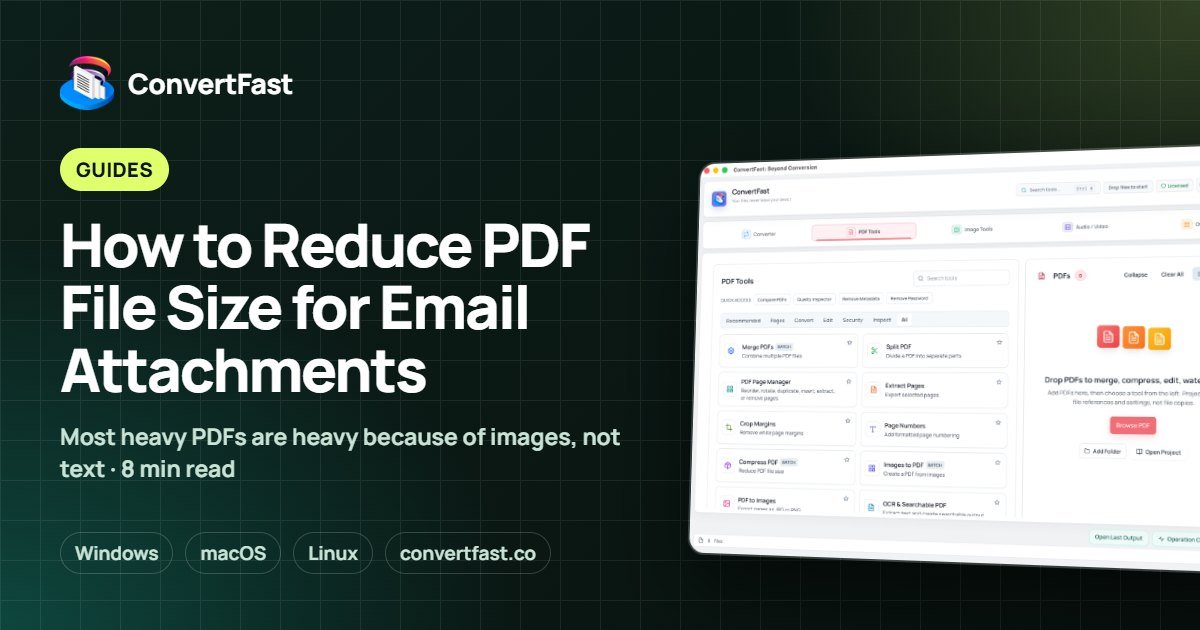
A merged PDF can be large. If it needs to fit an email limit, follow reduce PDF file size for email to shrink it. If it is sensitive, add a password afterward using password protect PDF offline. Doing the steps in this order, merge, then compress, then protect, avoids repeating work on every individual file.
Also consider the hidden data. Each source file may carry an author name or software tag; remove metadata from PDF explains how to clean the final document before it leaves your hands.
| Step | Why in this order | Where to learn more |
|---|---|---|
| Fix rotation, extract pages | Prevents bad pages in the merge | Extract Pages, Page Manager |
| Merge | Creates the single document | Merge PDFs |
| Compress | Fits size limits | Compress PDF |
| Remove metadata | Cleans hidden details | Remove Metadata |
| Password protect | Secures the final file | Password protect |
Frequently asked questions
Can I merge PDFs without internet?
Yes, if you use a desktop application. A tool that runs locally does not need a connection to merge files, so it works on a plane or on a restricted network. ConvertFast processes PDFs on your computer, so merging does not depend on being online.
Does merging PDFs reduce quality?
A straightforward merge combines the pages without recompressing their contents, so text and images stay the same. Quality only changes if you also compress the merged file. If you need a smaller file, compress afterward and compare the result with the original.
How do I change the order of pages after merging?
Use a page manager that lets you drag, move, rotate or remove pages. ConvertFast's PDF Page Manager supports reordering, rotating, duplicating, inserting, extracting and removing pages, so you can fix the order without redoing the merge.
Will bookmarks survive a merge?
It depends on the tool and the source files, so do not assume they will. After merging, open the bookmarks panel in a PDF reader to check. If navigation matters in a long document, verify the result and rebuild any bookmarks that did not carry over.
Is there a limit on how many PDFs I can merge?
Local tools are limited mainly by your computer's memory and disk space rather than by an upload cap. Very large sets of big files take longer, so merge in sensible groups if the result gets unwieldy, and check the finished file opens normally.