Start With the Risk, Not the Format
Most conversion mistakes begin with the same question: what website can open this file? A better first question is what the file contains. A blank brochure image is different from a signed contract, a passport scan, a medical form, a client video, or a spreadsheet exported from finance software.
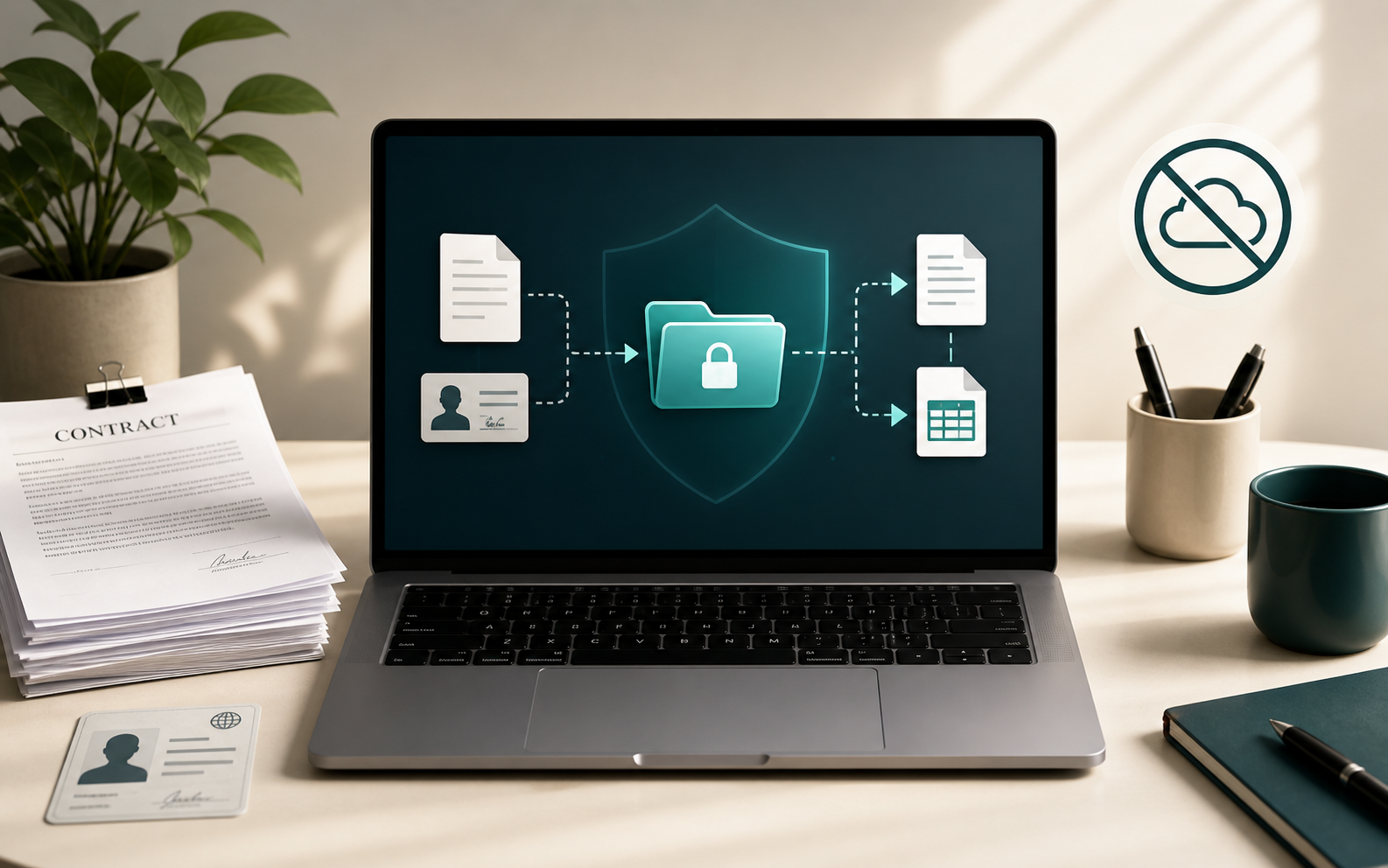
For sensitive work, treat the file as private until proven otherwise. That means avoiding upload-first workflows, keeping the original unchanged, and checking whether metadata, page order, layers, comments, or embedded media might travel with the converted copy.
Keep Originals in a Separate Folder
Before converting anything important, duplicate the source files into a working folder. Do not overwrite originals during the first pass. Use clear output names such as contract-client-copy.pdf or passport-upload-300kb.jpg so you can tell at a glance which file is safe to send.
ConvertFast is designed around local work, so you can run the conversion on your computer and compare the output before deleting anything. That small pause prevents most irreversible mistakes.
Check Metadata Before Sharing
Images can contain camera model, location, date, software history, and other EXIF fields. Documents can contain author names, hidden comments, revision history, and embedded thumbnails. If the file is leaving your computer, check what is inside the result, not just whether it opens.
For everyday sharing, export a clean copy and keep a richer master file for yourself. For example, keep a high-quality PNG or TIFF internally, then send a smaller JPG or PDF when the recipient only needs to view it.
Use the Smallest Workflow That Preserves the Job
A job application upload may only need a 200 KB JPG. A print shop may need a high-resolution PDF. A client review may need a compressed MP4 that still shows readable screen text. The safest conversion is not always the highest quality export; it is the copy that matches the use case without exposing extra data.
Build a repeatable checklist: duplicate, convert locally, open the result, check quality, check metadata, then share only the final copy.
Where Private Workflows Usually Fail
The failure point is rarely the conversion button itself. It is usually the surrounding workflow: someone uploads the original instead of a delivery copy, sends the wrong file revision, leaves personal metadata in an image, or compresses a document so hard that the numbers on a contract become hard to verify. Sensitive work needs a system that assumes these mistakes are possible.
That is why local-first tools matter. They give you space to duplicate the source, inspect the output, and make a deliberate share-or-do-not-share decision before the file leaves your machine. If a job involves passports, signed forms, legal packets, medical paperwork, or unreleased business material, this extra control is not optional process theater. It is the basic safety layer around the conversion itself.
A Practical Decision Rule
Use a simple rule: if you would hesitate to email the original file to a stranger, do not upload it to a random converter. That one sentence filters out most risky workflows immediately. It also clarifies when a fast cloud utility might still be acceptable for a public brochure image or a disposable sample asset.
For the remaining cases, keep the work local and make the output smaller only as much as the destination requires. When the destination changes later, rerun the conversion from the original source instead of repeatedly recompressing the delivery file.