Back to Blog
Comparisons

A Small Business PDF Toolkit That Does Not Need a Subscription

Merge, split, compress, protect, unlock, OCR, and export PDFs locally when your team only needs practical document work.

August 11, 2026 6 min read
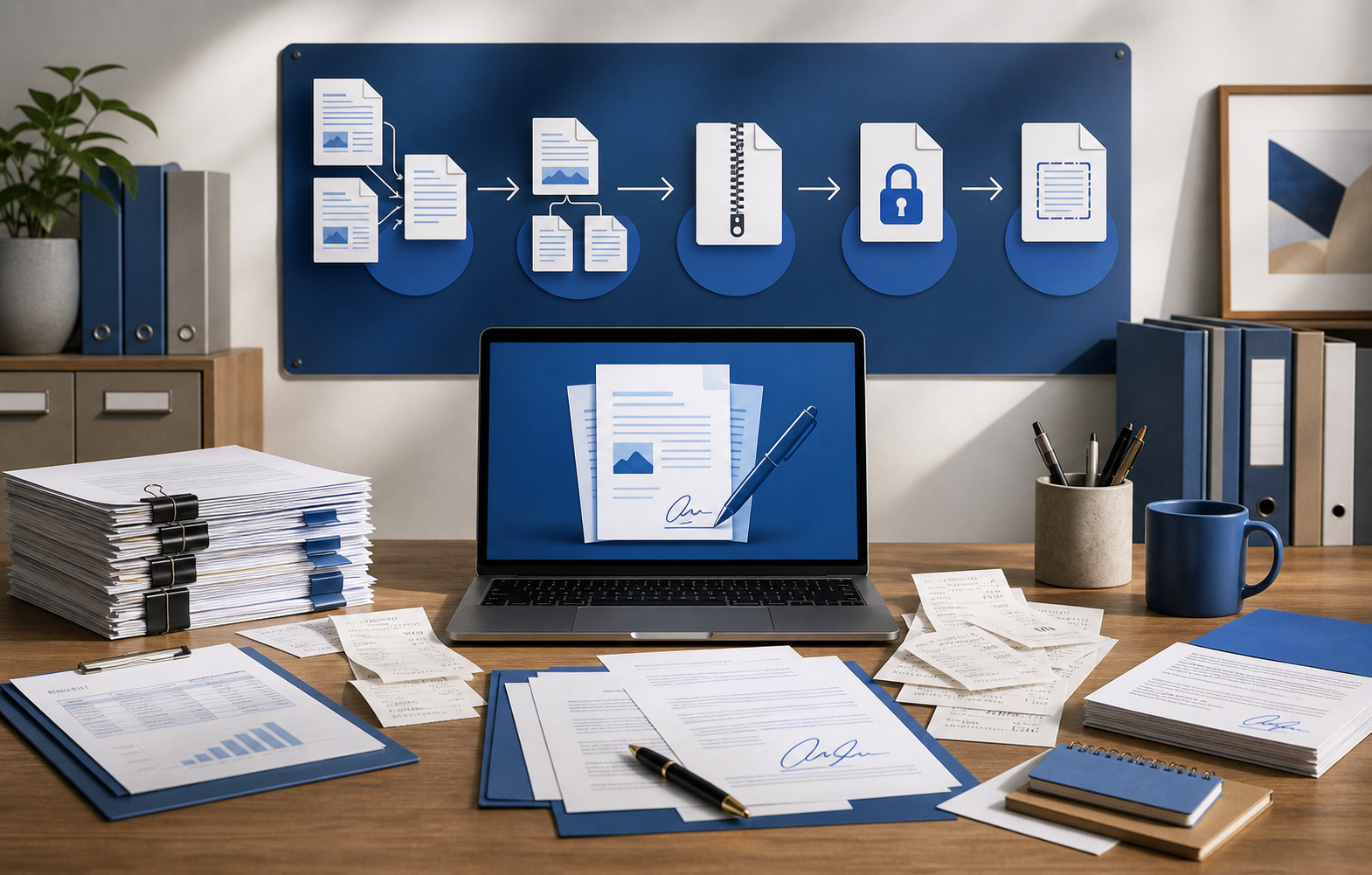
Illustration of small business PDF workflow with merge split protect and OCR steps

What this guide covers

One-time tool stack
Local PDF handling
Daily office workflows
Illustrated workflow

Small business PDF desk

Most office PDF work is operational: collect, clean, compress, protect, split, merge, OCR, and send a copy that opens correctly for the recipient.

1SourceKeep unchanged
2Working copyRun the job safely
3Converted outputInspect quality
4Shared finalSend only this copy
Why ConvertFast helps here

Why ConvertFast makes sense for practical PDF work

Small business PDF work is usually repetitive utility work, not full publishing work. That is where ConvertFast fits naturally. It gives you a local place to merge, split, compress, protect, unlock, export, and OCR PDFs without needing a separate product for each narrow task.

The advantage is not only cost. It is workflow continuity. When scan cleanup, page extraction, compression, and delivery all happen in the same desktop workspace, the process becomes easier to teach, easier to repeat, and much less dependent on whatever online tool someone happened to find that day.

CF

Merge, split, compress, protect, unlock, and OCR in one toolkit

CF

Useful for intake folders, delivery packets, and archive copies

CF

Local workflow that reduces tool sprawl for office teams

Most Teams Need Workflow Tools, Not a Full Publishing Suite

A lot of PDF subscriptions are priced for power users who edit long documents every day. Many small teams need something simpler: merge scanned receipts, split a signed page from a packet, compress a PDF for email, protect a file with a password, or extract pages for a customer.

ConvertFast focuses on those practical jobs. It is not trying to replace every enterprise review and compliance system. It gives you a local desktop workspace for the PDF chores that otherwise interrupt the day.

Make a Clean Intake Folder

When several people send scans, invoices, and reports, the mess usually starts before the PDF tool opens. Create an intake folder, rename files with dates or project names, then run merge, split, compression, or OCR on copies.

That structure matters because PDF work is often irreversible from the recipient's point of view. Once a compressed or flattened copy is emailed, you want the original still available.

Use OCR Only When Searchable Text Matters

OCR is useful for scanned contracts, receipts, IDs, and archive folders, but it is not magic. Always open the result and search for a known word. For critical documents, verify names, amounts, and dates manually.

If the PDF already contains selectable text, conversion or compression may be enough. OCR every file only when the output needs search or copyable text.

Build a Simple PDF Playbook

For recurring work, document the common paths: scan to PDF, compress under email limit, split signed pages, merge client packet, protect final copy, archive original. A playbook prevents each employee from inventing a new process.

The best PDF toolkit is the one your team actually uses consistently.

The Small Business View of PDF Work

A small team usually does not need an enterprise document stack for every PDF task. It needs a reliable way to handle receipts, signed pages, scan packets, proposals, invoices, onboarding forms, and customer-facing copies without opening five separate websites. That is a workflow problem more than a publishing problem.

Once you recognize that, the tool decision becomes clearer. You need quick utility actions that can be repeated consistently by people who are not PDF specialists, and you need outputs that can be reviewed before they are sent to clients, staff, or government portals.

What to Verify Before Sending a PDF

Review the page order, page count, text readability, scan orientation, file size, password state, and whether signatures or stamps still look correct. If OCR was used, search for a known phrase and test a few numbers or names. OCR success is never something to assume on faith.

This verification step matters because many PDF mistakes are subtle. A file may open and still be wrong for the recipient, especially when compression, OCR, or page extraction changed the structure.

PDF workflow comparison

Use this table to make the decision before changing the file. It is easier to choose the right output once the destination and risk are clear.

Full PDF subscription

Best for
Heavy editing, enterprise review, forms, and compliance teams
Watch out for
Recurring cost can be excessive for occasional utility work
ConvertFast workflow
Use when you need enterprise collaboration beyond conversion

Free PDF reader

Best for
Viewing, signing, and simple annotations
Watch out for
Editing, conversion, OCR, and batch work may be limited
ConvertFast workflow
Pair with ConvertFast for practical local PDF chores

ConvertFast PDF toolkit

Best for
Merge, split, compress, protect, unlock, export, and OCR work
Watch out for
Still verify final layout before sending
ConvertFast workflow
One local workspace for routine PDF operations

Daily PDF operations checklist

  1. 1Rename incoming PDFs before merging or splitting.
  2. 2Keep original scans separate from compressed delivery copies.
  3. 3Use OCR only when searchable or selectable text is needed.
  4. 4After splitting or merging, verify page order and page count.
  5. 5Compress for email only after the layout and readability are correct.

External references worth reading

These links point to external documentation and standards-oriented resources that help explain the file-format or privacy decisions behind this guide.

Keep file work local

Run this workflow in ConvertFast.

Convert, compress, edit, OCR, enhance, and organize files from one private desktop app.

Get ConvertFast Now