
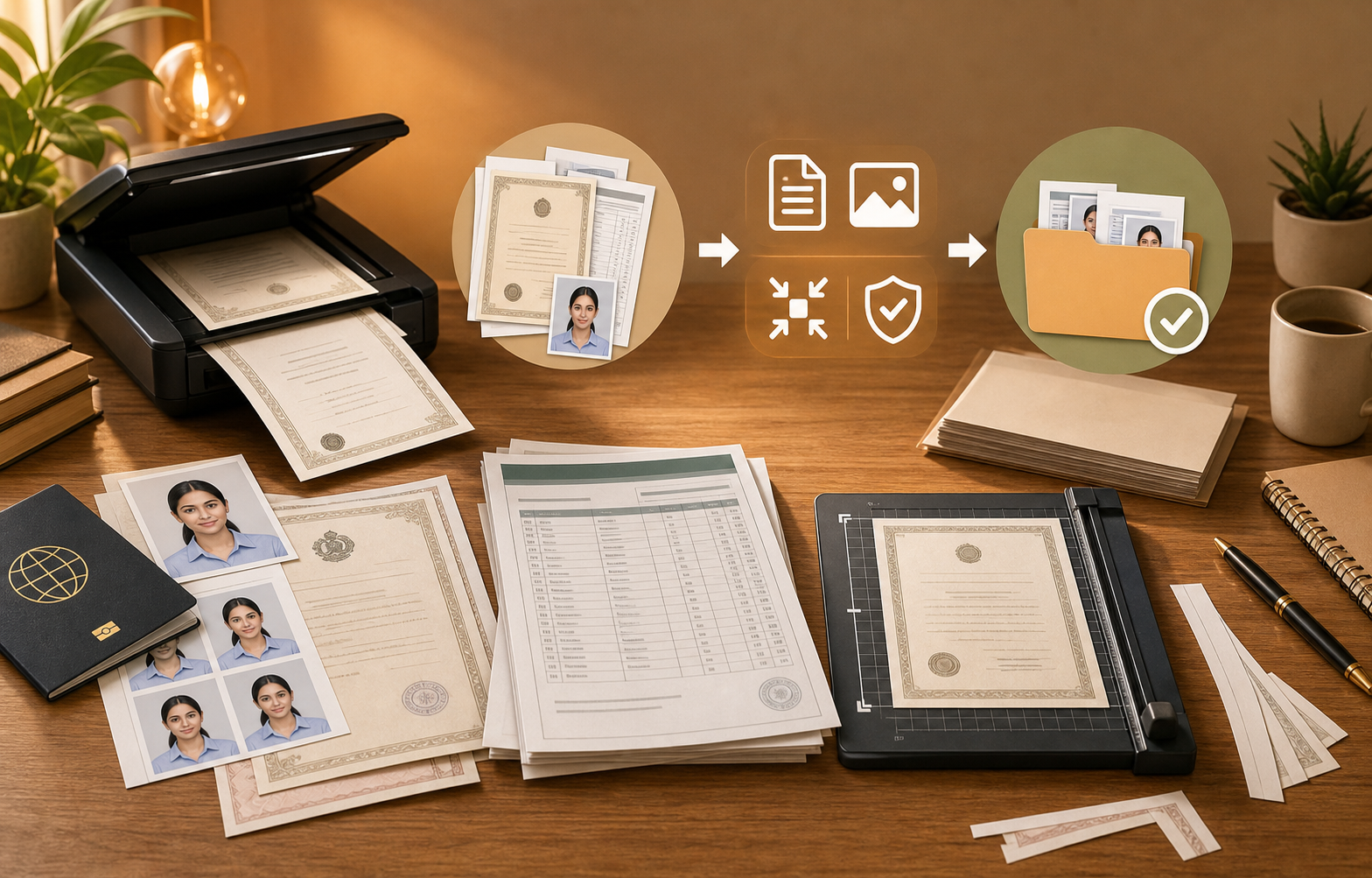
Read the Upload Rules Before Converting
Most rejected uploads fail for simple reasons: wrong format, file too large, unreadable scan, password-protected PDF, or a filename with unusual characters. Before touching the file, write down the accepted formats and maximum size.
If the page says JPG under 300 KB, do not upload a 4 MB HEIC. If it says PDF only, do not submit individual images unless the portal explicitly accepts them.
Make the Scan Readable First
Compression cannot fix a bad scan. Crop the edges, rotate pages correctly, remove blank pages, and confirm that small text is readable at normal zoom. If a document includes stamps or signatures, check those areas after compression.
For multi-page documents, PDF is usually easier for reviewers. For single ID photos or passport-style uploads, JPG is usually accepted more broadly.
Use Predictable File Names
Use short filenames with letters, numbers, and hyphens: passport-ahmed-saleque.jpg or transcript-2026.pdf. Avoid emojis, special punctuation, and long filenames copied from messaging apps.
Predictable names help you avoid sending the wrong file, and they reduce the chance of portal issues with unusual characters.
Open the Final File Before Uploading
After conversion, open the exact file you plan to upload. Check every page, confirm file size, and verify the extension. Do not assume the final file worked because the conversion finished.
Keep a folder with the accepted final copies. If the application portal times out, you can retry without recreating every document.
Why Portals Reject Files That Look Fine on Your Computer
Portal validation is usually stricter than human judgment. A document can look readable on your screen and still fail because the format is wrong, the file is too large, the filename contains unsupported characters, or the upload step expects one flat image instead of a layered or protected file.
That is why portal prep should be treated as its own workflow. The destination has rules, and the job is to satisfy those rules without degrading the content beyond readability.
Prepare Once, Upload Twice if Needed
If the portal is unstable, do not keep regenerating the same file after every timeout. Prepare the final upload set once, keep it in a dedicated folder, and retry the upload from there. That protects you from introducing accidental differences between attempts.
This matters especially for multi-document submissions where one changed filename or recompressed page can create confusion later when you need to prove what was submitted.