PDF Editor Without a Subscription: One-Time Options
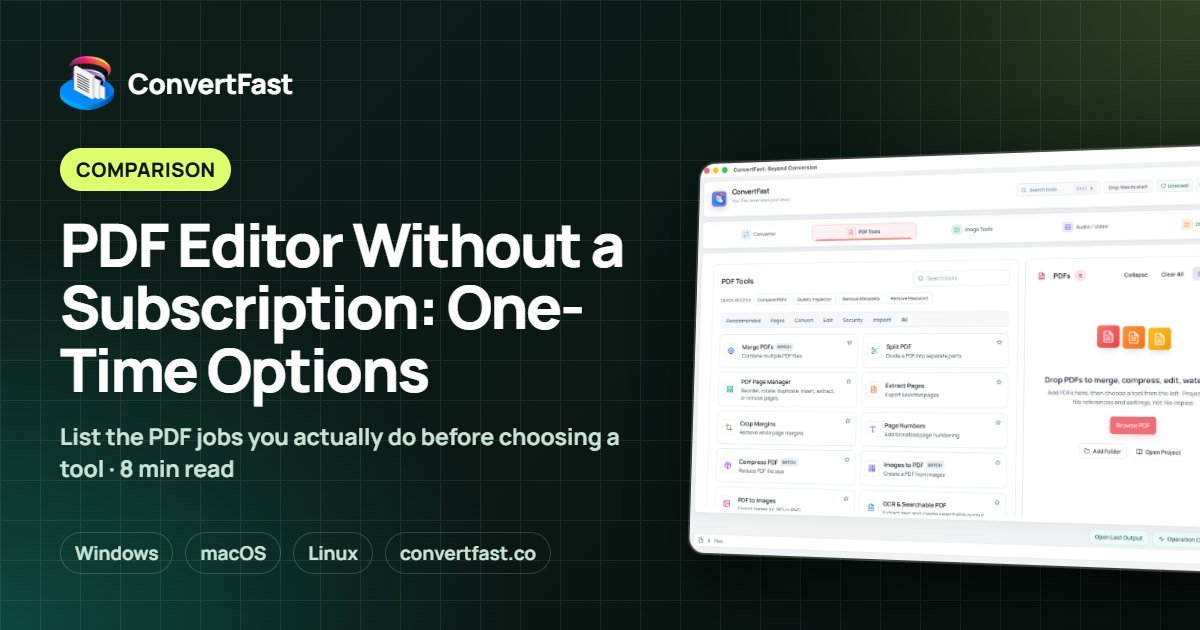
PDF editor without a subscription? Compare ConvertFast with Adobe Acrobat Pro, iLovePDF, Smallpdf, PDF24 Creator and PDFsam Basic.
Quick answer
You can do most everyday PDF work without a subscription by using a one-time purchase desktop app. ConvertFast offers merge, split, compress, page management, OCR, page numbers, metadata removal and password tools locally for a one-time price. Heavy visual editing of PDF layout is a different job that may need specialized software.
Many people searching for a PDF editor without a subscription are not trying to redesign documents. They want to merge a few scans, shrink a file for email, remove a page, add page numbers or lock a PDF with a password, and they do not want another monthly charge for it.
This guide separates the PDF jobs that a one-time desktop app handles well from the ones that need heavier tools, compares ConvertFast with Adobe Acrobat Pro, iLovePDF, Smallpdf, PDF24 Creator and PDFsam Basic, and shows a practical workflow. ConvertFast is listed first as our product; the other tools get short, factual descriptions.
| ConvertFast | iLovePDF, Smallpdf | Adobe Acrobat Pro | PDF24 Creator, PDFsam Basic | |
|---|---|---|---|---|
| Pricing model | One-time | Free with limits, paid plans | Subscription | Free |
| Files stay on your computer | Yes | No, uploaded | Varies | Yes |
| Works offline | Yes | No (web sites) | Varies | Yes |
| Merge, split, compress | Yes | Yes | Yes | Merge and split |
| OCR to searchable PDF | Yes | Varies | Varies | Varies |
| Also converts images, audio, video | Yes | Varies | PDF-focused | PDF-focused |
Start with the PDF jobs you actually do
The word editor covers very different tasks. Changing the wording inside a designed brochure is a heavy job. Combining, splitting, compressing and tidying a PDF is much lighter and covers most office and home needs.
Write down your last five PDF tasks. If they look like the list below, you probably do not need a heavyweight suite, and a one-time tool is a strong match.
- Merge several PDFs or scans into one file.
- Split a long PDF or extract certain pages.
- Reorder, rotate or delete pages.
- Compress a PDF so it fits an email or upload limit.
- Add page numbers.
- Make a scan searchable with OCR.
- Remove metadata or add or remove a password.
One-time purchase vs subscription: the honest trade-offs
A subscription spreads the cost over time and usually includes ongoing updates and cloud features. It can make sense if you need to collaborate in the cloud, rely on specific integrations or only need the tool for a short period.
A one-time purchase makes sense when you need the same set of tools for years. You pay once and keep using the app. The trade-off is that you only get what the app includes, and it may not match a large suite's every feature. For a deeper look at this decision, read one-time file tool vs subscription.
| Question | One-time purchase | Subscription |
|---|---|---|
| Cost over several years | Paid once | Keeps recurring |
| If you stop using it | You still own the app | Access usually ends when you stop paying |
| Best for | Steady everyday PDF tasks | Short-term needs or cloud collaboration |
| Risk | You may need another tool for rare, heavy tasks | Costs accumulate even in months you barely use it |
What ConvertFast covers in its PDF Tools
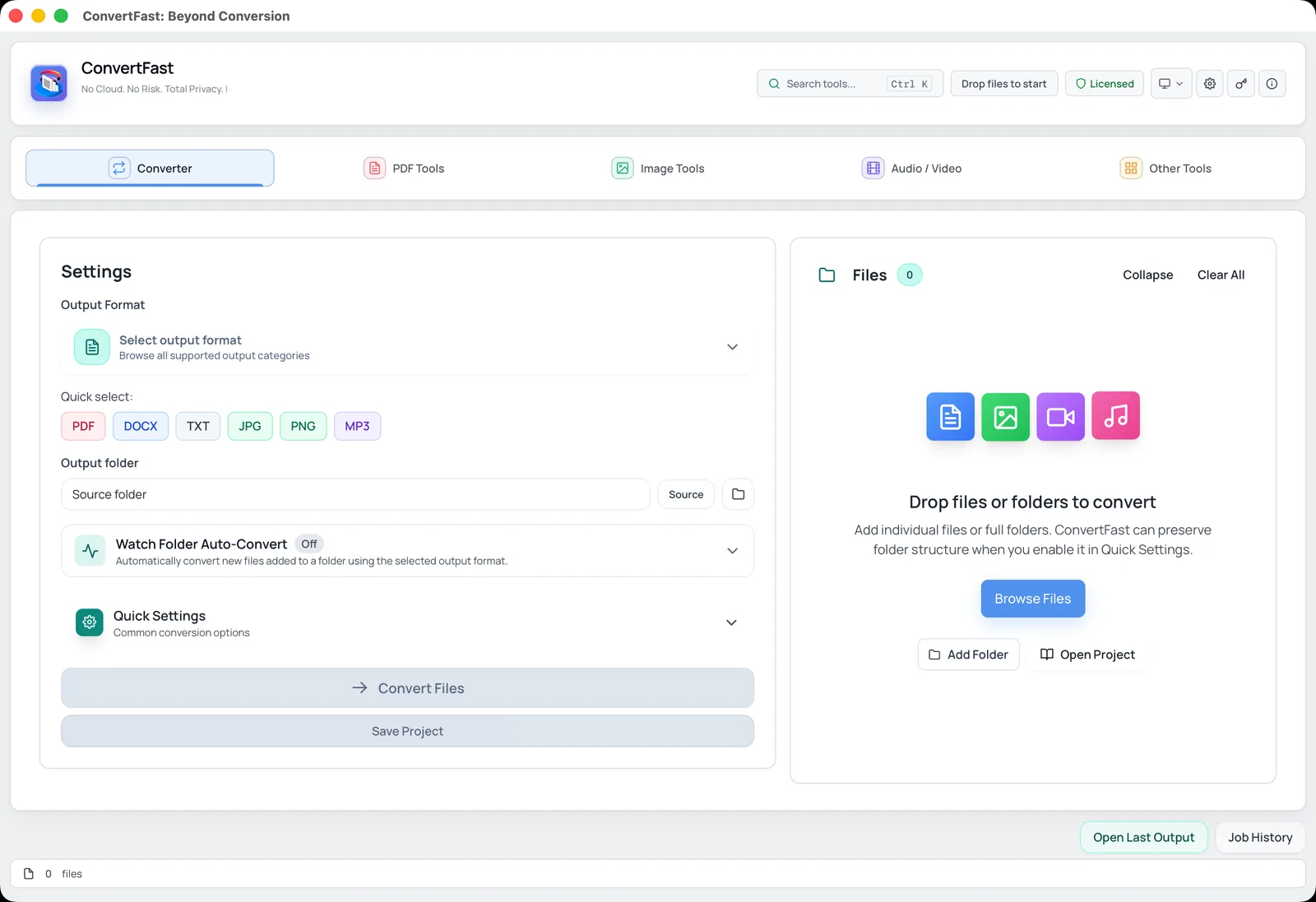
ConvertFast is a paid desktop app for Windows, macOS and Linux with one-time pricing for lifetime use, no subscription and one license for 2 devices. Core processing runs locally, so contracts, IDs and scans do not need to be uploaded to a website.
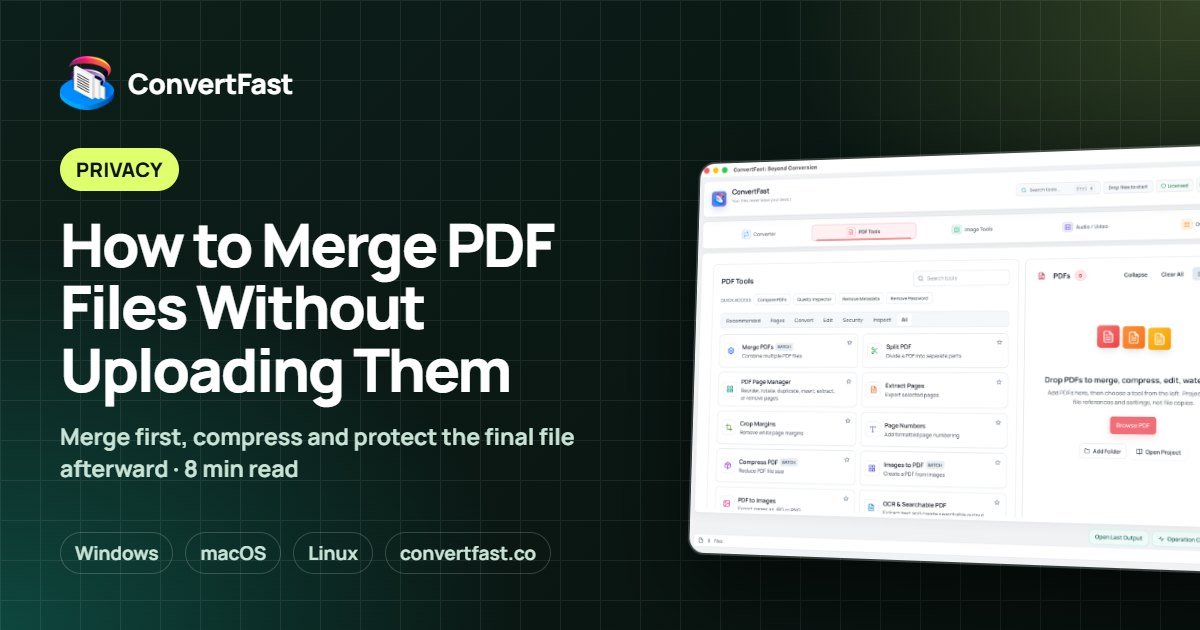
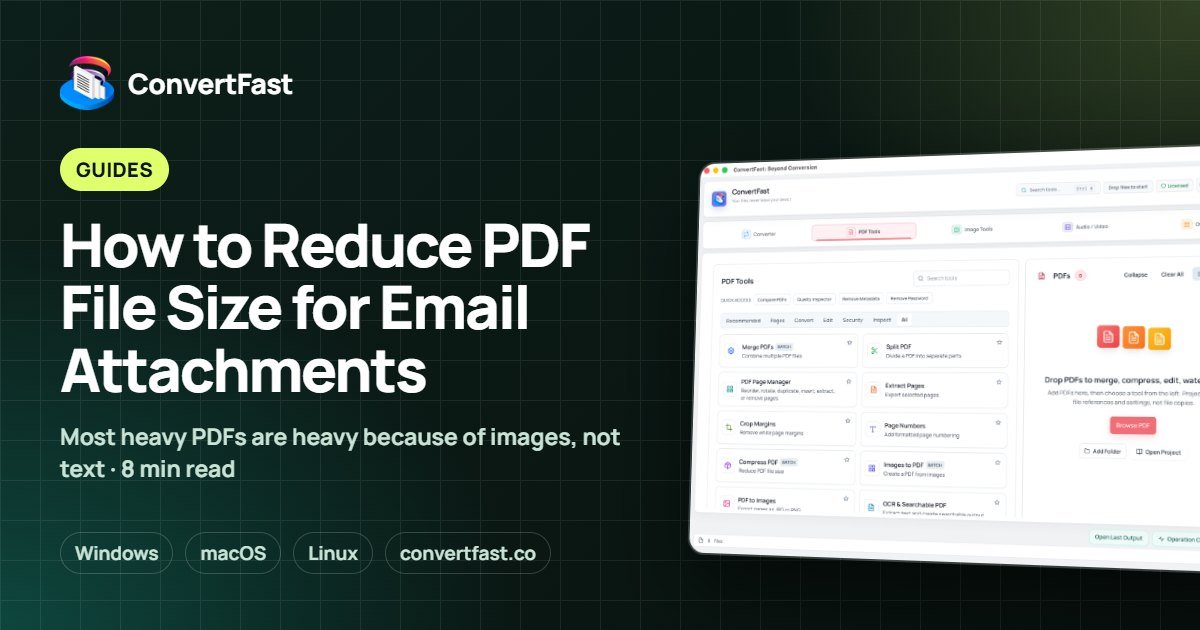
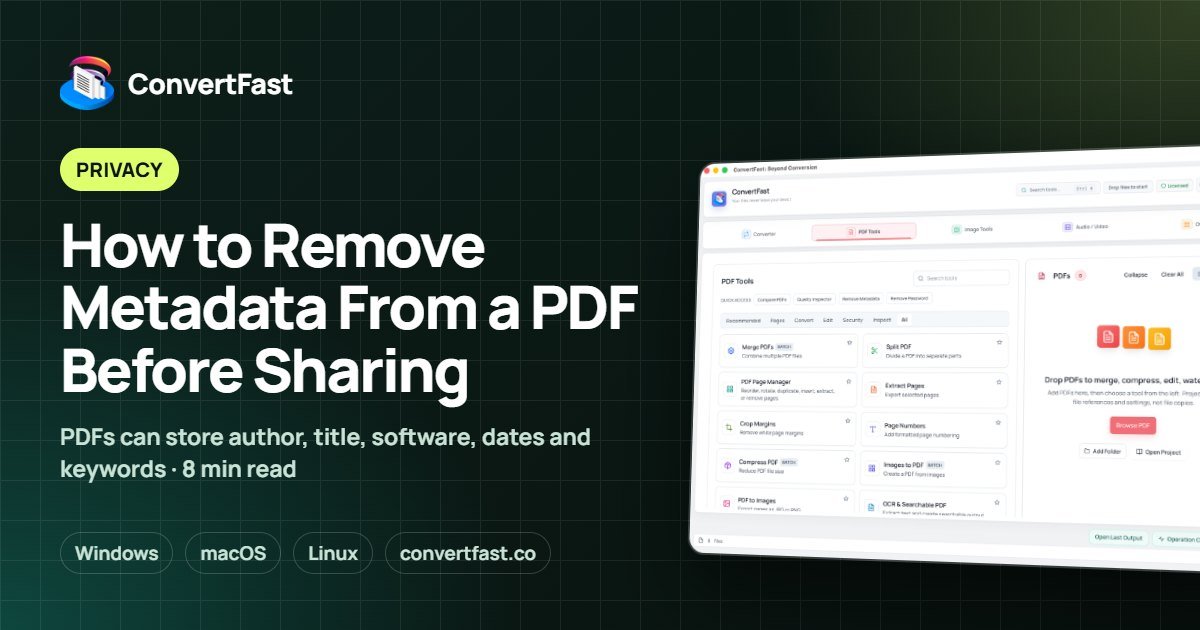
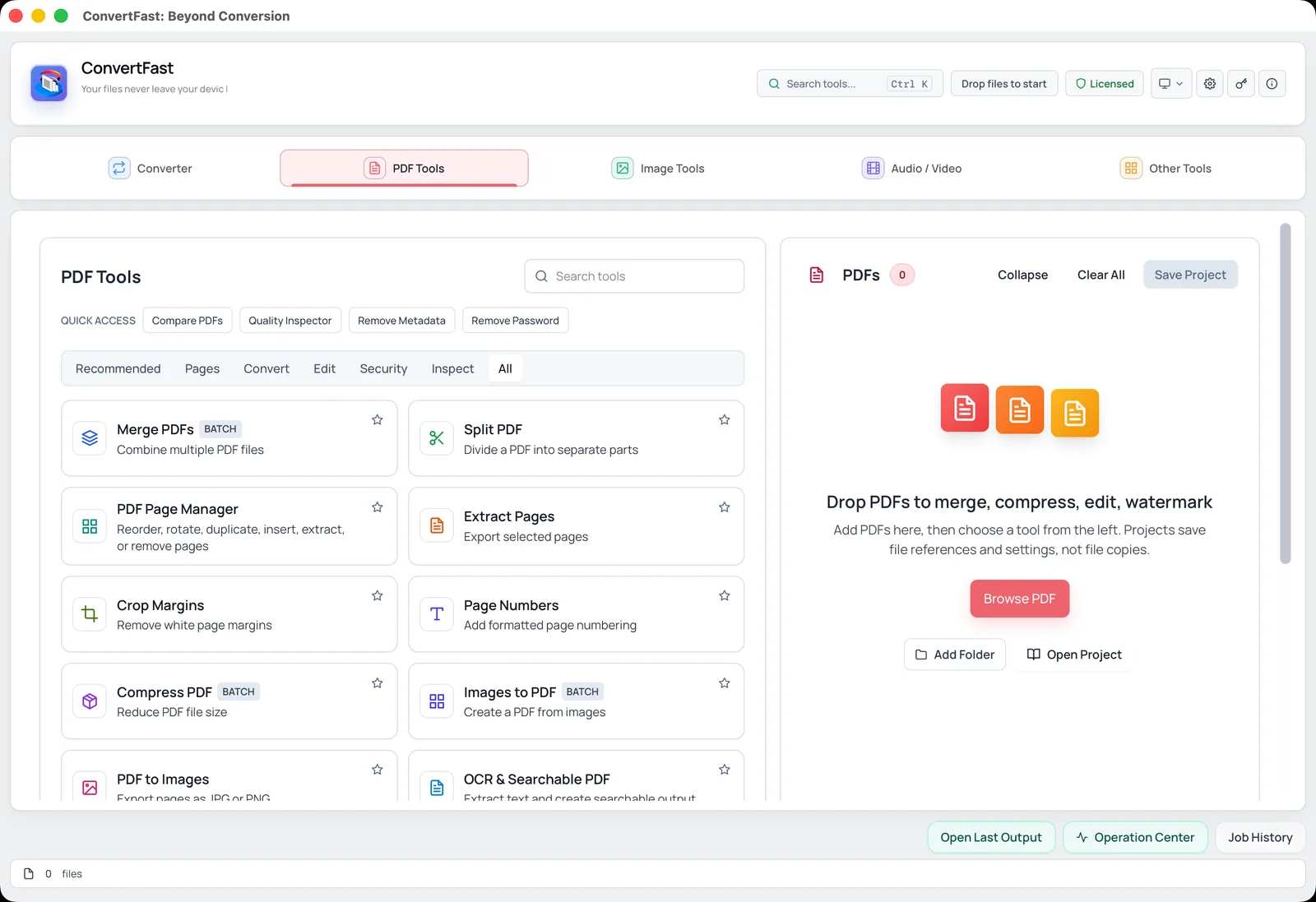
The PDF Tools tab includes Merge PDFs, Split PDF, a PDF Page Manager for reordering, rotating, duplicating, inserting, extracting and removing pages, Crop Margins, Page Numbers, Compress PDF, Images to PDF, PDF to Images, OCR and Searchable PDF, Compare PDFs, a Quality Inspector, Remove Metadata and Remove Password, plus password protection. It also converts between PDF and formats such as DOCX, JPG and PNG in the main Converter.
See the PDF tools overview and pricing. A free interactive demo of the real interface is on the home page.
A practical workflow: merge, compress and protect a PDF
Here is a common sequence for preparing a document pack for email, all done locally.
- 1Open ConvertFast and go to PDF Tools.
- 2Use Merge PDFs to combine your files, and set the order. See merge PDF files without uploading for ordering tips.
- 3Use the PDF Page Manager to rotate or delete any stray pages.
- 4Add page numbers if the document is long.
- 5Run Compress PDF to reduce the size, as explained in reduce PDF file size for email.
- 6Add a password if the file is sensitive, and send the password separately.
Scans, OCR and metadata
Scanned PDFs are pictures of pages, so you cannot search or copy their text. The OCR and Searchable PDF tool adds a text layer so text can be found and selected. Quality depends on scan clarity, so straighten and clean pages first; our guide to making a scanned PDF searchable has accuracy tips.
PDFs can also carry hidden information such as author names and the software used to create them. Before sharing, you may want to strip it. See remove metadata from PDF for what is stored and how to clear it.
Where other options still make sense
iLovePDF and Smallpdf are web-based PDF tool sites, and files are uploaded for processing. They also offer apps, with free use within limits and paid plans. They are fine for a quick, non-sensitive merge when you cannot install anything. See are online file converters safe.
Adobe Acrobat Pro is Adobe's full PDF editor, sold as a subscription. It may suit teams who need cloud signing, shared review and deep layout editing. If that describes you, a one-time app is not a full replacement.
PDF24 Creator is a free PDF tool for Windows, and PDFsam Basic is a free, open-source app to split and merge PDFs on Windows, macOS and Linux. They suit people who only need those jobs. For small businesses weighing everything, PDF toolkit for small business walks through a practical setup.
Questions to ask before choosing a PDF tool
Check whether the tool works offline, whether it uploads your files, and what the real price is over the time you expect to use it. Check which operating systems it supports and how many devices one license covers.
Then test it on a real document. Merge two PDFs, compress a large one, and open the results in another viewer to make sure pages, fonts and images look the same. If a tool passes those tests, it is likely to cover your routine work.
Finally, keep copies of the originals until you are satisfied with the output. A careful habit costs a few seconds and prevents most PDF mishaps.
Frequently asked questions
Is there a PDF editor without a subscription?
Yes. ConvertFast is a one-time purchase with lifetime use and no subscription, covering merge, split, page management, compression, OCR, metadata removal and password tools, all running locally. PDF24 Creator (Windows) and PDFsam Basic (split and merge) are free alternatives for narrower jobs.
Can ConvertFast edit the text inside a PDF?
ConvertFast focuses on PDF tasks such as merging, splitting, reordering pages, compressing, OCR, page numbers, metadata and passwords, plus converting PDFs to other formats. It is not positioned as a layout-design editor, so heavy visual rewriting may need a different tool.
Is a one-time PDF tool cheaper than a subscription?
Over several years of regular use it usually costs less, because you pay once. If you need a tool for only a short time or rely on cloud collaboration features, a subscription may be the better fit. Compare your actual tasks and expected usage.
Can I merge and compress PDFs without uploading them?
Yes. With a local desktop app such as ConvertFast, the files are processed on your own computer. This is useful for contracts, scans of IDs and other private documents that you would rather not send to a third-party server.
Does one license work on more than one computer?
One ConvertFast license covers 2 devices, for example a laptop and a desktop. It runs on Windows, macOS and Linux, so the 2 devices do not need to use the same operating system.