Prepare Documents for a Job Application Upload
Prepare documents for a job application upload: save as PDF, reduce file size, name files clearly and avoid portal rejections.
Quick answer
Save your resume and cover letter as PDF unless the portal asks for another format, keep each file within the stated size limit, and name them with your name and the document type. ConvertFast can convert, merge and compress documents locally, so private files are not uploaded to a converter website.
A job application can fail for reasons that have nothing to do with your skills: a file that is too large, a format the portal does not accept, a scan that is rotated, or a document called final_v7_REAL.docx. These are avoidable.
This guide walks through preparing resumes, cover letters, certificates and ID scans for an application portal. Limits and accepted formats differ between employers and platforms, so always read the application page's own instructions and treat the examples here as general guidance.
- Read the portal's accepted formats and size limit
- Save the resume and cover letter as PDF
- Compress any file that is over the limit
- Name each file with your name and document type
- Open every file once to confirm it looks right
- Remove metadata you do not want to share
Choose the right file format
PDF is the safest default for resumes and cover letters because it preserves layout on every device. A Word document can reflow, change fonts or show tracked changes, while a PDF shows what you intended. Some portals, however, parse resumes automatically and ask for DOCX or plain text. When the instructions name a format, follow them exactly.
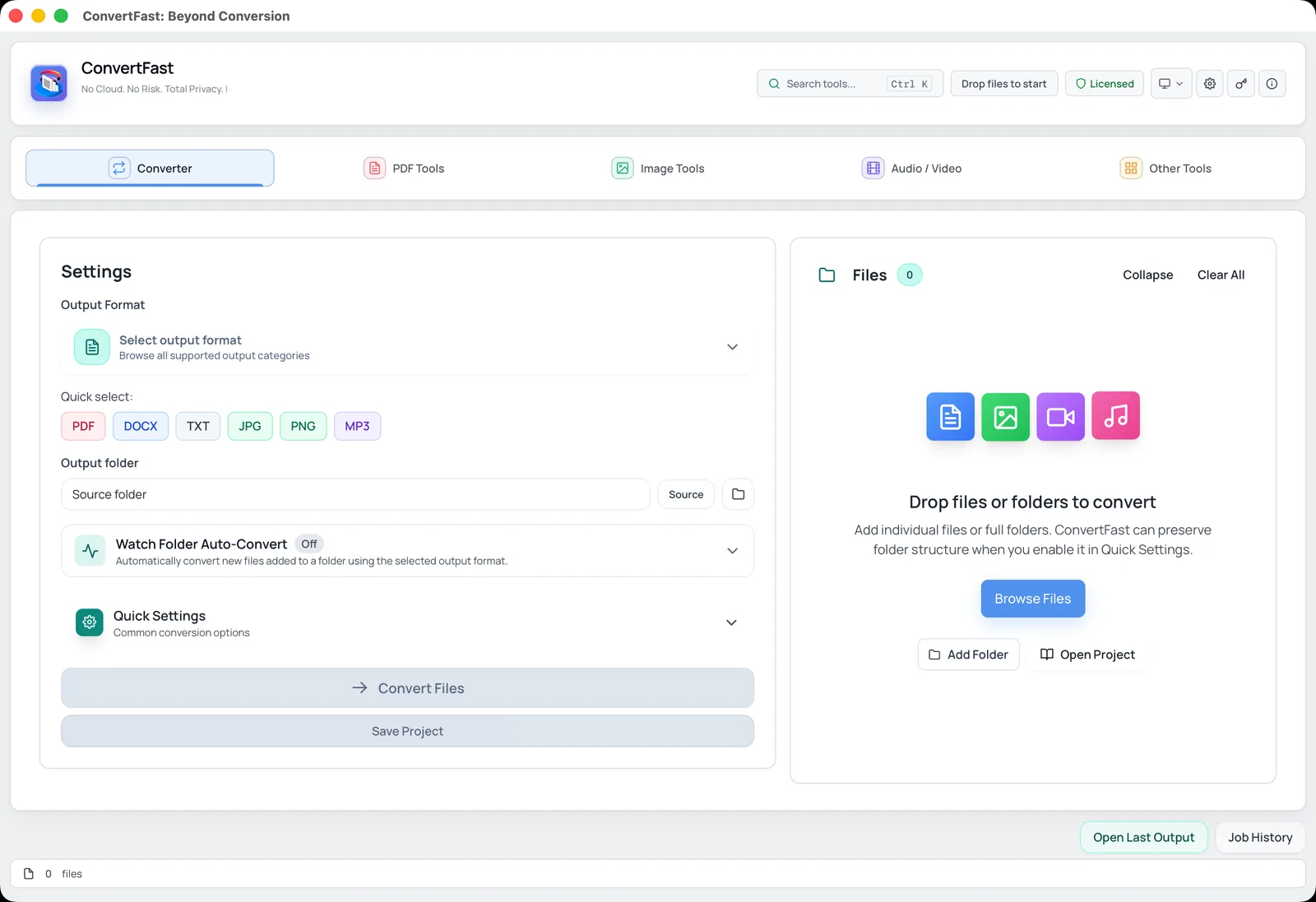
If your resume is in Word, you can convert Word to PDF locally before uploading. ConvertFast supports DOC, DOCX, TXT, RTF and PDF conversions, and it runs on your computer, so your resume is not uploaded to a converter website. For a wider look at the topic, see preparing documents for online applications.
| Document | Usual best format | Check |
|---|---|---|
| Resume | PDF (or DOCX if requested) | Portal may parse DOCX better |
| Cover letter | Some portals offer a text box instead | |
| Certificates and transcripts | PDF or JPG scan | Size and page count |
| ID or work-authorization scans | PDF or JPG | Only if requested, check privacy |
| Portfolio samples | PDF or link | Large files may need compression |
Get under the size limit
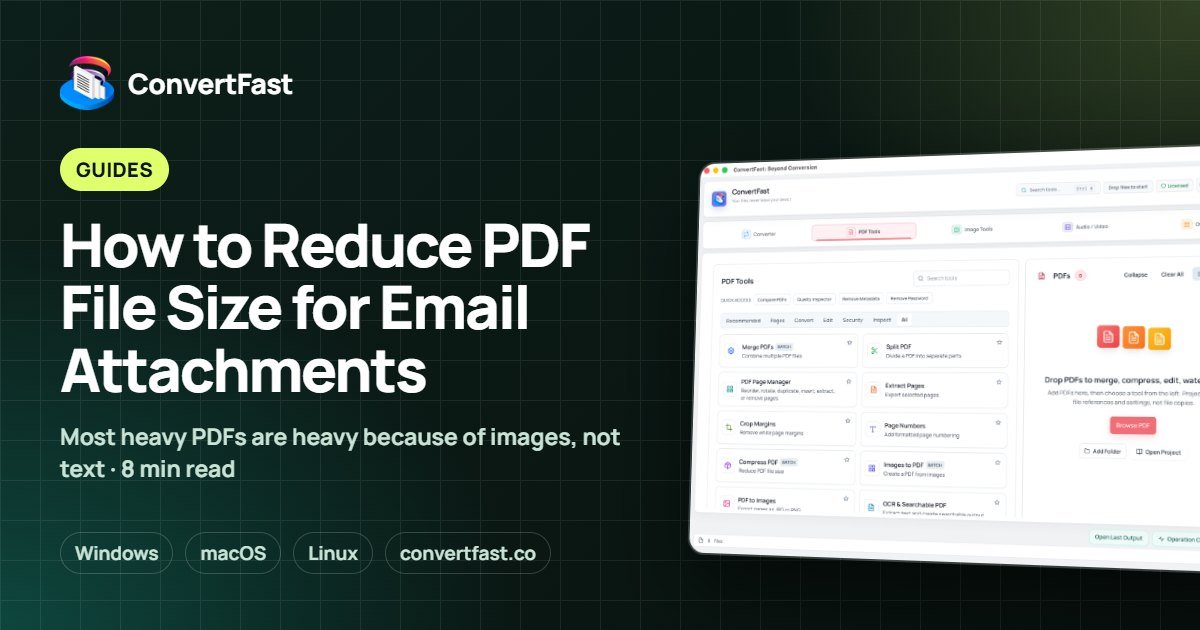
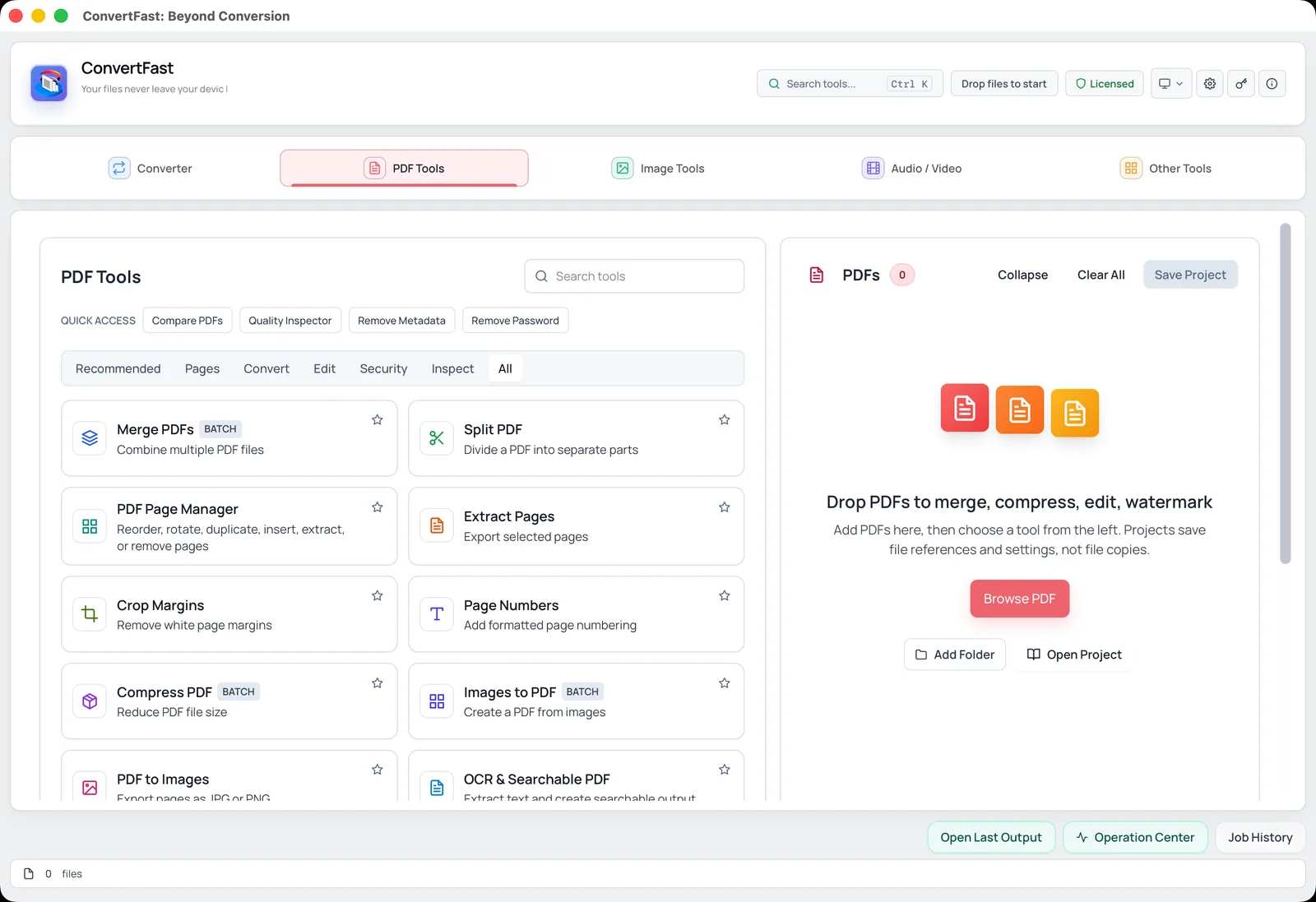
Portals often cap each upload, and a scan of a certificate from a phone camera can easily exceed it. The first fix is to reduce what is in the file: lower scan resolution, crop empty margins, and compress embedded images. ConvertFast PDF Tools includes Compress PDF and Crop Margins for this.
For photos of documents, the image compressor can reduce a JPG to a target size. The post on reducing PDF file size for email explains how images inside PDFs drive the size. Check your portal for the number it states, and aim a little under it.
- 1Check the maximum file size and number of files allowed.
- 2Open the PDF in ConvertFast PDF Tools and run Compress PDF.
- 3Compare the new size with the limit in your file manager.
- 4If still too large, crop margins or re-scan at lower resolution.
- 5Open the compressed file and confirm text is still sharp.
Combine, order and clean up pages
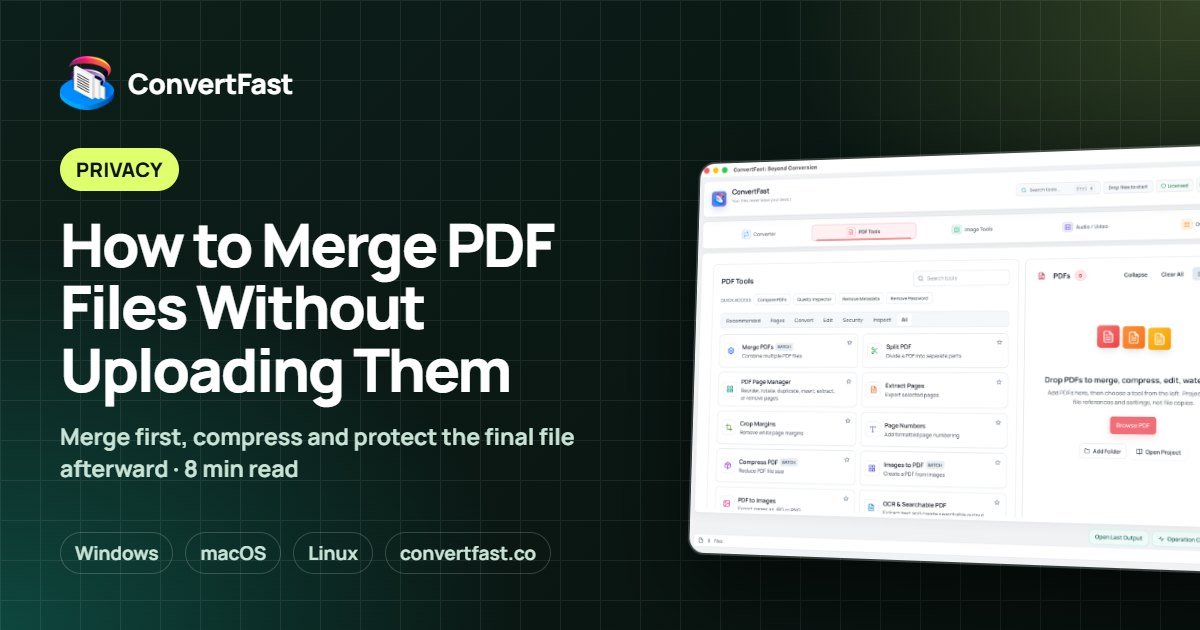
Some applications ask for one combined document: cover letter first, resume second, then certificates. You can merge PDF files in the order you choose, then use the PDF Page Manager to reorder, rotate or remove pages. If a scan arrived sideways, rotate the PDF before uploading.
If you scanned papers as photos, convert them to a single PDF with Images to PDF, which keeps pages in order. For scanned pages that are tilted, the Scan Cleanup tool in Image Tools can deskew them. And if a recruiter needs to search your text, OCR & Searchable PDF turns a scan into selectable text.
Name your files so they look professional
Recruiters often download dozens of files. A name like resume.pdf tells them nothing and sorts badly. Use your full name and the document type, with hyphens or underscores instead of spaces: jane-doe_resume.pdf, jane-doe_cover-letter.pdf. Avoid version words like final or new, and avoid special characters, which some portals reject.
If you have many files to rename, the batch rename guide shows how to do it safely with an undo option.
- Name plus document type
- No spaces or special characters if the portal is strict
- No version words such as final or v2
- Keep names short enough to display in a list
Final check before you submit
Open every file you plan to upload, even if you have opened it before. Look at the first and last page, confirm the page order, and check that no page is sideways or cut off. Scroll through the whole document if it is short enough.
Confirm that nothing private slipped in. A resume copied from an older template may include an old address or a track-changes comment. A merged PDF may contain a page you meant to leave out. Search the text for words like draft or comment if you are unsure.
Keep a folder with the exact files you submitted for each application, labeled by company and date. When an interviewer refers to something in your resume, you will know which version they saw. This also makes the next application much faster, since you can reuse and update a clean set of documents.
Protect your privacy before sending
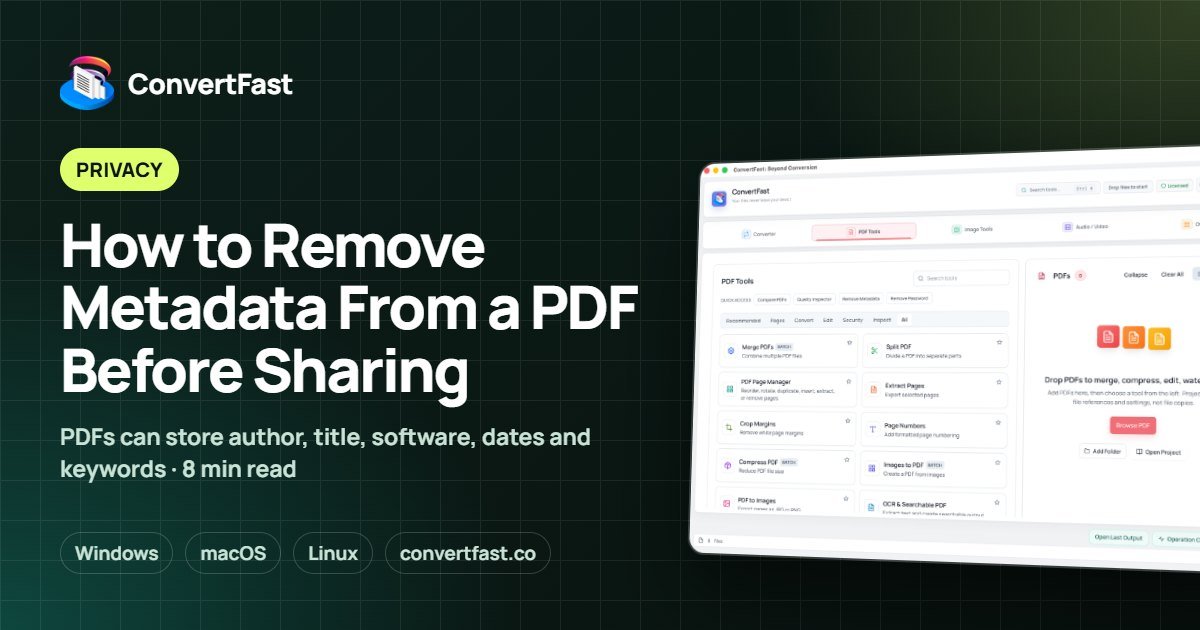
Documents carry hidden data. A PDF can store the author name, software used and edit dates; a photo of an ID or certificate can store location data. Before sending, use Remove Metadata in PDF Tools, and remove image metadata from any photos. If a document is sensitive and you want to send it to an employer, consider password protecting the PDF and sharing the password through a separate channel.
Also think about what you send. Only include IDs or government numbers when an employer has a legitimate need and asks for them. The private file conversion checklist offers more habits to protect personal documents.
Frequently asked questions
What file format should I use for a job application?
PDF is usually the safest because it keeps layout identical on every device. Follow the portal's instructions if it names a different format, such as DOCX for resume parsing. When in doubt, read the application page carefully or contact the employer for guidance.
My resume is too large to upload. What should I do?
Compress the PDF, crop empty margins, and reduce scan resolution for any scanned pages. Check the new size against the limit the portal states. ConvertFast PDF Tools has Compress PDF and Crop Margins, and it works locally so private documents are not uploaded.
Should I merge my resume and cover letter into one PDF?
Only if the portal asks for a single file or has only one upload slot. Otherwise upload them separately with clear names. When merging, put the cover letter first, then the resume, and check page order before submitting.
How should I name my resume file?
Use your full name and the document type, such as jane-doe_resume.pdf. Avoid spaces and special characters if a portal is strict, skip words like final or v2, and keep the name short. Clear naming helps recruiters find your documents quickly.
Do I need to remove metadata from documents?
It is a good habit. PDFs and images can contain author names, software details, dates and sometimes location data. Removing metadata before sending reduces what you share by accident. ConvertFast includes Remove Metadata for PDFs and metadata removal for images.