Bulk QR Code Generator: Make Hundreds of QR Codes From a CSV, Offline
Make one QR code per row of a CSV file, plus a printable PDF sheet, on your own computer. Also read QR codes and barcodes from images. Step-by-step guide.
Quick answer
To make QR codes in bulk, put one value per row in a CSV file (links, product IDs, ticket numbers), open ConvertFast's QR / Barcode Tools, choose CSV batch, pick the file, the column and an output folder, and click the button. ConvertFast saves one PNG per row (QR_001.png, QR_002.png and so on) and can also build a printable PDF sheet with 20 codes per page. Everything runs on your own computer.
Making one QR code is easy: any free website will do it. Making 300 of them for event badges, product labels, asset tags or a classroom set is where most generators fall down. You end up pasting links one by one, downloading files with random names, and uploading your customer or inventory list to a site you know nothing about.
ConvertFast's QR / Barcode Tools has three modes for this: Generate for a single styled code, CSV batch for many codes at once, and Read image for decoding a code that is already in a photo or screenshot. This guide shows how the batch and read workflows work, what you get, and the limits you should know before you plan a print run.
- 1Export a CSVOne value per row, with a header row
- 2Choose CSV batchIn QR / Barcode Tools, Other Tools tab
- 3Pick column and folderBlank column = the first column
- 4Get the filesQR_001.png, QR_002.png ... plus an optional PDF sheet
Need just one QR code? Make it free right here
For a single link, text, Wi-Fi login or email address, use the free generator below. It runs in your browser, nothing is uploaded, and you can download the code as PNG or SVG.
Bulk creation from a CSV file, printable sheets and reading codes from images are part of the ConvertFast desktop app, shown step by step in the rest of this guide.
Your file is not uploaded. It is processed right here in your browser, on your own device, because ConvertFast respects your privacy. If you sign in with Google after your first free try, only your email address is sent to us.
ConvertFast
Free web tool · No upload, processed on your device
Other Tools
All free toolsQR Code Generator
Text or URL to QR
No file needed for this tool. Set the options and press the button.
When you need a bulk QR code generator
A batch workflow pays off as soon as you need more than a handful of codes, or when each code carries different data. Typical jobs:
- Event badges or tickets: one code per attendee or ticket number
- Product and shelf labels: one code per SKU or product page
- Asset and inventory tags: laptops, tools, rooms, equipment
- Restaurant tables: one menu or ordering link per table
- Classrooms and workshops: one link per student, worksheet or station
- Real estate and flyers: one link per listing or campaign
Prepare the CSV file
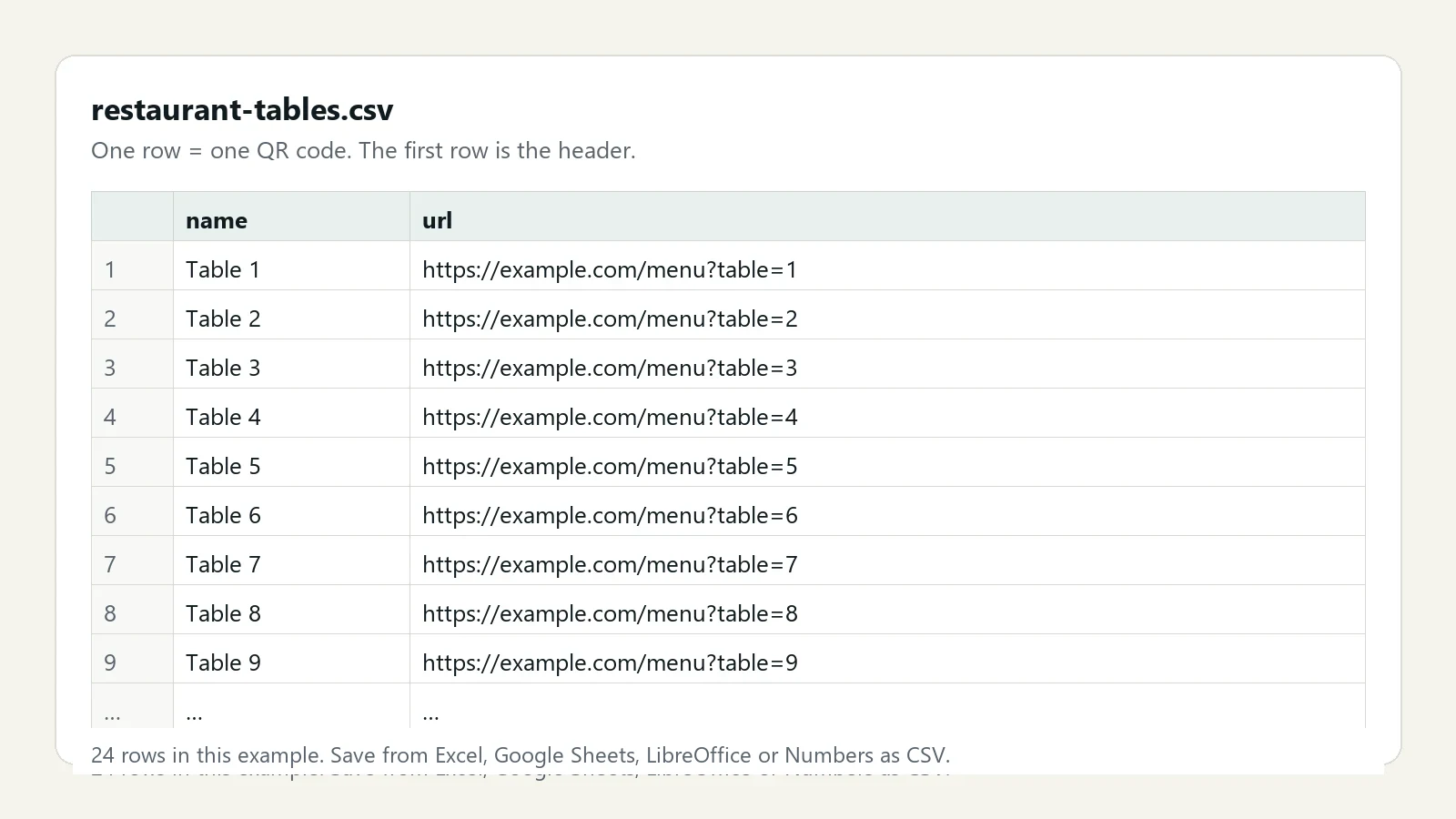
Any spreadsheet app can save a CSV (Excel, Google Sheets, LibreOffice or Numbers: use File, then Save As or Download, and choose CSV). The first row must be a header with column names. Every row below it becomes one QR code.
If your sheet has several columns, you can tell ConvertFast which one to encode. Leave the column name blank and it uses the first column. Empty cells are skipped, so a half-filled sheet does not produce blank codes.
| name | url |
|---|---|
| Table 1 | https://example.com/menu?table=1 |
| Table 2 | https://example.com/menu?table=2 |
| Table 3 | https://example.com/menu?table=3 |
Make the QR codes in one batch
ConvertFast creates the codes on your computer, so the CSV and its contents are never uploaded anywhere. That matters when the list contains customer names, internal asset numbers or private links.
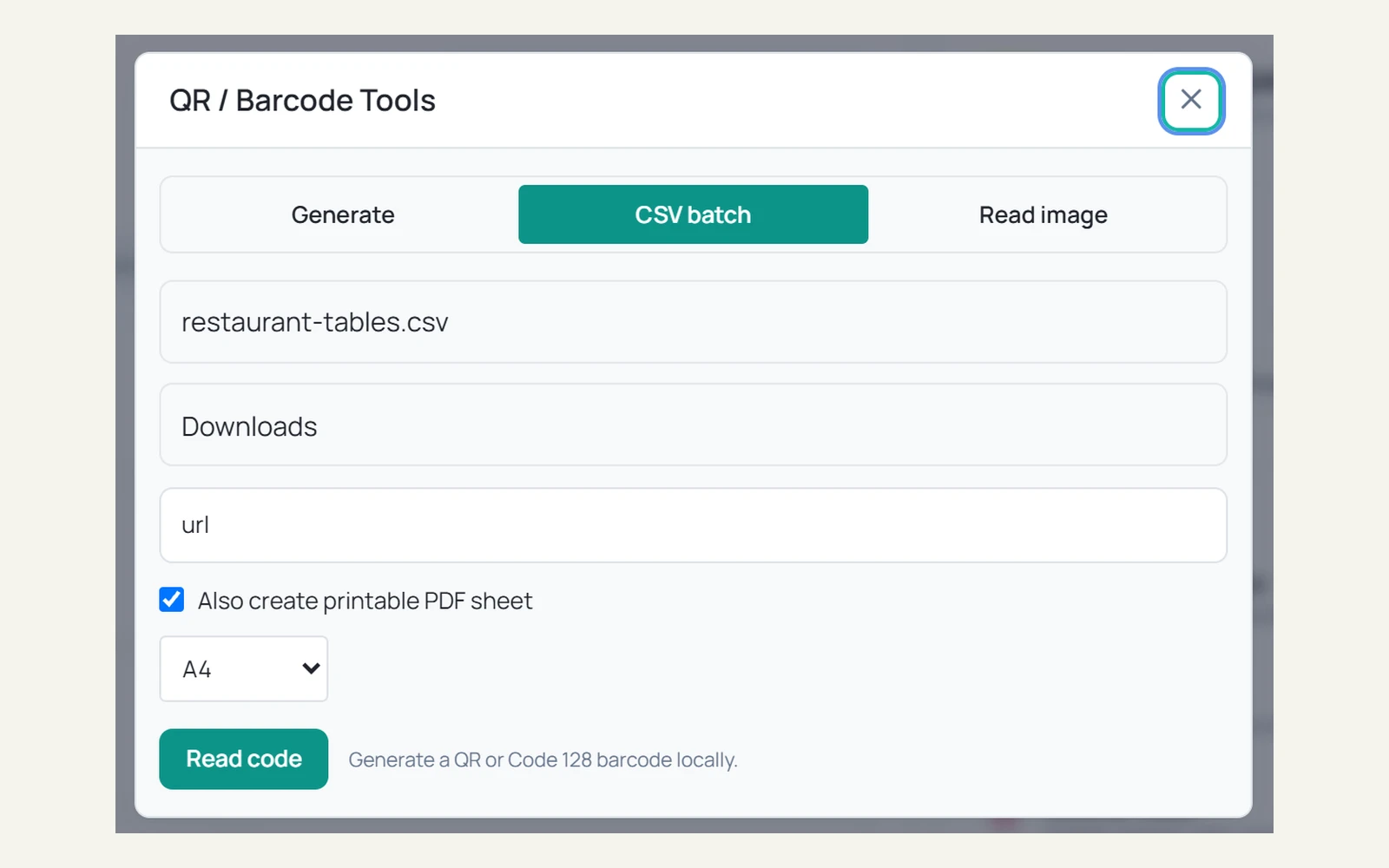
- 1Open ConvertFast and go to the Other Tools tab.
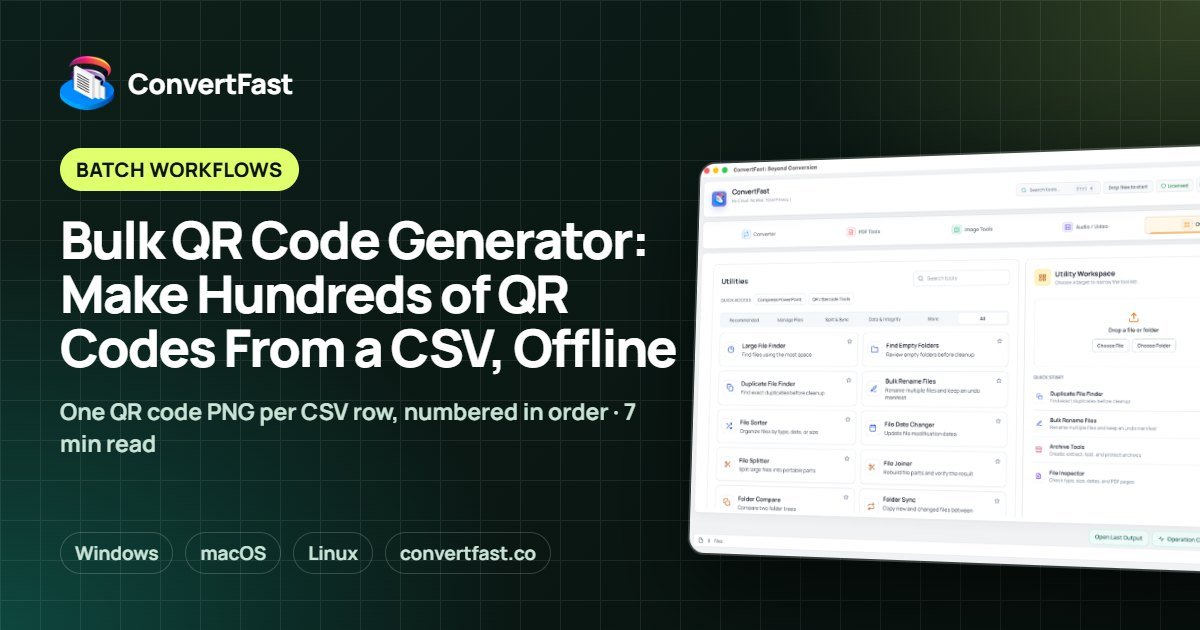
- 2Open QR / Barcode Tools and switch to CSV batch.
- 3Click Choose CSV file and select your file.
- 4Click Choose output folder.
- 5Type the column name to encode, or leave it blank for the first column.
- 6Tick Also create printable PDF sheet if you want a print-ready page, and choose A4 or US Letter.
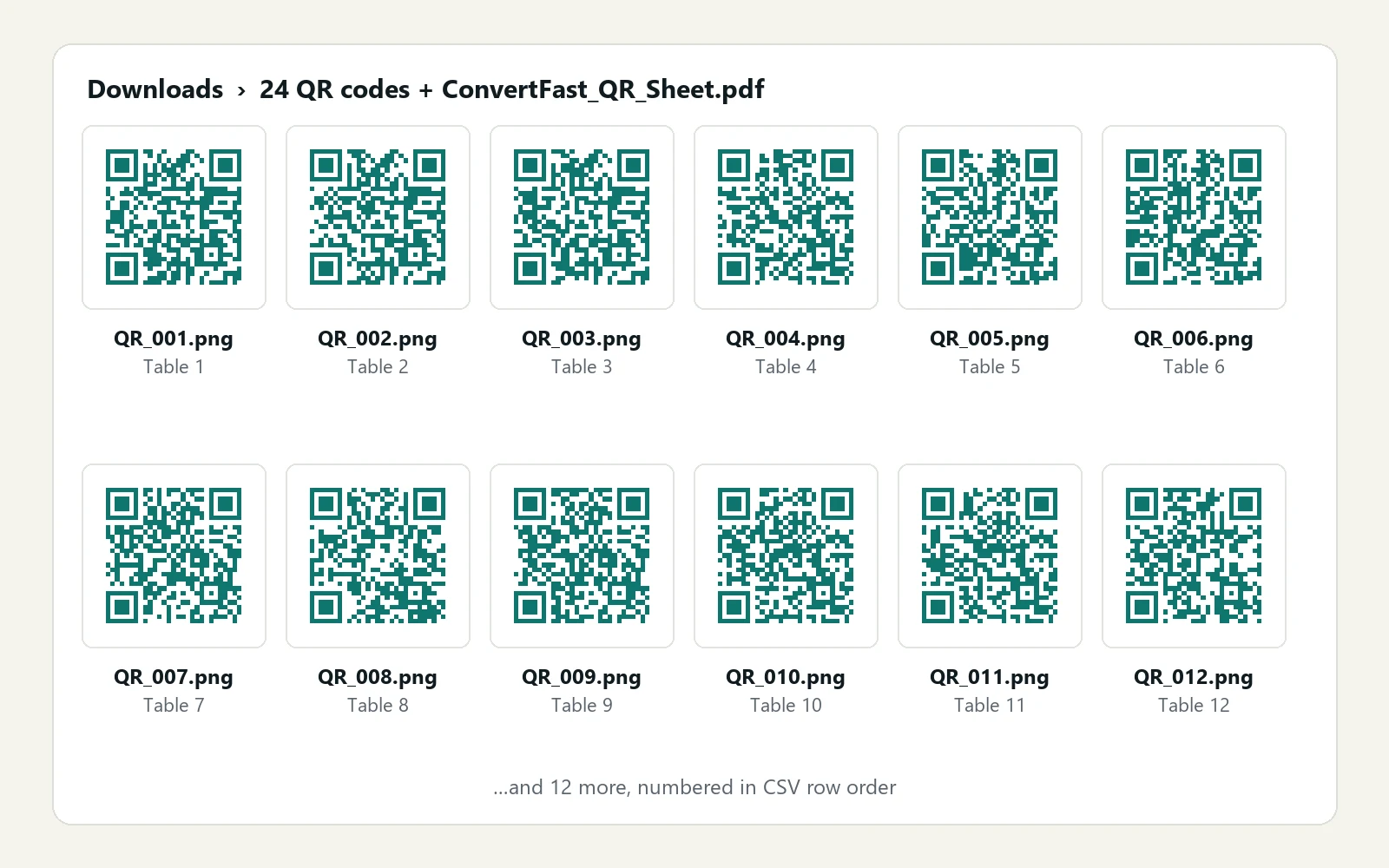
- 7Click the green button at the bottom to start the batch. Each row becomes a PNG named by its row number: QR_001.png, QR_002.png and so on.
What you get (and the limits to know)
The batch is built for speed and reliable scanning rather than decoration. Plan around these points:
| Feature | Single code (Generate) | Many codes (CSV batch) |
|---|---|---|
| QR codes | Yes | Yes, one per CSV row |
| Barcodes (Code 128, Code 39, EAN-13, EAN-8, UPC-A) | Yes | No, QR only |
| Custom colours, gradient, dot or rounded style | Yes | No, one clean teal-on-white style |
| Centre logo | Yes (uses high error correction) | No |
| Ready-made templates (Wi-Fi, email, phone, SMS, contact card, calendar) | Yes | Put the full text in the CSV cell |
| Output | PNG at 512, 1024 or 2048 px | PNG per row, plus optional PDF sheet |
| Printable sheet | - | 20 codes per page (4 x 5), A4 or US Letter |
The printable QR sheet
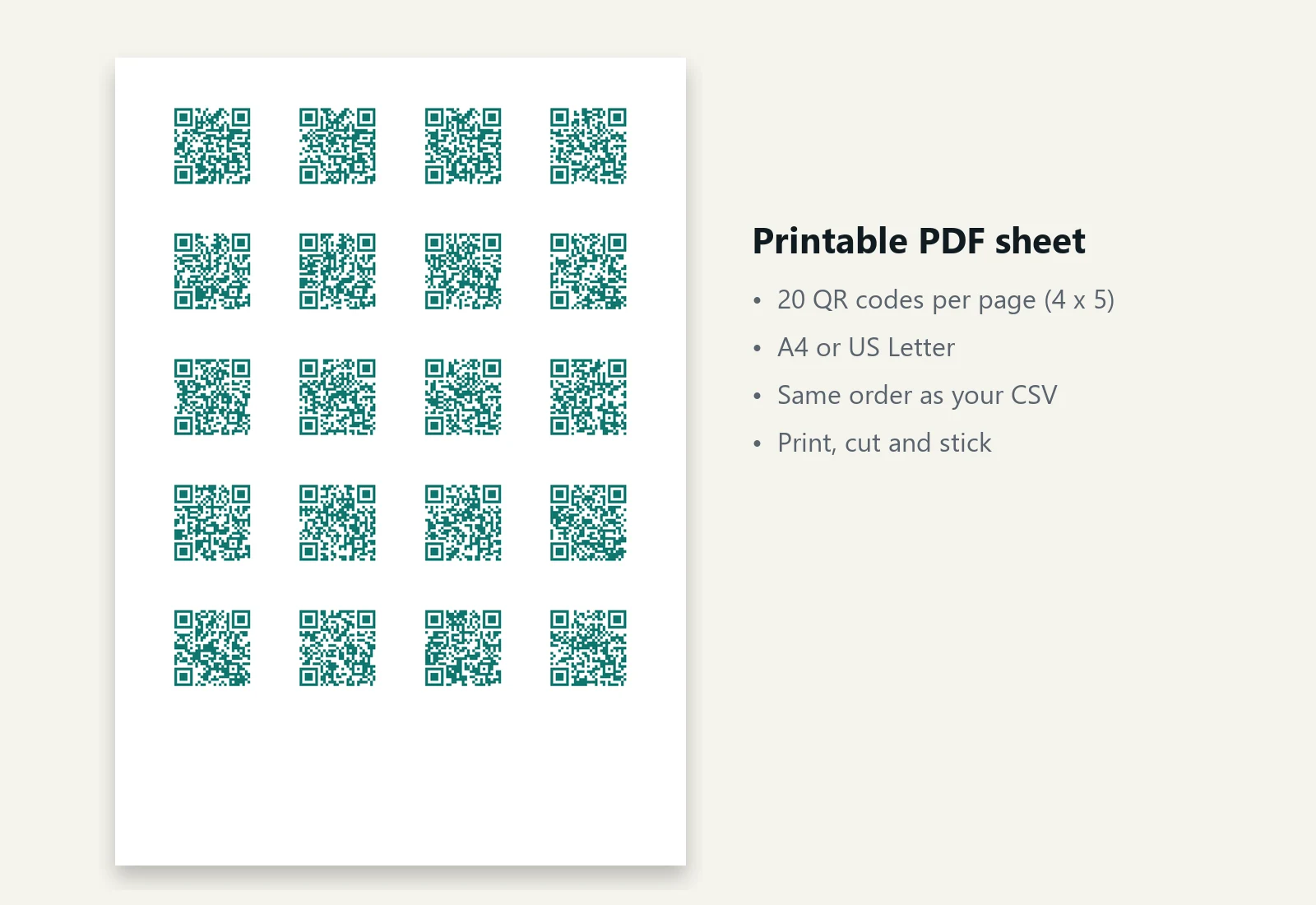
Tick Also create printable PDF sheet and ConvertFast places the codes in a grid of 4 by 5, so 20 codes per A4 or US Letter page, in the same order as your CSV. Print it, cut along the gaps and stick the codes on tables, badges or boxes.
Read a QR code or barcode from an image
Sometimes you have the code but not the link: a QR code in a screenshot, on a PDF flyer you saved as an image, or in a photo of a poster. Read image mode decodes it without a phone and without uploading the picture.
It reads QR codes and common barcodes from PNG, JPG, WebP and BMP images and shows the decoded text and the code type. This is also a quick way to check a batch: open one of the generated PNGs and confirm it reads back the value you expect.
- 1Open QR / Barcode Tools and switch to Read image.
- 2Choose the image that contains the code.
- 3Click Read code. ConvertFast shows the value and the code type.
Print and scan tips
- Print QR codes at least 2 x 2 cm (about 0.8 in); go bigger if people scan from a distance.
- Keep the white border (quiet zone) around each code; do not crop it off.
- Dark code on a light background scans best. Avoid printing on glossy or patterned surfaces.
- Shorter data makes simpler, easier-to-scan codes. Use short links where you can.
- Always test-scan a printed page with two different phones before printing the full run.
Free online QR generator or the desktop app?
For one quick link, the free QR code generator on convertfast.co is enough: it makes a PNG or SVG in your browser with no upload. When you need dozens or hundreds of codes, a printable sheet, barcodes, a logo in the middle, or a way to read codes from images, the ConvertFast desktop app does it offline on Windows, macOS and Linux, alongside 134 file formats and 19 utilities, for a one-time $24.99.
Frequently asked questions
How many QR codes can I make at once?
One per row of your CSV file. The batch runs on your own computer, so there is no online quota; very large lists simply take a little longer.
Can I make barcodes in bulk too?
Not at the moment. CSV batch makes QR codes only. Barcodes (Code 128, Code 39, EAN-13, EAN-8 and UPC-A) are made one at a time in Generate mode.
Can batch QR codes have my logo or colours?
No. Batch codes use one clean teal-on-white style that scans reliably. Logo, colours, gradient and dot styles are available for single codes in Generate mode.
Is my CSV uploaded anywhere?
No. ConvertFast is a desktop app and creates the codes on your computer. The file and its contents stay on your device.
Can ConvertFast read a QR code from a screenshot?
Yes. Read image mode decodes QR codes and common barcodes from PNG, JPG, WebP and BMP images and shows the value and the code type.
Do the QR codes expire?
No. They are static codes that contain your text or link directly, so they work as long as the link itself works.