How to Convert Files Without Internet (Offline Guide)
Convert files without internet on a plane, in the field or on a locked-down network. Offline workflows for images, PDFs, audio and video.
Quick answer
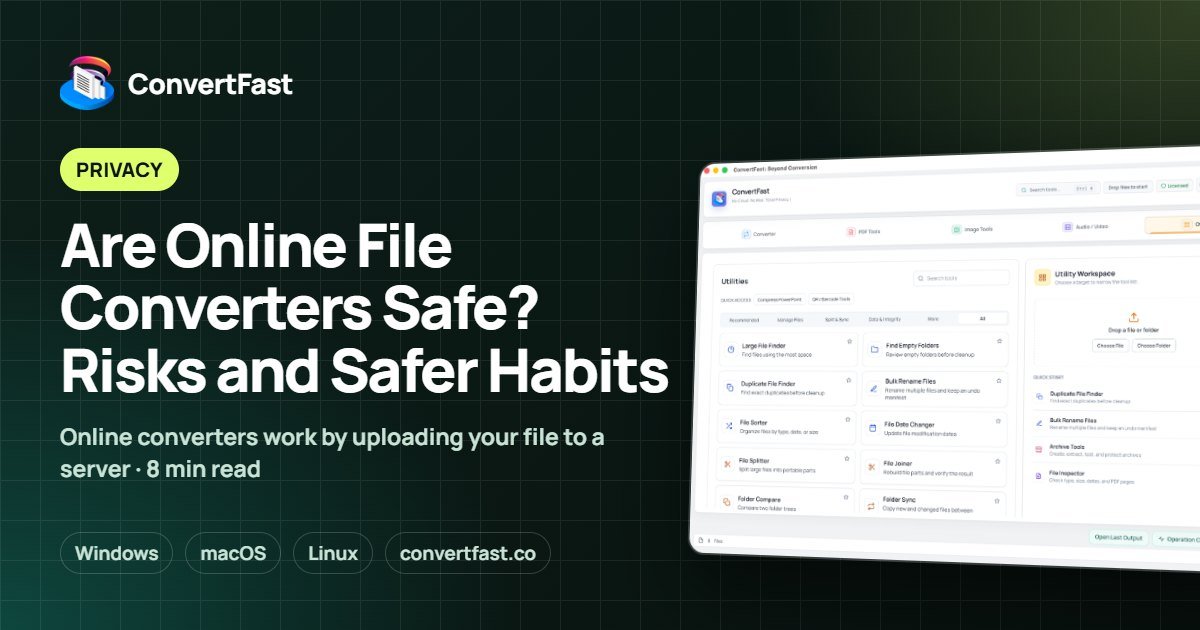
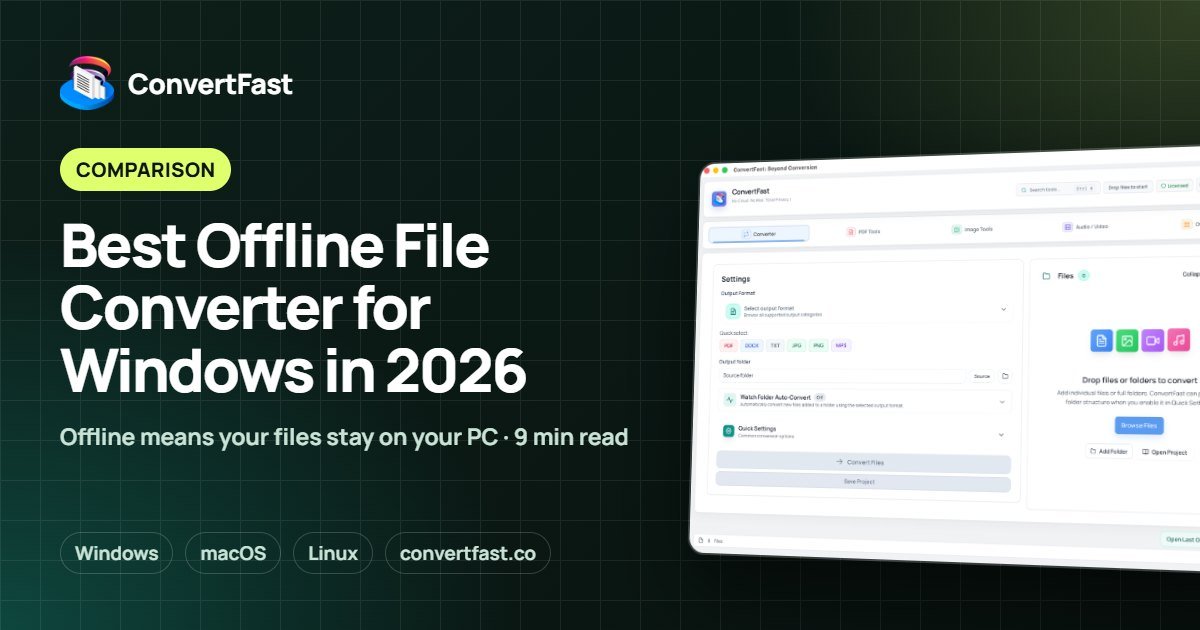
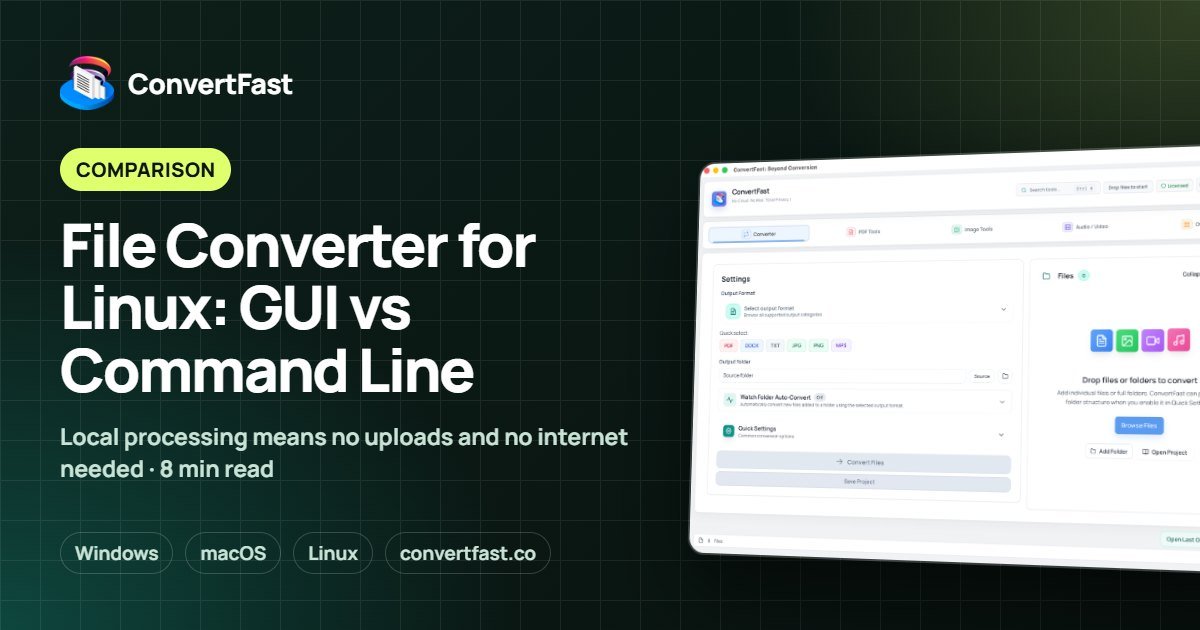
To convert files without internet, use software installed on your computer instead of a web converter. ConvertFast is a desktop app for Windows, macOS and Linux that runs core file processing locally, so you can convert images, PDFs, audio and video with Wi-Fi off, for example on a flight.
Most people discover the internet dependency of web converters at the worst moment: on a plane with a deadline, in a hotel with unreliable Wi-Fi, or on a corporate laptop with blocked websites. The converter page will not load, and even if it did, the file would have to be uploaded and downloaded again.
The fix is not a better connection. It is a tool that does the work locally. This guide explains why web converters need the internet, how offline conversion works, and how to prepare a laptop so file jobs never depend on Wi-Fi.
- Install your converter and open it once while connected
- Test one file in every format you expect to convert
- Copy source files onto the laptop, not a cloud link
- Set an output folder with enough free space
- Charge the laptop or bring a power adapter for long batches
- Keep originals in a separate folder from converted copies
Why web converters need the internet
A browser-based converter is a service running on someone else's server. Your browser uploads the file, the server converts it, and you download the result. No connection means no conversion. This also explains why such tools can slow down on large files: you wait for the upload, the processing and the download.
An installed desktop app skips all of that. The conversion engine lives on your computer, reads the file from your drive and writes the result back. Speed depends on your processor and storage rather than your connection. For more on that difference, see cloud converter vs desktop converter.
What you can convert offline with ConvertFast
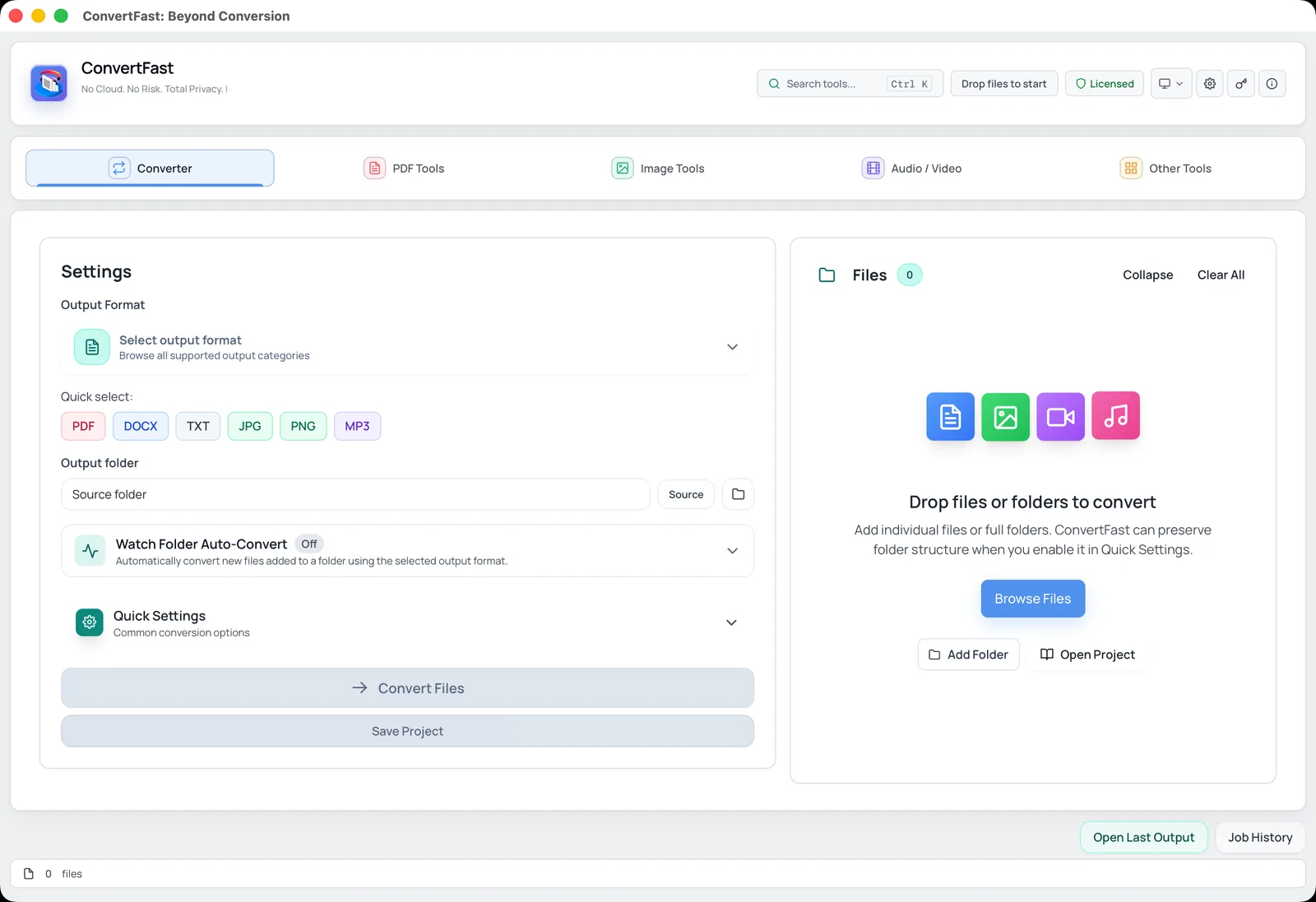
ConvertFast is a paid desktop app with 134 supported file formats and 2,388 verified conversion paths. Core file processing runs on your own machine, so files do not need to be uploaded to a website. A short list of what that covers:
The point is that everything lives in one app, so a single installation covers the jobs you would otherwise split across several websites.
- Images: JPG, PNG, WebP, HEIC, AVIF, TIFF, BMP, GIF, SVG, ICO and camera RAW formats
- Documents: PDF, DOCX, TXT, RTF, HTML, EPUB, CSV and more
- Audio: MP3, WAV, AAC, FLAC, OGG, M4A and others
- Video: MP4, MKV, MOV, AVI, WEBM and others
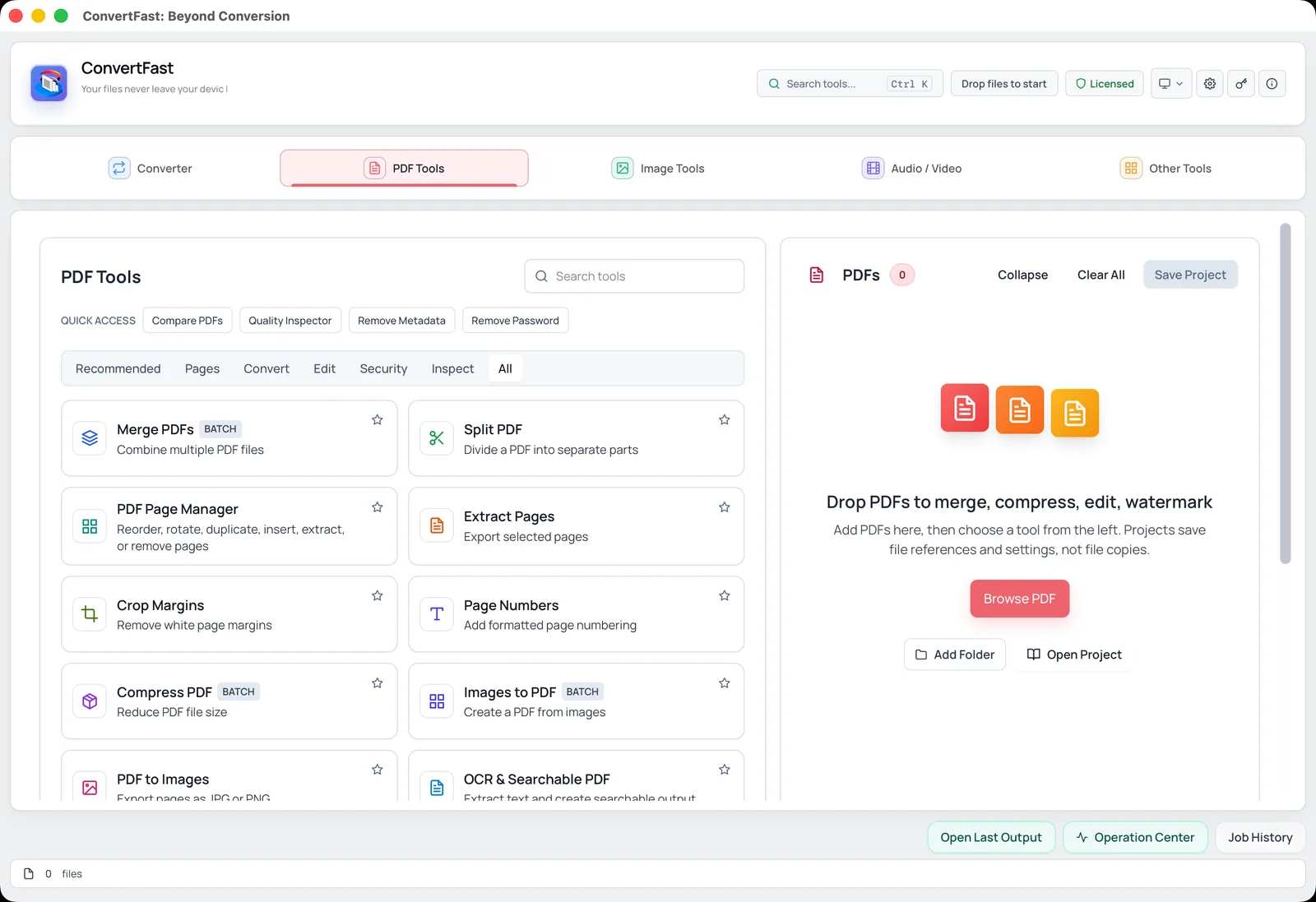
- PDF tools: merge, split, compress, add page numbers, password protection, OCR
Set up once, then work anywhere
Offline use is mostly preparation. The steps below take a few minutes and make sure nothing surprises you at 35,000 feet. One thing to verify: if an application needs to check a license or activate while you are online, do that before you leave. Check the product's own activation instructions on the ConvertFast pricing and license page so you know what applies to your device.
- 1Install the app and open it while you still have a connection.
- 2Run a test conversion with a small sample of each file type you will need.
- 3Copy the real source files to a local folder on your laptop.
- 4Create an output folder, ideally on a drive with plenty of free space.
- 5Turn off Wi-Fi and run one more test to confirm everything works with no network.
- 6Convert your full batch and keep originals untouched.
Offline workflows for common situations
Different situations call for different jobs. Here are four that come up often, with the tool page or post that covers the details.
Travelers with an iPhone often need HEIC photos in a more common format; the HEIC to JPG route handles it locally. Remote workers on poor connections often need to compress or merge PDFs for a client: see merge PDF files and reduce PDF size for email. Creators on location can extract audio or convert clips, for example MP4 to MP3. People on restricted corporate networks, where converter sites are blocked, can simply use a local app.
| Situation | Typical job | Offline approach |
|---|---|---|
| Flight | Prepare documents for a meeting | Merge and compress PDFs locally |
| Field work | Photos from a phone camera | Batch convert HEIC to JPG |
| Hotel Wi-Fi | Large video to share | Compress video before uploading later |
| Locked-down office | Web tools blocked | Local desktop converter |
| Remote area | Podcast or interview audio | Extract and convert audio on the laptop |
Automate offline work with Watch Folder
If you collect files all day and want conversions to happen on their own, ConvertFast includes Watch Folder Auto-Convert. It converts new files that appear in a folder you choose. Drop camera imports into the folder and the converted copies are waiting when you return. No connection is needed, since the folder and the converter are both on your computer.
For ideas on structuring recurring jobs, see building repeatable file workflows. The batch tools overview lists what can be run in bulk.
Common offline pitfalls and how to avoid them
The most frequent offline problem is forgetting to move the source files. A document stored only in a cloud drive may show as available but not actually exist on the laptop until it is synced. Mark folders as available offline, or copy them locally, before you disconnect.
Storage is the next surprise. Converting video or thousands of photos can need many gigabytes of free space for the output. Check free space first, and choose an output folder on a drive that has room.
Battery matters for long batches. Large conversions use the processor heavily and drain a laptop quickly, so plug in when you can. Lastly, keep your conversion app and any sample test files together in one folder, so a quick sanity check is possible even when you are far from help.
Privacy is the second reason to go local
Even with a stable connection, local conversion has a privacy edge. A file that never leaves your computer cannot be intercepted in transit or retained by a third party. That matters for contracts, identity scans and client artwork. The private file conversion checklist walks through habits that keep sensitive files under your control, and are online file converters safe explains the risks of upload-based tools.
If you are curious about the app before buying, the website offers a free interactive demo of the real interface. It is only a demo and does not process real files.
Frequently asked questions
Can I convert files without internet at all?
Yes, with software installed on your computer. Desktop apps such as ConvertFast process files locally, so they work with Wi-Fi off. Web converters cannot, because they depend on uploading your file to a server. Prepare by installing and testing the app while you are still online.
Does ConvertFast need internet to convert files?
Core file processing runs locally on your computer, so converting does not require uploading to a website. Check the license and activation details on the pricing page and complete any one-time setup while online. Then test with the network off before you travel.
Which formats can I convert offline?
ConvertFast supports 134 formats across images, documents, audio and video, including JPG, PNG, WebP, HEIC, PDF, DOCX, MP3, MP4 and MKV. It also offers PDF tools such as merge, split and compress. All of these operate on files stored on your own drive.
Is offline conversion faster than online?
Often yes for large files, because there is no upload and download step. Speed then depends on your computer's processor and storage. Very small files may feel similar either way. For big batches of photos or video, local conversion usually saves noticeable time.
Can I automate conversions offline?
Yes. ConvertFast has Watch Folder Auto-Convert, which converts new files added to a chosen folder. Because both the folder and the app are on your computer, it keeps working without a connection. Set the output format in advance and test with one file first.