Best Batch Image Converter: What to Look For in 2026
Compare batch image converters: ConvertFast vs XnConvert, IrfanView, ImageMagick, CloudConvert and more by speed, formats, folders and privacy.
Quick answer
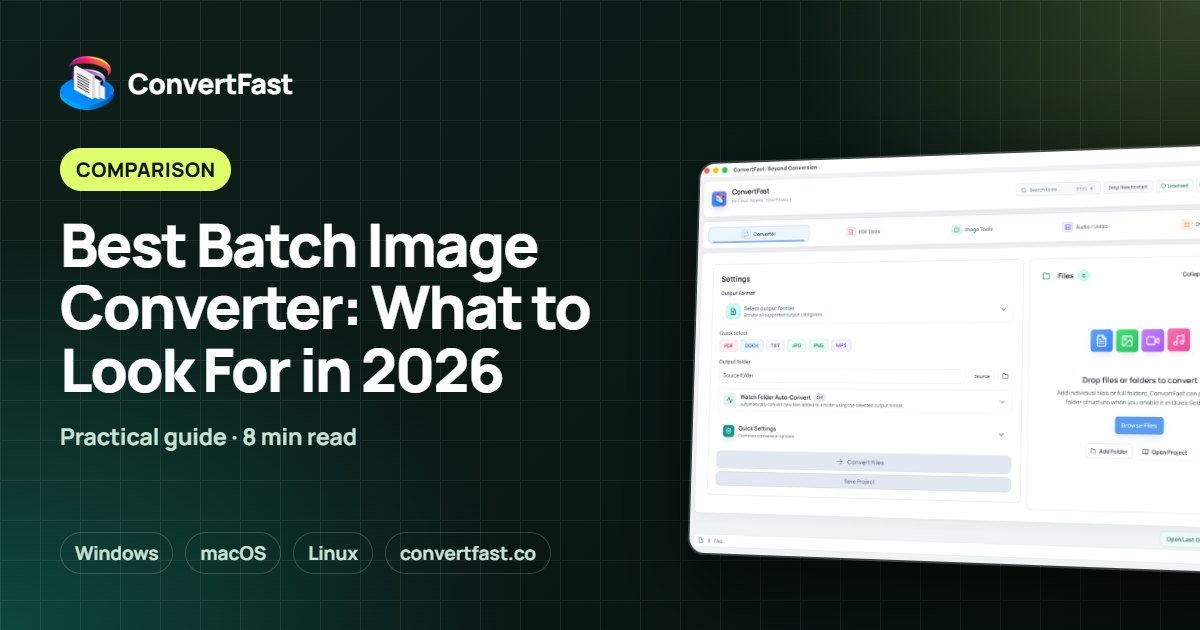
The best batch image converter is one that handles whole folders at once, covers every format you actually use, and runs on your own computer so there are no upload limits. ConvertFast fits that description: it is a paid, one-time-price desktop app for Windows, macOS and Linux that converts many images or entire folders locally, with 134 supported formats.
Converting one image is easy almost anywhere. Converting 800 of them, spread across 30 folders, in three different formats, is where most tools start to hurt. Some cap how many files you can add, some flatten your folder structure into one pile, and some need every photo uploaded before anything happens.
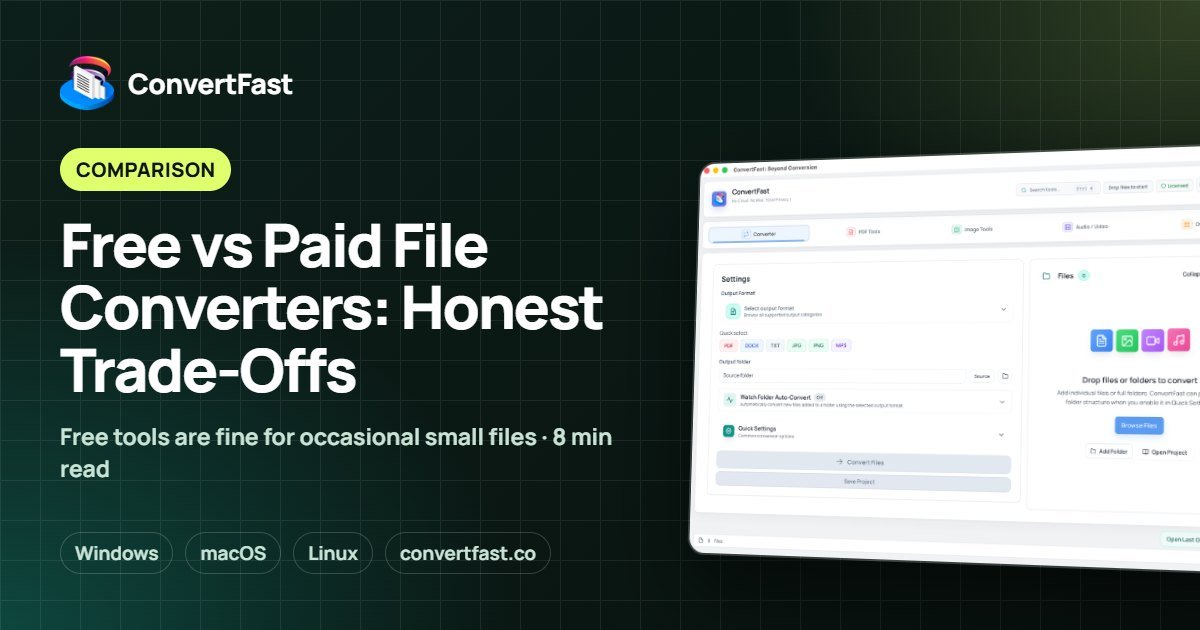
This guide explains what actually separates a good batch image converter from an average one, compares ConvertFast with XnConvert, IrfanView, ImageMagick, CloudConvert, Zamzar, Convertio and the built-in image apps, and shows a repeatable workflow for converting a large photo library without babysitting it.
| ConvertFast | XnConvert, IrfanView | CloudConvert, Zamzar, Convertio | Apple Preview, Windows Photos | |
|---|---|---|---|---|
| Files leave your computer | No | No | Yes, uploaded | No |
| Whole-folder batches | Yes | Yes | Varies | Limited |
| Keeps folder structure | Yes, optional | Varies | Varies | Manual |
| Format coverage | 134 formats | Images | Varies | A handful |
| Works offline | Yes | Yes | No | Yes |
| Pricing model | One-time | Free for personal use | Free and paid plans | Included |
What makes a batch image converter actually good
A batch converter earns its name when you can point it at a folder, choose an output format once, and walk away. Five things decide whether that works in practice.
First, volume: can it take hundreds or thousands of files without asking you to upgrade or split the job? Second, folder handling: can it read subfolders and write results into a matching structure instead of dumping everything in one directory? Third, format coverage: if your library mixes HEIC from a phone, RAW from a camera, and WebP from the web, a tool that only understands JPG and PNG forces you to use several programs. Fourth, control over quality and size. Fifth, where the files go while they are processed.
- Volume: no artificial cap on files per run
- Folders: subfolder support and optional structure preservation
- Formats: modern (HEIC, AVIF, WebP), classic (JPG, PNG, TIFF, BMP) and camera RAW
- Controls: quality, resizing and target file size
- Privacy: files stay on your machine
How the main options compare
There are several broad groups of tools people use for batch image conversion. Each has real strengths, and the right pick depends on how big and how sensitive the job is.
ConvertFast is a desktop app built around local processing. It supports 134 file formats and 2,388 conversion paths, handles batches of many files or whole folders, and can preserve your folder structure. It is a paid app with a one-time price and no subscription, so it suits people who convert images regularly or in large amounts. A free interactive demo of the real interface is on the ConvertFast home page, though the demo does not process files.
CloudConvert, Zamzar and Convertio are web-based converters with free and paid plans; files are uploaded to the service's servers to be converted, which suits a single small file on a machine that is not yours. XnConvert is a batch image converter for Windows, macOS and Linux, free for personal use, and IrfanView is a Windows image viewer with batch conversion, free for non-commercial use; both focus on images. ImageMagick is a free, open-source command-line image tool, flexible and scriptable but with a learning curve if you just want to drop in a folder. Apple Preview on Mac and Microsoft Photos and Paint on Windows are built in and fine for a few files, but slow for hundreds.
| Option | Best for | Watch out |
|---|---|---|
| ConvertFast (desktop, one-time price) | Large batches, mixed formats, private photos | Paid app, so try the demo first |
| XnConvert | Batch image conversion on Windows, macOS and Linux | Focused on images |
| IrfanView | Batch conversion on Windows | Windows only; images |
| ImageMagick | Scripting and automation by technical users | No friendly interface for most people |
| CloudConvert, Zamzar, Convertio | One quick file on a shared computer | Uploads; limits differ per service |
| Apple Preview, Windows Photos and Paint | A handful of files | Slow and manual for big folders |
Convert a folder of images in one run
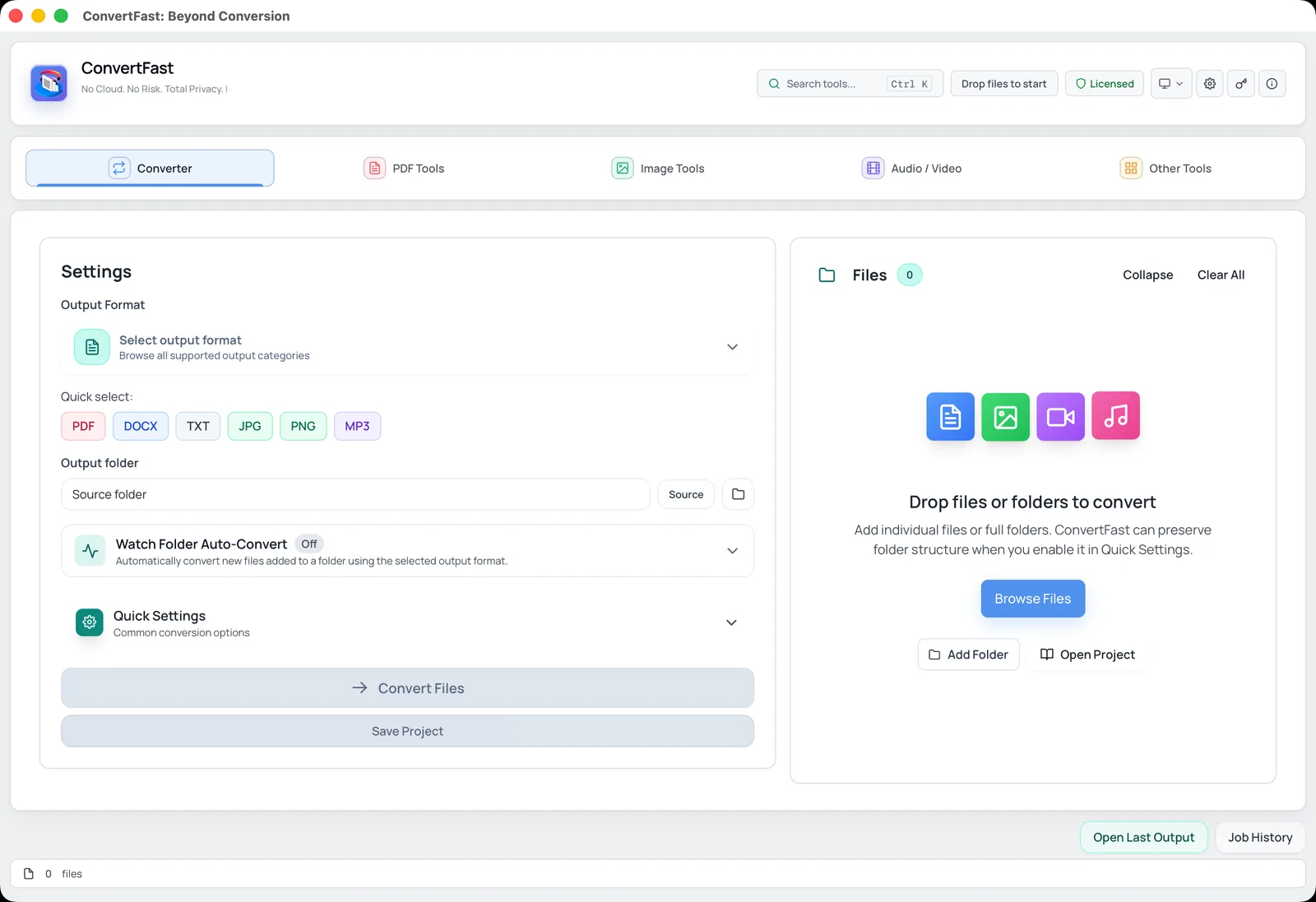
In ConvertFast the Converter tab is the starting point for batch work. You add files or a whole folder, pick an output format, choose an output folder, and start the conversion. The quick-select buttons cover the most common targets, including JPG and PNG, and Quick Settings let you adjust quality before you run the batch.
- 1Open the Converter tab and add your images or drag in the top-level folder.
- 2Pick the output format, for example JPG for maximum compatibility or WebP for smaller web files.
- 3Choose an output folder, and turn on structure preservation if you want subfolders mirrored.
- 4Review Quick Settings for quality and resize options.
- 5Start the conversion and check a few results at 100 percent zoom before deleting anything.
Picking the right output format for the batch
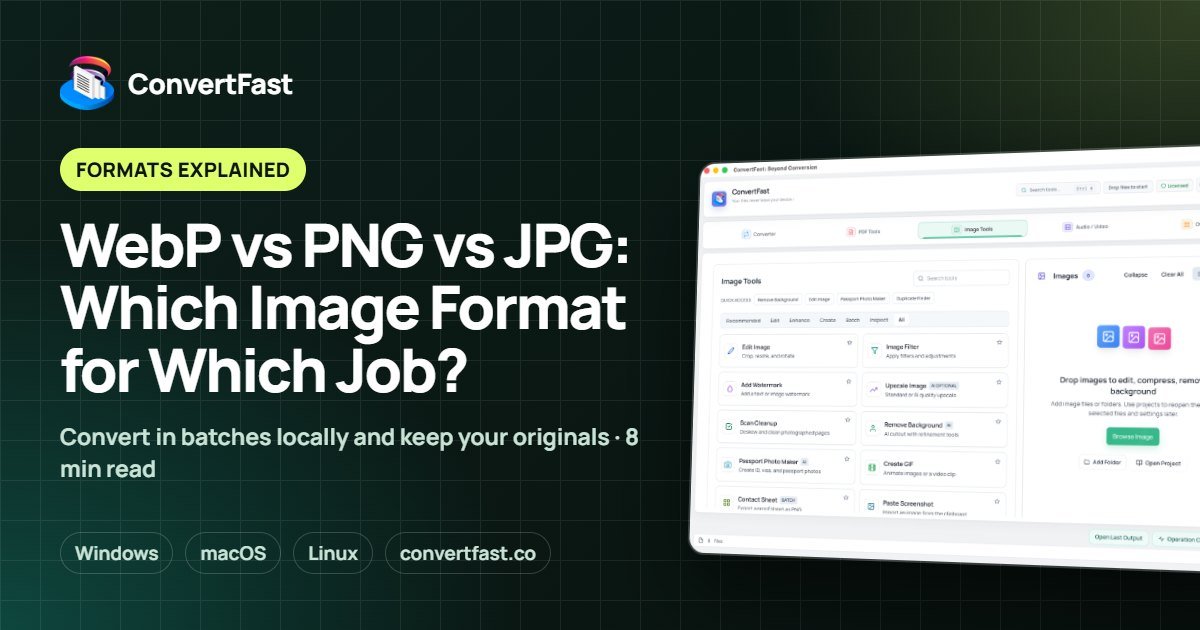
Choosing the target format matters as much as choosing the tool. JPG is the safest choice for photos you want to open anywhere. PNG keeps transparency and is better for graphics and screenshots. WebP and AVIF usually give smaller files for the web, but older software may not open them. If you are not sure, read WebP vs PNG vs JPG before you convert a whole library.
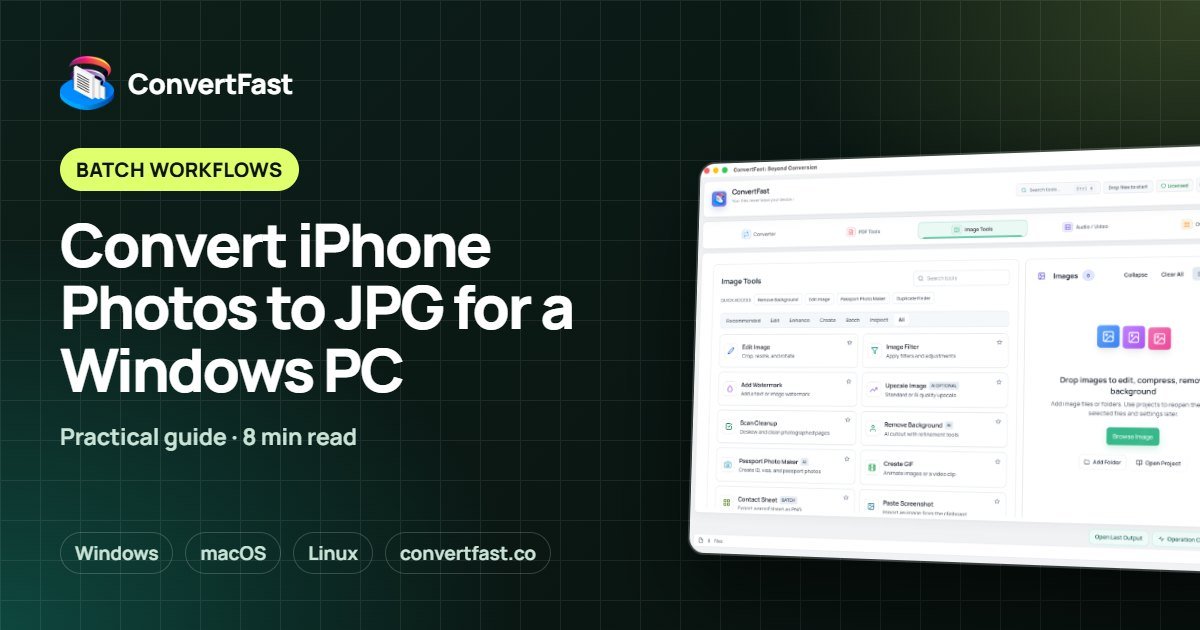
For iPhone libraries, the most common batch job is turning HEIC into something every PC can open. The HEIC to JPG converter page explains that route, and the post on converting iPhone photos for a Windows PC walks through a full-library workflow. If you plan to upload the results somewhere with a size limit, you can also compress images to a target size in the same session.
| Goal | Good output | Why |
|---|---|---|
| Share photos with anyone | JPG | Opens on nearly every device |
| Keep transparency | PNG | Lossless with alpha channel |
| Faster web pages | WebP or AVIF | Typically smaller at similar quality |
| Archive scans | TIFF | Lossless and widely accepted |
| Edit camera RAW elsewhere | TIFF or PNG | Avoids repeated lossy saves |
Keeping quality while you convert in bulk
Converting between lossy formats, such as JPG to JPG at a lower quality, loses a little detail each time. To protect quality, convert from the original whenever you can, avoid chaining conversions, and keep the originals in a separate folder. Converting from a lossless source such as PNG or TIFF to JPG is a single lossy step, which is usually fine.
Resizing is the other big lever. If photos will only be viewed on screen, reducing the pixel dimensions often cuts file size far more than lowering quality. The guide on batch converting images without breaking quality covers settings in more detail.
Automate repeat jobs with Watch Folder
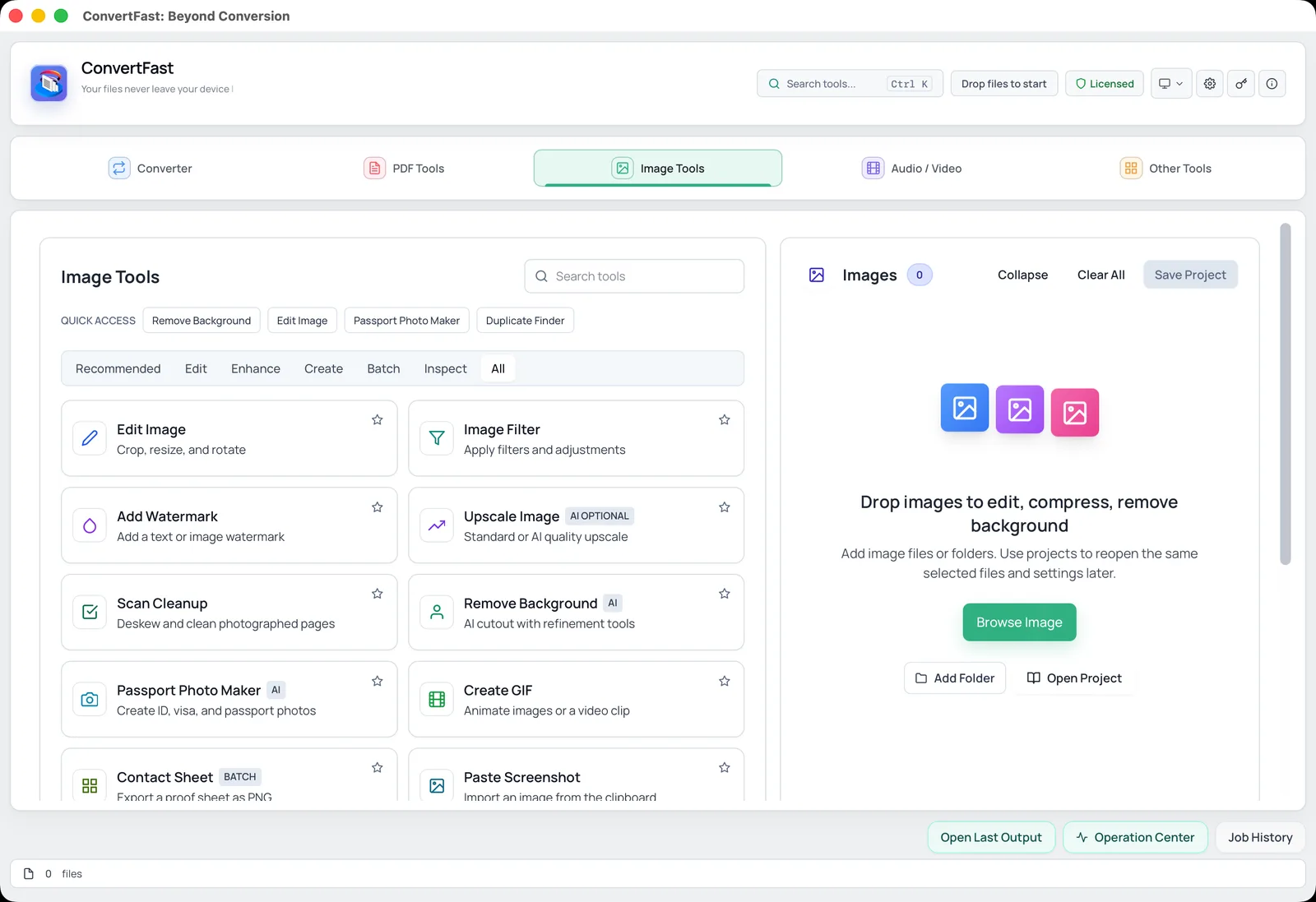
If the same conversion happens every week, such as turning new HEIC photos into JPG, you can skip the manual step. ConvertFast includes Watch Folder Auto-Convert, which converts new files as they are added to a folder you choose. Point it at your camera import folder and the converted copies appear automatically.
This is one place where a desktop app clearly beats a website: a web page cannot watch a folder on your computer. For more repeatable setups, see building repeatable file workflows.
Privacy and cost: the quiet deciding factors
Family photos, client work, ID scans and product shots are rarely something you want to upload to a stranger's server. A converter that processes files locally removes that question. If you want the longer argument, read cloud converter vs desktop converter.
Cost works the same way. ConvertFast is a one-time payment, with one license covering 2 devices and no subscription. The launch price is USD 24.99 against a regular USD 49.99, and you can see current details on the pricing page. For a task you do every month, paying once is simpler than renting the same capability forever.
Frequently asked questions
What is the best batch image converter for Windows?
Look for one that processes whole folders, supports your formats, and runs locally. ConvertFast is a desktop app for Windows, macOS and Linux that converts many images or folders at once with 134 formats and no uploads. It is a paid app with a one-time price, so check the interactive demo on the website first. XnConvert and IrfanView are also worth a look if you only batch images.
Can I convert thousands of images at once?
Yes, with a desktop app that has no artificial file cap. Speed depends on your computer and image sizes. Run a small test batch first to confirm quality settings, then start the full job and let it finish while you do other work.
Will batch conversion keep my folder structure?
It can. ConvertFast can preserve the folder structure so converted files land in matching subfolders in your output location. Many browser-based tools flatten everything into one list, so check this option before you convert a large organized library.
Does converting images in bulk reduce quality?
Only if the target format is lossy and you reduce quality. Converting a lossless source such as PNG or TIFF to JPG is one lossy step. Avoid converting JPG to JPG repeatedly, and keep your originals in a separate folder in case you want different settings later.
Which format is best when I convert many photos?
JPG is the safest for compatibility, PNG for transparency, and WebP or AVIF for smaller web files. The right choice depends on where the images will be used. If you need images for an upload portal, check its accepted formats and size limits first.