What Is EXIF Metadata? What Your Photos Reveal and How to View It
EXIF metadata stores camera settings, date and sometimes GPS location in your photos. Learn what it contains, the privacy risks and how to view it.

Quick answer
EXIF metadata is information stored inside an image file by the camera or phone, such as the date and time, camera model, exposure settings and, if location is enabled, GPS coordinates. It is invisible when you look at the picture, but anyone with the file can read it, so check it before sharing private photos.
Every time you take a photo with a phone or camera, the device writes more than pixels into the file. It also writes a small block of text-like data describing how, when and often where the photo was taken. That block is EXIF metadata.
Most of it is harmless and useful. Some of it can be a privacy problem, for example a home address implied by GPS coordinates. This guide explains what EXIF contains, which fields matter for privacy, how to see them, and how to decide whether to keep or remove them.
- Date and time the photo was taken
- Camera or phone make and model
- Exposure settings such as aperture, shutter speed and ISO
- Lens and focal length
- Orientation of the image
- GPS latitude and longitude, if location was enabled
- Editing software name and sometimes a thumbnail
EXIF in plain language
EXIF stands for Exchangeable Image File Format. It is a standard way for cameras to attach descriptive data to image files, and it is most commonly found in JPG and HEIC photos, and also in formats such as TIFF and WebP. Photographers use it to review settings, and software uses it to sort pictures by date and to rotate them correctly.
EXIF is one kind of metadata. Photos can also carry other embedded data, such as IPTC fields for captions and copyright, or XMP data written by editing software. People often say EXIF to mean all of it.
Common EXIF fields and what they tell people
Some fields are purely technical. Others tell a story about you. The table groups typical fields by how sensitive they are, with the usual caveat that exactly what is stored depends on the device and the app that saved the file.
| Field | Example information | Privacy relevance |
|---|---|---|
| Date and time | When the photo was taken | Medium: reveals your schedule |
| Camera or phone model | Device make and model | Low to medium |
| Exposure settings | Aperture, shutter, ISO | Low |
| GPS coordinates | Latitude and longitude | High: can point to a home, school or workplace |
| Software | Editing app used | Low |
| Thumbnail | Small preview image | Medium: may show the original before cropping |
Why EXIF can be a privacy risk
A photo posted publicly can reveal where you live if GPS data is attached and the platform does not strip it. Many large social networks remove location data from displayed images, but not all sites, forums, marketplaces or messaging methods do, and you cannot always tell which. When you send the original file by email or put it on your own website, it goes out exactly as it is.
A good habit is to treat any photo with a location as sensitive until you check. For a step-by-step on getting rid of location, see remove location from photos before sharing. The wider checklist in private file conversion checklist covers other hidden data.
How to view EXIF data on your own computer
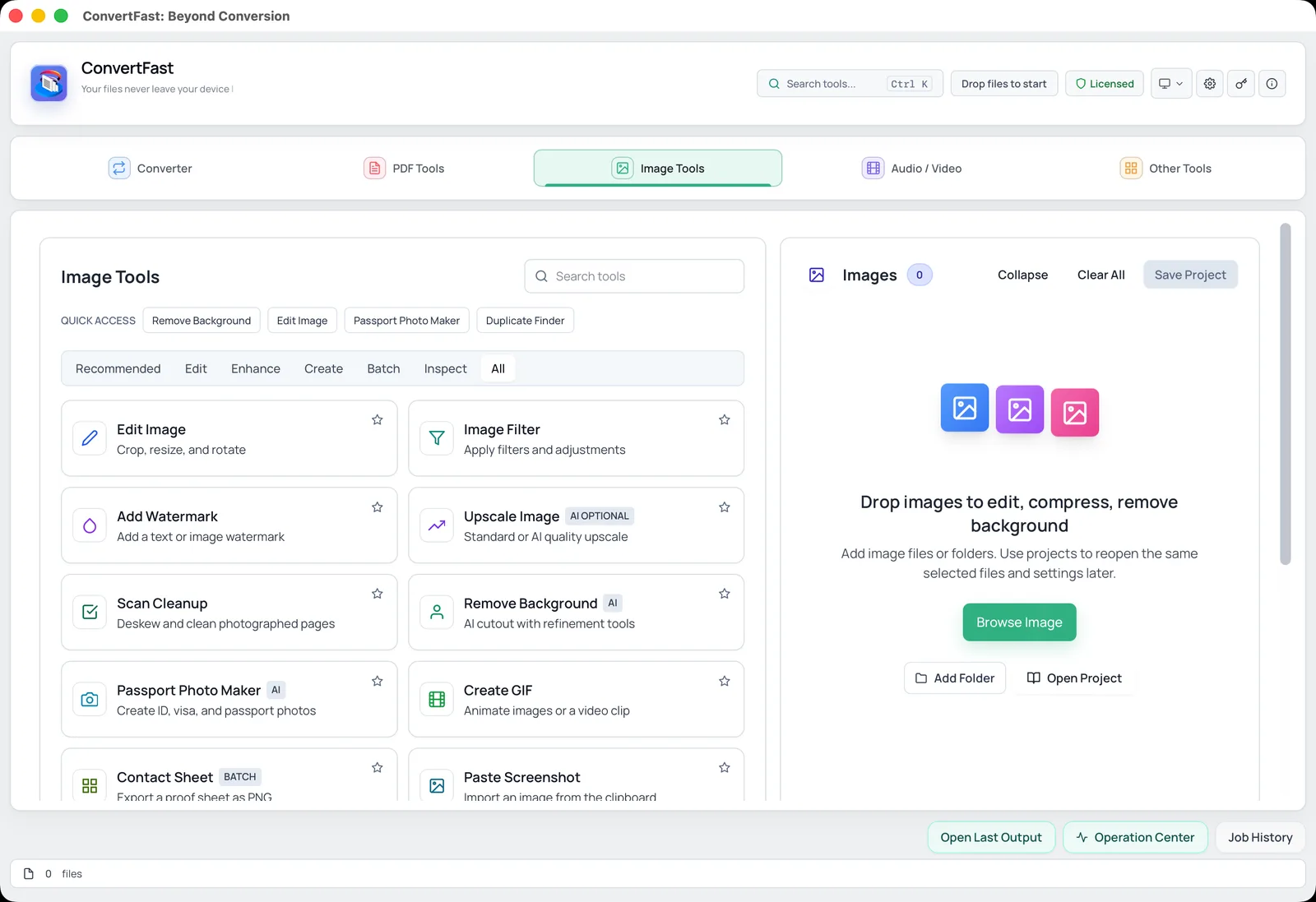
Windows and macOS can show some metadata in file properties or the Preview inspector, but the view is partial and varies by format. ConvertFast includes image metadata tools that read EXIF and other embedded data. Format-specific pages exist for JPG metadata, PNG metadata, HEIC metadata and WebP metadata, and the general image metadata viewer covers the rest.
- 1Open ConvertFast and go to the Image Tools tab.
- 2Open the image metadata view and add your photo.
- 3Read the fields, paying attention to location and date.
- 4Decide whether to keep or remove the metadata before sharing.
Keeping or removing EXIF
Keep EXIF when it helps you: in your own archive, for photographers organizing by date, and when you need proof of when a photo was taken. Remove it when you share to the public, post to a forum or marketplace, send photos of your home or children, or publish images on a website. The remove image metadata page describes the process, and removal works on your files locally.
Work on copies. Strip metadata from the file you share, and keep the original with its data in your own storage. If you also convert the format, such as turning HEIC into JPG, check afterward whether the metadata carried over, since conversion can keep or drop it depending on the tool and settings.
EXIF in different formats and after editing
EXIF started with JPG and TIFF, and it is also stored in HEIC photos from iPhones. PNG and WebP can carry metadata too, though the layout differs, and some tools write less of it. Screenshots usually have very little. This is why a metadata viewer for a specific format, such as the ones for HEIC or PNG, is more reliable than guessing.
Editing changes things. Some editors preserve EXIF, others strip it, and some add their own software fields. Cropping can leave the embedded thumbnail untouched in certain files, which in rare cases still shows the uncropped picture. If you crop a photo to hide something, removing metadata afterward is a sensible extra step.
Conversion matters as well. When you change a photo from one format to another, the metadata might be kept, partly kept or dropped, depending on the tool. If you are converting HEIC to JPG for sharing, check the result. If you want to learn how the two formats compare, see HEIC vs JPG.
A last point: EXIF can be edited or removed by anyone, so it is not proof of when or where a photo was taken. It is a convenient record, not a guarantee. Treat it as helpful information for your own organizing, and as a privacy consideration when you share.
Phone settings and habits that help
You can stop the problem at the source. Both iPhone and Android let you turn off location access for the camera app. Some photo-sharing options also strip location when sharing. Remember these settings only affect future photos and specific share paths, so they do not clean up photos you already have.
If you convert photos often, such as from HEIC to JPG for upload, build metadata review into the routine. The guide to HEIC vs JPG explains how both formats store metadata, and view WebP metadata covers that format.
Frequently asked questions
Does every photo contain EXIF data?
Most photos from phones and cameras do. Screenshots and images downloaded from some websites may have little or none, because many sites and apps strip or never write it. Only checking the specific file tells you for sure.
Does EXIF data include my location?
It can. If location services are enabled for the camera, GPS coordinates are usually stored. If they are off, there is typically no location in the file. Always check a photo before sharing if the place matters.
Is EXIF data dangerous?
Usually it is harmless and useful, but GPS coordinates and timestamps can expose private information such as where you live or when you are away. The risk is mostly in sharing original files publicly. Reviewing and removing the data first removes the concern.
Does converting a photo remove EXIF?
It depends on the tool and settings. Some conversions keep metadata and some drop it. Do not assume; open the converted file in a metadata viewer and check before sharing.
How can I see EXIF without uploading the photo?
Use a local tool. File properties on Windows and macOS show some fields, and ConvertFast's image metadata tools read and display embedded data on your computer, so the photo is not sent to any website.