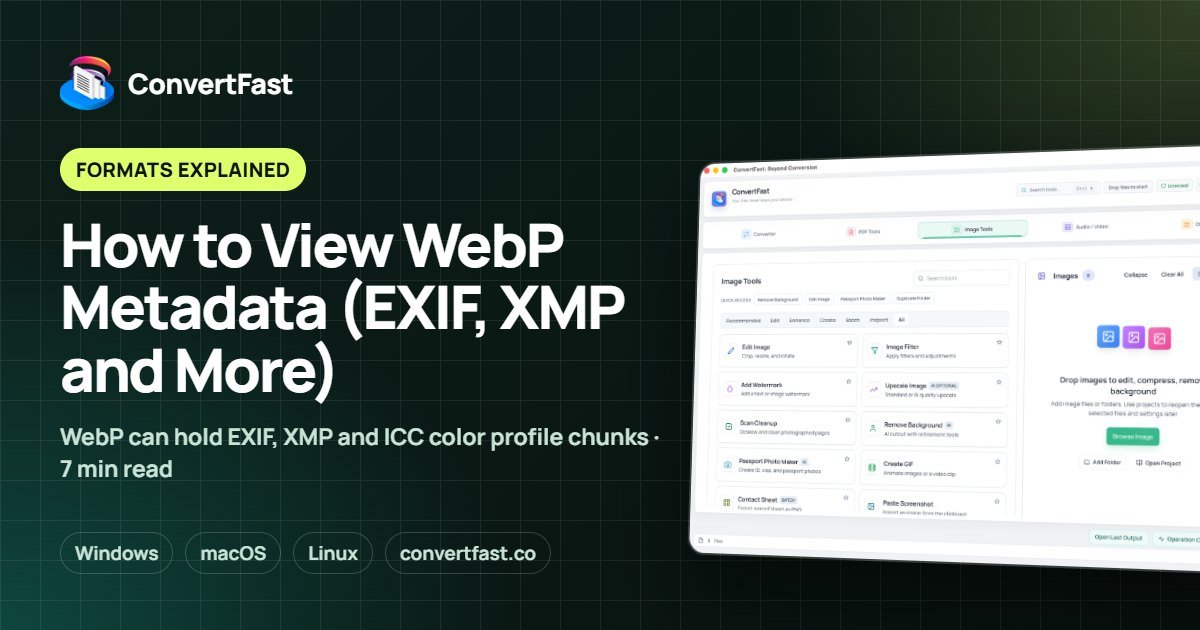
How to View WebP Metadata (EXIF, XMP and More)
Find out what metadata a WebP file stores and how to inspect it with a local WebP metadata viewer, without uploading your image anywhere.
Quick answer
To view WebP metadata, open the file in a metadata viewer that reads WebP, which shows EXIF, XMP and color profile data if the file contains any. Windows file properties show only a little for WebP, so a dedicated local tool such as the image metadata tools in ConvertFast gives a fuller view without uploading the image.
WebP is a common format for web images, and people often assume it has no metadata because it feels like a plain web asset. That assumption is wrong in some cases. A WebP file can carry the same kinds of metadata as a JPG, including camera details and, if it was converted from a phone photo, sometimes even location.
This guide covers what WebP can store, why many WebP files show nothing, how to inspect a file, and what to do if you find data you did not mean to share.
- Camera make and model in EXIF
- Capture date and time
- GPS latitude and longitude
- Software or editor name
- Author, copyright or description in XMP
- Embedded ICC color profile
- Image width, height and whether it has transparency
What metadata a WebP file can contain
WebP uses a container format built from labeled chunks. Besides the image data, the container can include optional chunks for EXIF, XMP and an ICC color profile. EXIF is the same camera-style data used in JPG files: make, model, exposure, date, and optionally GPS. XMP is an XML-based block that editing software uses for titles, descriptions, ratings and copyright. The ICC profile describes how colors should be interpreted. For a general primer, read what EXIF metadata is.
WebP files can also be animated and can contain an alpha channel for transparency. Those are properties of the image rather than descriptive metadata, but a good viewer lists them too because they help you understand what you are dealing with.
Why your WebP file may show no metadata
Many WebP images were produced by a website build tool, a design export, or an optimizer that deliberately discards metadata to save bytes. Others were converted from a JPG or PNG with a tool that did not copy the EXIF chunk across. In those cases the viewer will correctly show almost nothing beyond dimensions and format.
The opposite also happens. A tool that converts a phone photo to WebP and keeps all metadata can carry the original GPS coordinates into the new file. If you convert images before posting them, check the output, not just the original. Related format conversions are covered in WebP vs PNG vs JPG.
- Empty metadata is a normal result, not an error.
- A viewer shows only what is in the file; it cannot recover removed data.
- Conversion can add, keep, or drop metadata depending on the tool.
View WebP metadata with a local tool
Uploading a file to a website just to read its metadata means you give away the very data you are trying to inspect. A local viewer reads the file on your computer instead. ConvertFast includes image metadata tools that let you view EXIF and other metadata and remove it before sharing. The dedicated WebP metadata viewer page explains the workflow, and the general image metadata viewer covers other formats.
The process is the same whether you are checking one file or deciding what to do with many.
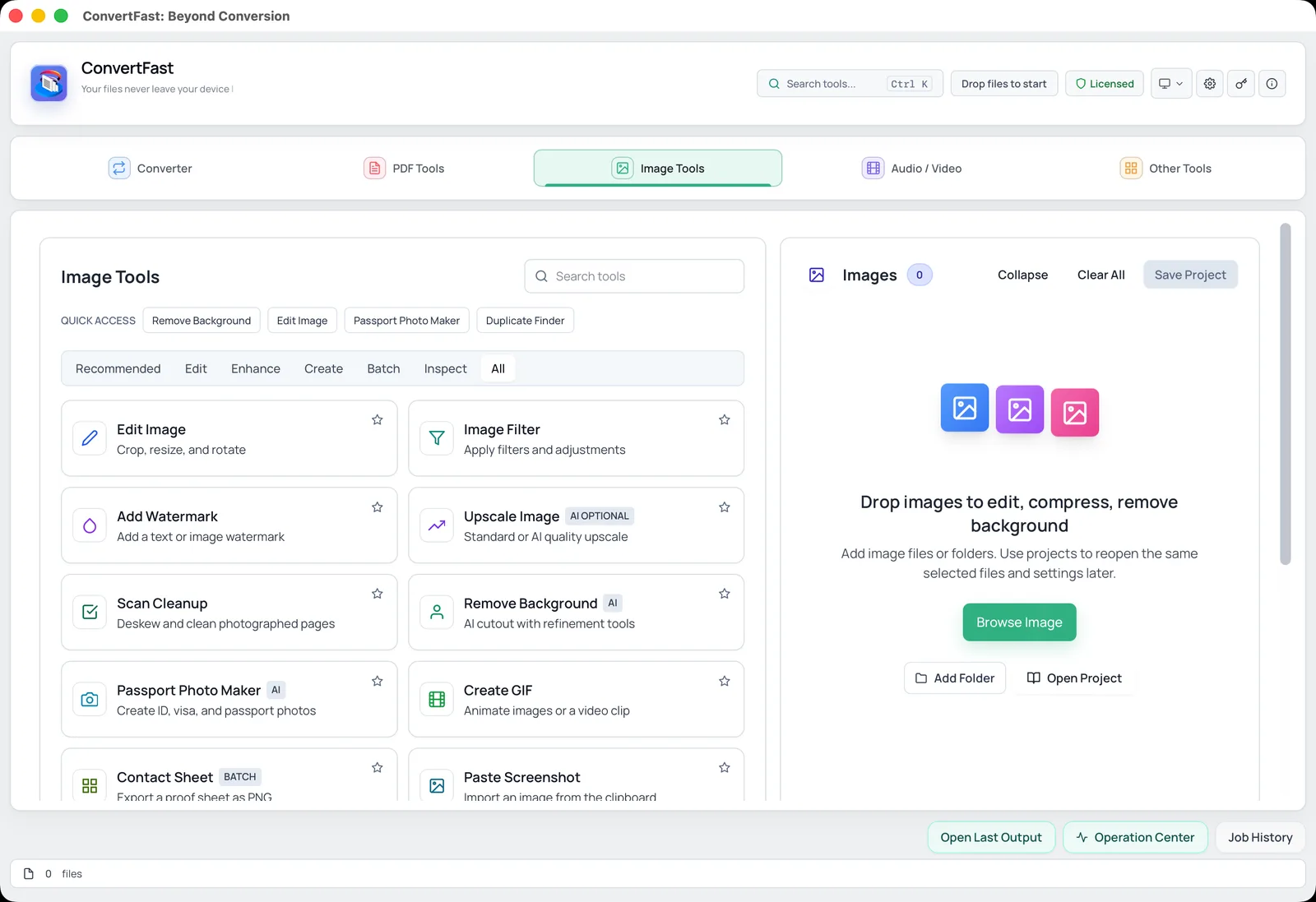
- 1Open ConvertFast and switch to the Image tab.
- 2Open the image metadata tool and add your WebP file.
- 3Read the fields listed: camera, date, software, GPS, and any description or copyright text.
- 4Note which fields you did not expect, especially location or personal names.
- 5If you need a clean copy, use the metadata removal option and save to a new file.
Other ways to check a WebP file
Operating system properties dialogs vary. On Windows, the Details tab in file properties may show width, height and bit depth for a WebP file but often not the full EXIF or XMP content. Mac Preview can show some information in its Inspector, though support depends on your macOS version. Browsers can open WebP images but they do not show embedded metadata.
Command-line tools can dump everything, but they require installation and comfort with a terminal. If you inspect files rarely, a graphical local viewer is usually quicker.
| Method | Shows full EXIF/XMP | Notes |
|---|---|---|
| ConvertFast metadata tools | Yes, in a readable list | Runs locally; also removes metadata |
| Windows file Properties | Limited | Good for dimensions, weak for WebP details |
| Mac Preview Inspector | Partial | Depends on macOS version |
| Web browser | No | Displays the image only |
| Command-line tools | Yes | Needs installation and typed commands |
What to do if you find sensitive data
If the viewer shows GPS coordinates, a personal name in an author field, or software paths you would rather not publish, remove the metadata before you share the file. Work on a copy so the original remains available. The walkthrough in remove location from photos before sharing applies directly to WebP files as well, and the remove image metadata page describes the removal tool.
If your WebP files came from a conversion, consider fixing the source. Converting from JPG to WebP is a common step; you can do it locally with the JPG to WebP converter, and then inspect the output once to see what your settings preserve.
Convert to a format you can inspect more easily
Sometimes you simply need to open or edit a WebP file in software that does not support it. Converting to PNG or JPG with WebP to JPG or WebP to PNG gives you a more widely supported format. Remember that a lossy-to-lossy conversion, such as WebP to JPG, re-encodes the image, and that metadata may or may not carry across. Inspect the result if that matters to you.
Frequently asked questions
Does WebP support EXIF data?
Yes. The WebP container can include an EXIF chunk, as well as XMP and an ICC color profile. Whether a particular file has any of these depends on how it was created. Files exported by web optimizers often have none, while a converted phone photo may keep the original camera data.
Why does Windows show almost nothing for my WebP file?
Windows file properties give limited information for WebP, usually dimensions and basic details. They do not display every EXIF or XMP field. A dedicated metadata viewer reads the chunks inside the file directly, so it can list what the properties dialog skips.
Can a WebP image contain GPS location?
It can, if the EXIF chunk with GPS fields was kept when the file was created or converted. Many WebP files have no location at all. The reliable way to know is to open the specific file in a metadata viewer and look for latitude and longitude fields.
Is a WebP metadata viewer safe to use?
It is safe in terms of privacy when it runs locally on your computer, because the file never leaves your device. A website that asks you to upload the image to read its metadata gives a third party a copy of the file, which is worth avoiding for private photos.
Does converting WebP to JPG keep the metadata?
It depends on the converter and its settings. Some tools copy EXIF data to the new file and others drop it. Do not assume either way. Convert one file, open the result in a metadata viewer, and confirm what carried over before you process a whole folder.