File Converter for Linux: GUI vs Command Line
Find a file converter for Linux: ConvertFast vs FFmpeg, ImageMagick, HandBrake, XnConvert and web converters like CloudConvert.
Quick answer
On Linux you can convert files with command-line tools or with a graphical app. ConvertFast is a paid desktop app that runs on Linux, Windows and macOS, converts images, documents, audio and video locally, and handles whole folders without uploads. Command-line tools such as FFmpeg and ImageMagick remain a good choice if you like scripting.
Linux users are well served when it comes to converting files, at least if you enjoy a terminal. A handful of mature open-source tools cover images, audio, video and documents. The catch is that each one has its own syntax, and none of them gives you a single window where you can drop a folder and pick an output format.
This guide compares the main ways to convert files on Linux, including FFmpeg, ImageMagick, HandBrake, XnConvert, Audacity, VLC and web converters such as CloudConvert, explains when each makes sense, and shows how a graphical app fits alongside command-line habits rather than replacing them.
| ConvertFast | FFmpeg and ImageMagick | CloudConvert, Zamzar, Convertio | |
|---|---|---|---|
| Graphical interface | Yes | No | Yes |
| Files leave your computer | No | No | Yes, uploaded |
| Works offline | Yes | Yes, with scripting | Varies |
| Whole-folder batches | Yes | Yes, with scripting | Often limited |
| Images, PDF, audio, video in one app | Yes | Separate tools | Varies |
| Cost | One-time | Free | Varies |
Your options for converting files on Linux
There are three realistic paths. The first is the command line, using free open-source tools. FFmpeg for audio and video and ImageMagick for images are widely used and very capable. They are scriptable, available in most distributions, and cost nothing.
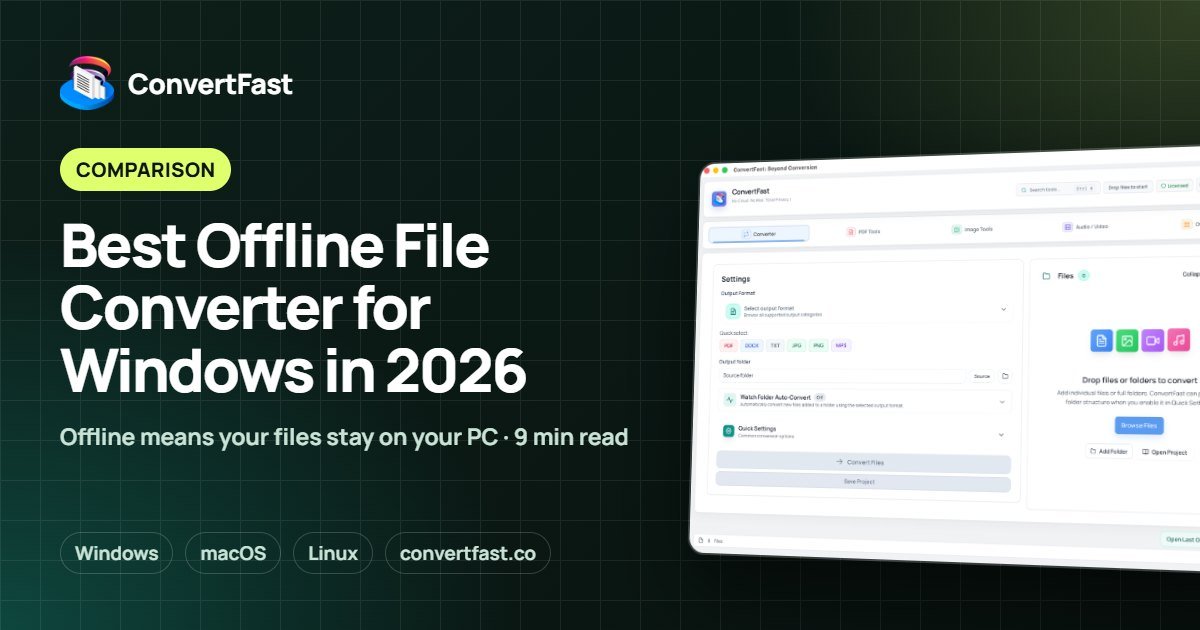
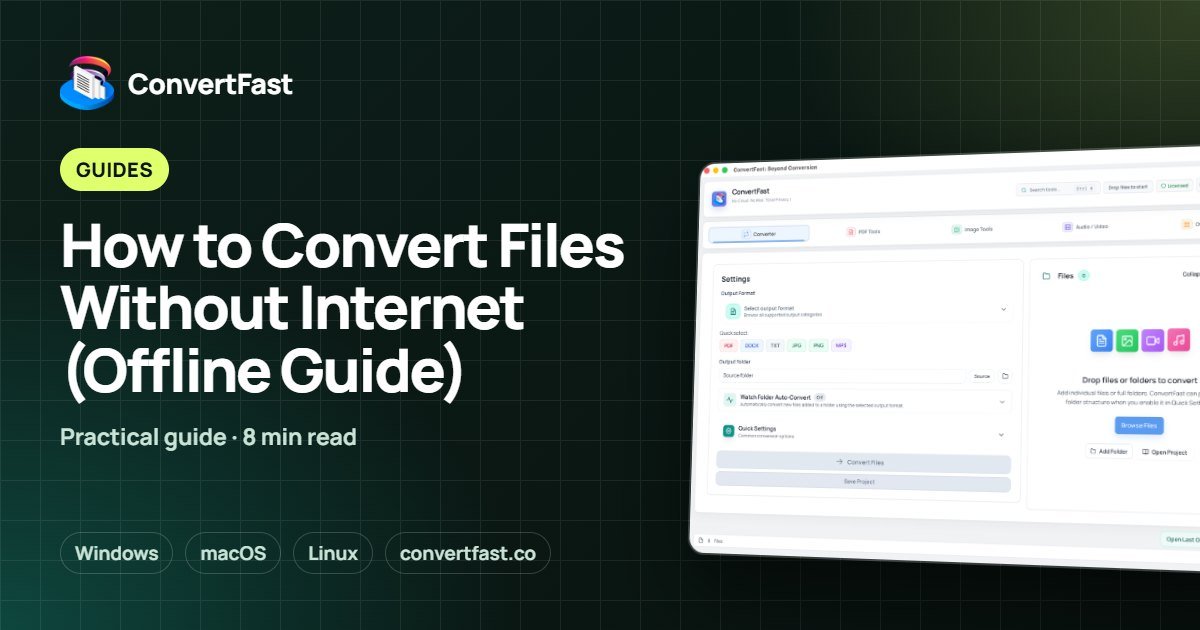
The second is a graphical desktop app. ConvertFast is one: a paid app for Windows, macOS and Linux that handles images, documents, audio and video from a single interface. Core processing runs locally, so nothing needs to be uploaded. Other graphical options on Linux are narrower: HandBrake is a free, open-source video transcoder, XnConvert is a batch image converter that is free for personal use, VLC media player is a free, open-source player with a basic convert feature, Audacity is a free, open-source audio editor, and PDFsam Basic is a free, open-source app to split and merge PDFs.
The third is a web-based converter such as CloudConvert, Zamzar or Convertio. They need no install, but files are uploaded to the service's servers, and each has free and paid plans. Because Linux users often value control over their data, this is usually the least appealing option for anything private.
When the command line is the right call
If you already live in a terminal, scripts are hard to beat. A short shell loop can convert every file in a directory, run from cron, and slot into a build pipeline on a server. For headless machines with no desktop environment, a command-line tool is the only practical choice.
The cost is cognitive. Flags differ between tools, quality settings are easy to get wrong, and a typo in a loop can overwrite originals. For someone who converts files occasionally, the time spent remembering syntax can exceed the time the job takes.
- Best on servers, in scripts and in automated pipelines
- Excellent when you want exact, reproducible control
- Less friendly for one-off jobs and mixed folders
- No built-in preview or undo for mistakes
Why a desktop app still makes sense on Linux
A graphical app helps when the job is visual, mixed, or infrequent. You see the files, pick the output format, choose a destination folder, and run it. There is nothing to remember next month.
ConvertFast supports 134 file formats and 2,388 verified conversion paths. On the image side that includes JPG, PNG, WebP, HEIC, AVIF, TIFF, BMP, GIF, SVG and many camera RAW types. Documents include PDF, DOCX, TXT, EPUB and more. It also converts audio such as MP3, FLAC and WAV, and video such as MP4, MKV and MOV. The app can process many files or whole folders at once and preserve folder structure.
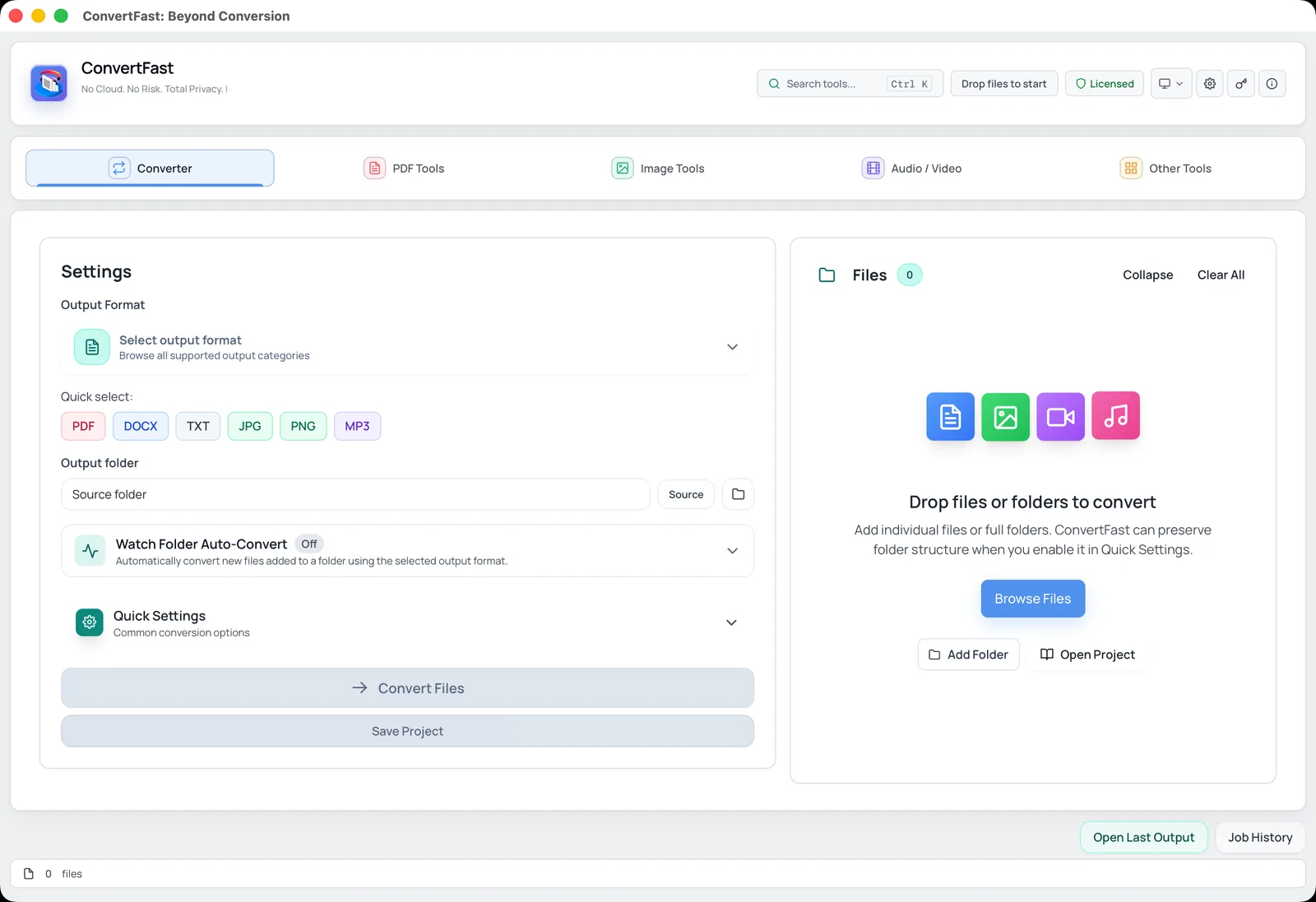
Convert a folder on Linux step by step
The workflow is the same on every platform. Here is a typical image job: converting a folder of WebP downloads to JPG so older software can open them.
- 1Open ConvertFast and go to the Converter tab.
- 2Add the folder that contains your WebP images.
- 3Choose JPG as the output format, using the quick-select button if shown.
- 4Pick a new output folder so the originals are never overwritten.
- 5Adjust Quick Settings if you want a specific quality, then run the conversion.
- 6Open a few results to confirm they look right before cleaning up.
Beyond conversion: other jobs a Linux user needs
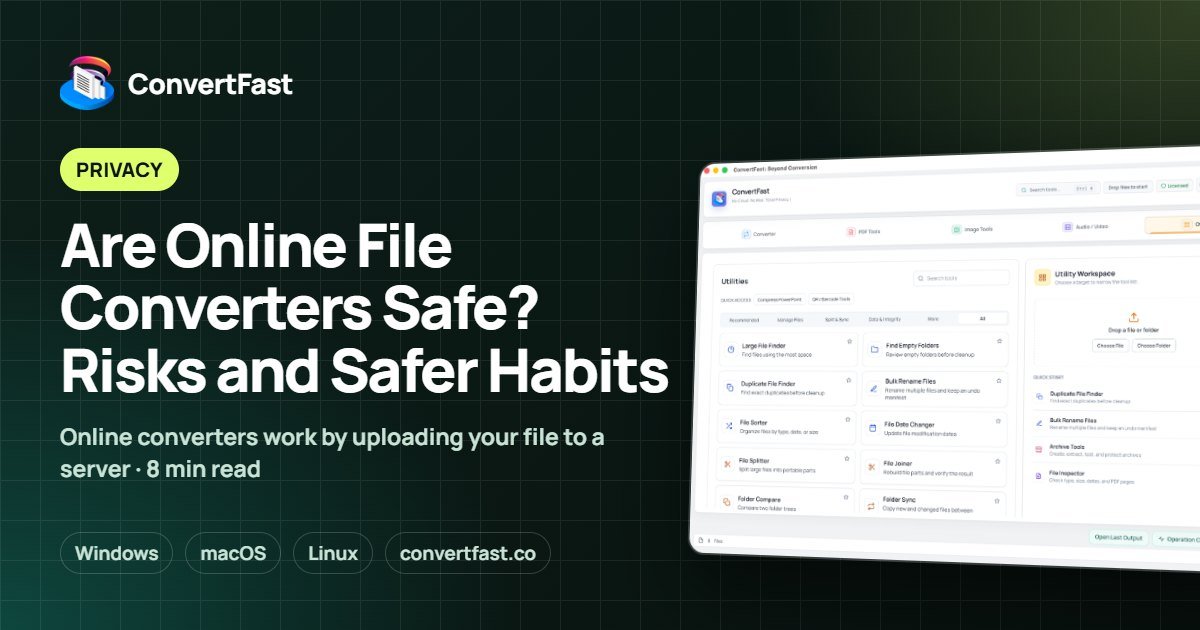
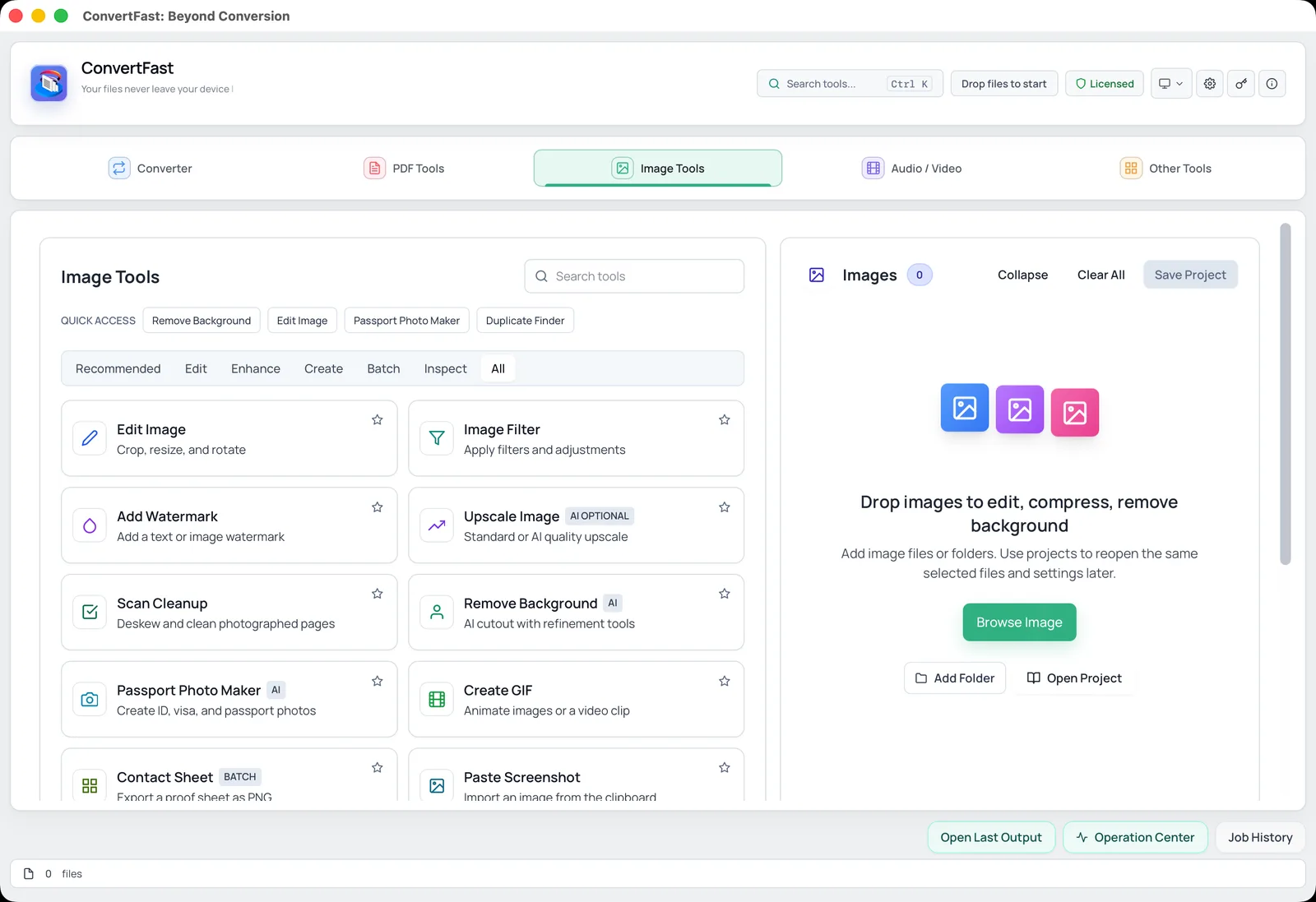
Real file work is rarely only conversion. You often need to merge PDFs, shrink photos for an upload form, strip metadata before sharing, or extract audio from a recording. ConvertFast bundles these into tabs: PDF Tools, Image Tools, Audio and Video tools, and Other Tools.
For instance, you can merge PDF files, split a PDF, or remove image metadata before posting photos. If you convert a lot of media, the notes on video and audio conversion for creators are useful. If you are deciding whether to pay for a tool at all, read free vs paid file converters.
Other Tools adds utilities like Bulk Rename Files with an undo manifest, a Duplicate File Finder and a Large File Finder, which are handy on any system where storage fills up.
Choosing between the terminal and an app
The honest answer for many Linux users is both. Keep your shell scripts for server jobs, scheduled tasks and pipelines. Use a graphical converter for the days when you simply want to drop a folder of files, pick a format and see results.
A few questions help you decide. Do you run the job repeatedly with the same settings, or is every job slightly different? Do you need to preview results? Do you share the machine with people who are not comfortable in a terminal? If the answers lean toward variety, visual checking and shared use, a desktop app saves effort. If they lean toward repetition and automation, scripts win.
Whichever you choose, keep originals in a separate directory and write converted files to a new one. That one habit prevents most conversion accidents, regardless of the tool.
Price, license and what to check first
ConvertFast is a one-time payment with lifetime use and one license for 2 devices, with no subscription. The launch price is USD 24.99 against a regular USD 49.99; see the pricing page for the current details. A free interactive demo of the real interface is on the website, but it does not process files.
Before you buy any converter for Linux, confirm that your distribution and desktop environment are supported, and test the formats you rely on with a small sample. If you want a wider view of the market, see the best offline file converter for Windows comparison, which applies the same criteria.
Frequently asked questions
What is the best file converter for Linux?
It depends on how you work. For scripting and servers, free command-line tools such as FFmpeg and ImageMagick are excellent. For a graphical app that handles images, PDFs, audio and video in one place, with folder batches and no uploads, ConvertFast is a strong pick. It is a paid desktop app with a one-time price.
Does ConvertFast run on Linux?
Yes. ConvertFast is a desktop app for Windows, macOS and Linux. Core file processing runs locally on your computer, so your files do not need to be uploaded to a website. Check the website for the current supported distributions before purchasing.
Can I batch convert images on Linux without the terminal?
Yes. A graphical converter lets you add a whole folder, choose an output format and run the batch. ConvertFast can process many files at once and can preserve your folder structure, so subfolders are mirrored in the output location.
Are online converters a good idea on Linux?
They work for a single small non-sensitive file, but they upload your data to a server and often limit size or count. If you care about privacy or need to convert many files, a local tool, either command line or a desktop app, is a better fit.
Do I need internet to convert files on Linux?
Not with a local tool. Command-line utilities and desktop apps such as ConvertFast process files on your own machine, so you can convert with no connection. Only browser-based converter sites require internet access, since they upload and download your files.