How to Convert MKV to MP4 (Remux vs Re-encode)
Convert MKV to MP4 offline: learn when a quick remux is enough, when re-encoding is needed, and what happens to subtitles and multiple audio tracks.
Quick answer
To convert MKV to MP4, add the file to a converter, choose MP4 and run it. If the video and audio codecs are already MP4-compatible, a remux can rewrap them quickly without quality loss. Otherwise the video is re-encoded. Subtitles and extra audio tracks may need separate handling.
MKV (Matroska) is popular for downloads, screen recordings and archived video because it can hold many audio tracks, subtitle tracks and chapters in one file. The catch is that not every TV, phone, editor or upload form accepts it. MP4 is the format that nearly everything understands, so people often need to convert MKV to MP4.
How you do it affects speed and quality. This guide explains the two approaches, what happens to subtitles and extra audio tracks, and how to run the job on your own computer so large files do not have to be uploaded anywhere.
- Does not touch the picture
- Usually fast
- No quality loss for the video
- Needs MP4-compatible codecs
- Does not shrink the file much
- Recompresses the video
- Slower, depends on length
- Small loss with good settings
- Works with any source codec
- Can make the file smaller
MKV vs MP4: what is actually different
Both MKV and MP4 are containers. A container holds compressed video, audio and extras, but it does not decide how good the picture looks. That comes from the codec inside, such as H.264 or HEVC.
MKV is flexible. It happily stores several audio languages, multiple subtitle formats, attachments and chapter markers. MP4 is stricter and more widely supported, especially on phones, smart TVs, game consoles, browsers and editing software. That support is the main reason to convert.
Remux or re-encode: choosing the right approach
When the video and audio streams inside the MKV use codecs that MP4 can store, such as H.264 video with AAC audio, the streams can be copied into a new MP4 container unchanged. This is a remux. It is fast and does not reduce picture quality because nothing is recompressed.
When the streams use something MP4 does not handle well, or when the target device only plays certain codecs, the video has to be re-encoded. Re-encoding takes longer and applies lossy compression again, so choose a high-quality setting and keep the original resolution and frame rate.
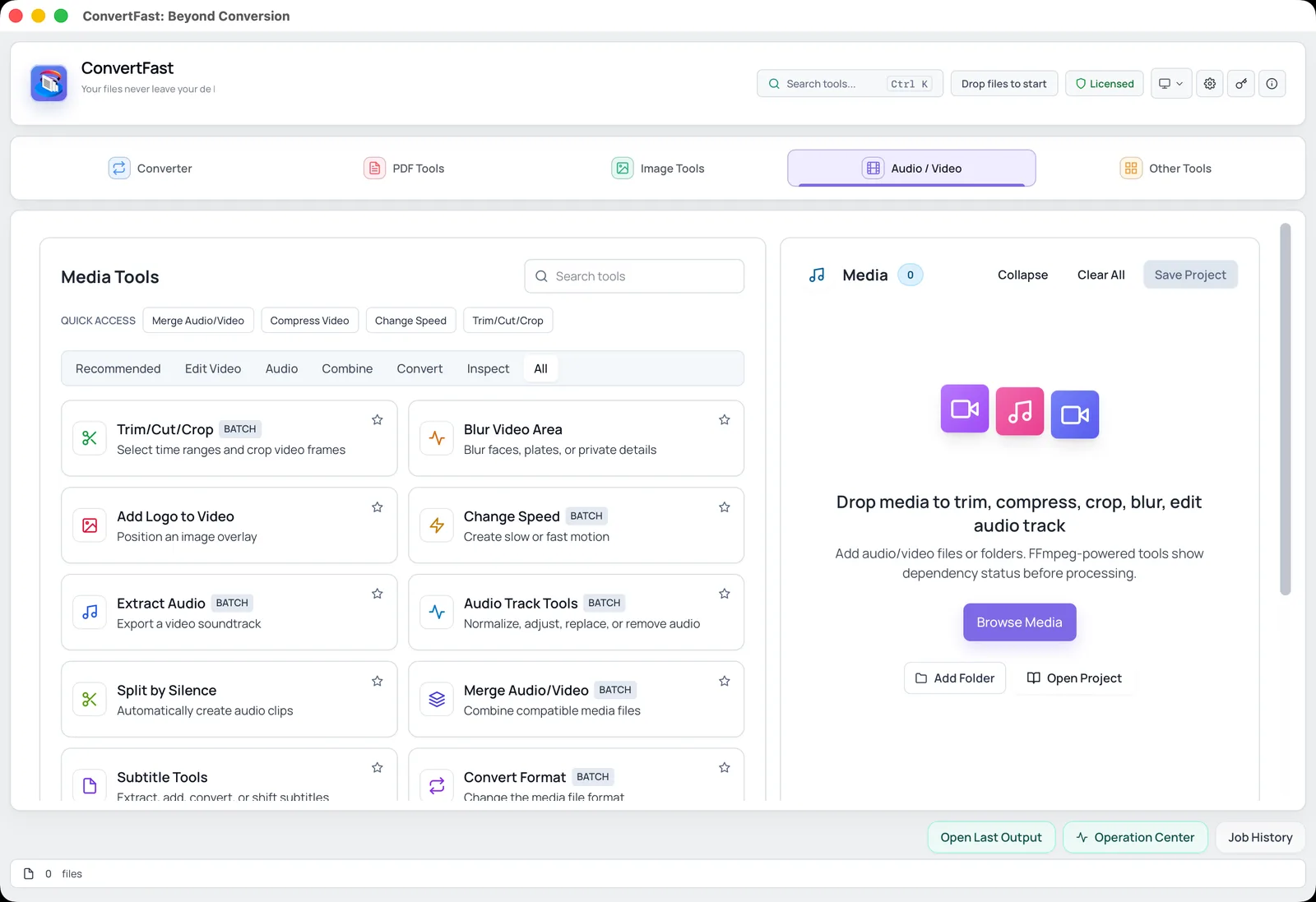
ConvertFast has a dedicated Fast Remux MKV to MP4 tool in its Audio / Video tab. It changes the container without re-encoding, so the picture keeps its original quality. If the MP4 still will not play on a device, the Fix Compatibility tool can inspect the file, remux it or create a portable MP4.
If you also want a smaller file, re-encoding is the way to get it. See compress video for email and WhatsApp for sizing advice. For the other editing tools in that tab, read edit video and audio offline with ConvertFast.
Convert MKV to MP4 offline with ConvertFast
ConvertFast is a desktop app for Windows, macOS and Linux that supports MKV and MP4 among its video formats. The work happens locally, which is practical for large MKV files that would take a long time to upload and download.
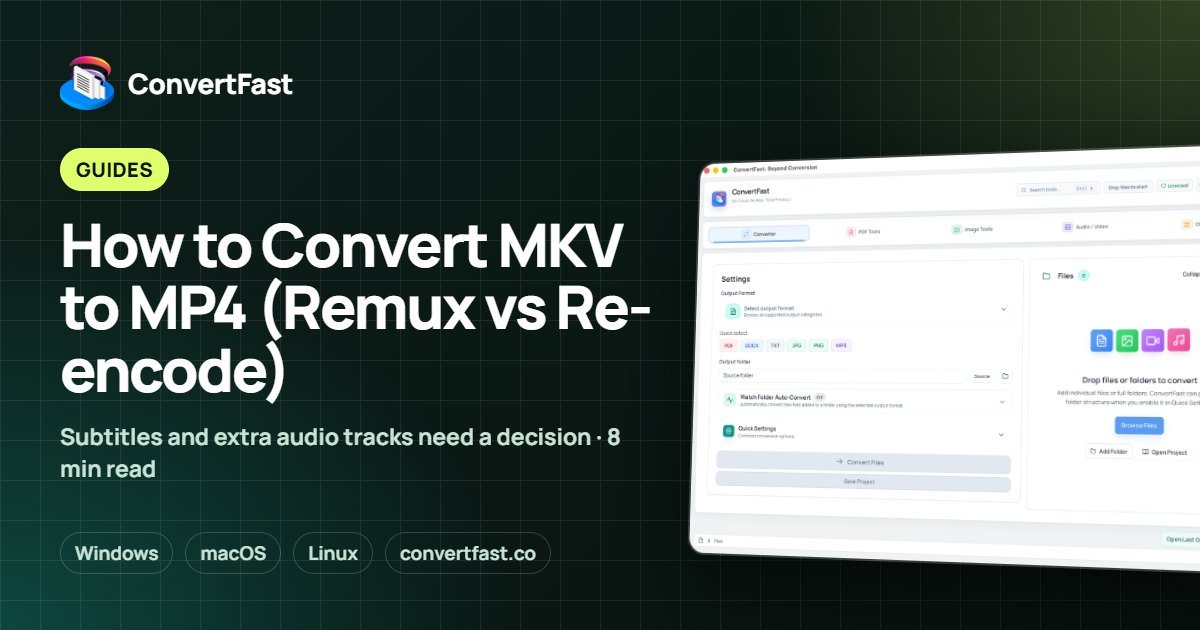
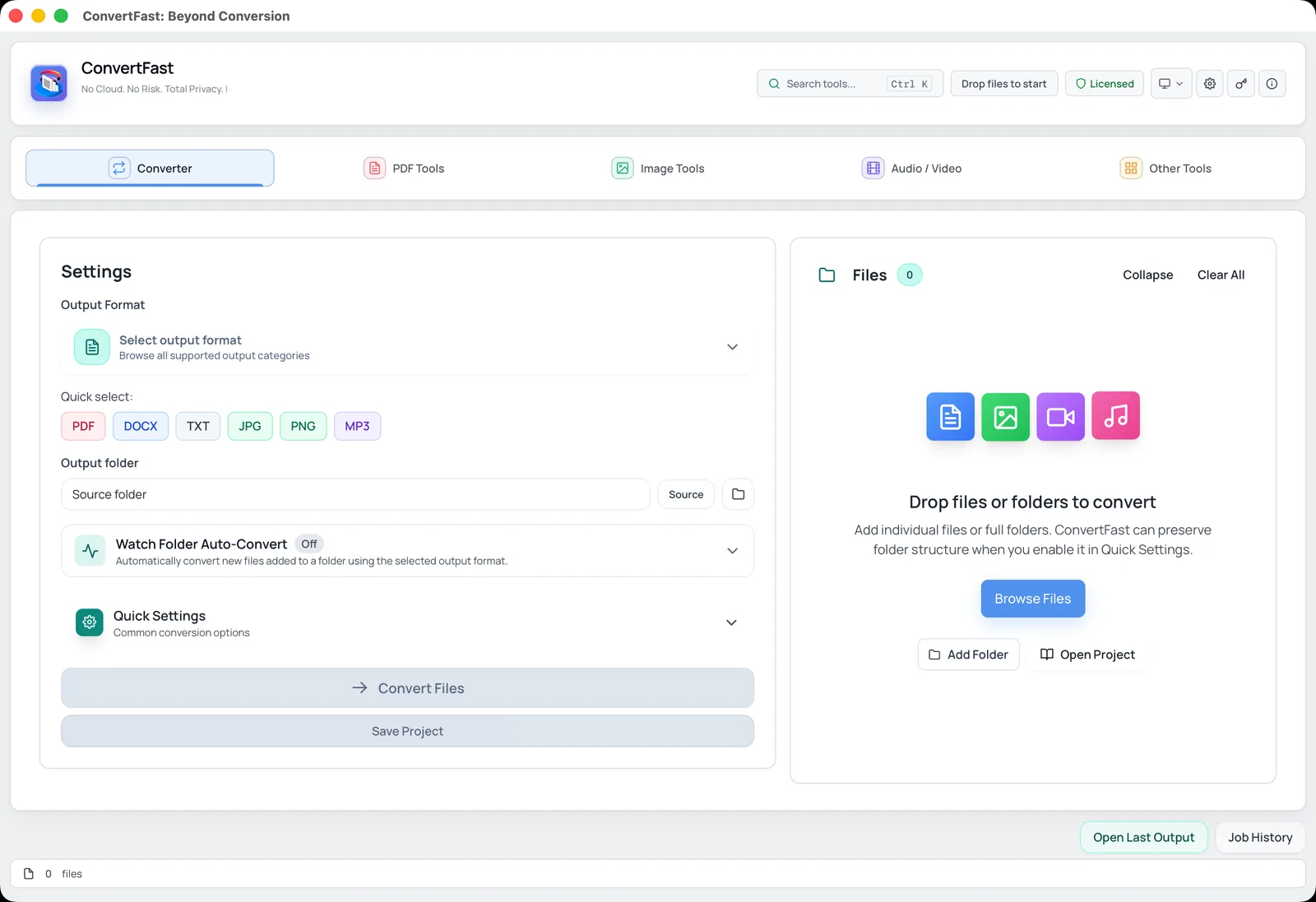
Basic flow in the Converter tab:
- 1Open ConvertFast and select the Converter tab.
- 2Add your MKV file or drop a whole folder of them.
- 3Choose MP4 as the output format.
- 4Select an output folder, ideally separate from the originals.
- 5Start the conversion and wait for it to finish.
- 6Open the MP4 in the player or device you plan to use and check picture, sound and subtitles.
What happens to subtitles and multiple audio tracks
This is where MKV conversions surprise people. MKV may contain several subtitle tracks, often in formats such as SRT or ASS, and multiple audio tracks for different languages or commentary. MP4 has more limited subtitle support, so players and conversion settings can behave differently.
Check the result before deleting the original. If a subtitle track disappears or a wrong audio track is selected by default, you can handle subtitles separately. ConvertFast supports subtitle formats including SRT, VTT and ASS, and the Audio / Video tab has Subtitle Tools and Audio Track Tools for working with them.
Keeping a separate .srt file next to the MP4 is a simple fallback that many players load automatically when the names match.
| Item in the MKV | Common result in MP4 | What to do |
|---|---|---|
| Main video | Kept or re-encoded | Check it plays on your target device |
| Primary audio | Kept or converted to AAC | Listen to the start, middle and end |
| Extra audio tracks | May be dropped or kept, depending on settings | Confirm you have the language you need |
| Subtitles | May need separate handling | Keep a separate subtitle file if needed |
| Chapters | Not always preserved | Note chapter times if you rely on them |
Batch converting a folder of MKV files
A series of episodes, a folder of screen recordings or a season of lectures is easier to handle in one run. ConvertFast can process many files and entire folders and can preserve the folder structure so the output mirrors your source organization. Learn more on the batch tools page.
Watch Folder Auto-Convert can also convert new MKV files as soon as they land in a chosen folder, which is useful for recordings that arrive on a schedule.
As always with batches, test one file first. If the sample looks right and subtitles behave as you expect, run the rest.
Common MKV to MP4 problems and quick fixes
No sound after conversion usually means the audio codec was not compatible with the player or the wrong track was chosen. Try converting again with standard AAC audio.
Choppy playback on an older device can mean the file uses a heavy codec or a very high resolution. Re-encode to H.264 at 1080p or 720p for older hardware.
If your MOV files from an iPhone or camera give similar trouble, the same container-versus-codec logic applies. Our guide to converting MOV to MP4 without losing quality goes deeper on that side.
- Keep the original MKV until the MP4 is verified.
- Do not convert from an already-converted MP4 if you can avoid it.
- Watch a few minutes from the middle of the file, not just the start.
- Keep file names simple while testing so players find matching subtitle files.
Why a local converter makes sense for large video files
MKV files are often several gigabytes. Uploading them to a browser-based converter site is slow, may be capped by the site, and sends your video to someone else's server. A desktop converter works directly on the file. For more on the trade-offs, see cloud converter vs desktop converter.
ConvertFast is a one-time purchase with no subscription and one license for 2 devices. Check pricing or try the interactive demo on the home page to see how the interface works.
Choosing quality settings for a re-encode
If your MKV has to be re-encoded, a few choices keep the result close to the source. Keep the original resolution and frame rate unless you need a smaller file. Prefer a widely supported video codec such as H.264 for maximum compatibility with TVs and phones, and standard AAC for audio.
If the result is for an older device, test a short clip first. Older TVs and media players can be picky about resolution, frame rate and codec, and a two-minute test saves a long wasted conversion. For files meant for email or chat apps, follow the sizing advice in compress video for email and WhatsApp.
Finally, if you only wanted the soundtrack from the MKV, skip the video conversion entirely and use extract audio from video as MP3, or the MP4 to MP3 page for the same idea.
Frequently asked questions
Can I convert MKV to MP4 without losing quality?
Often yes. If the video inside the MKV already uses a codec that MP4 supports, such as H.264, it can be rewrapped without recompressing the picture. If it must be re-encoded, a high-quality setting at the original resolution keeps any loss small.
Why is MKV to MP4 conversion sometimes slow?
A pure remux is quick because no video is re-compressed. A re-encode has to process every frame, so it takes longer and depends on file length, resolution and your computer. Larger and higher-resolution files take more time.
Will subtitles survive when I convert MKV to MP4?
Not always. MP4 supports fewer subtitle types than MKV, so some tracks may not carry over. Test the result, and if needed keep the subtitles as a separate SRT file. ConvertFast includes Subtitle Tools for working with formats such as SRT, VTT and ASS.
Can I convert many MKV files at once on Windows?
Yes. Add multiple files or a folder to ConvertFast, choose MP4 and run the batch. It can preserve your folder structure, and Watch Folder Auto-Convert can handle new files automatically. Always test one file first.
Is it safe to convert large MKV files online?
Uploading a multi-gigabyte video to a website is slow and copies the file to someone else's server. A local converter keeps it on your computer. If the video is private, a desktop tool is the more cautious choice.