AVIF vs WebP: Compression, Support and When to Use Each
AVIF vs WebP compared on compression, browser support, speed and compatibility. Learn when to use each format and how to convert between them.
Quick answer
AVIF usually produces smaller files than WebP at similar visual quality, but it can be slower to encode and is supported by fewer apps. WebP has broader support and is a safe web choice. For your own website use AVIF where you can, WebP as a middle ground, and JPG or PNG when other people must open the files.
AVIF and WebP are both modern image formats built to beat JPG and PNG on file size. If you run a website or just keep running into files your software cannot open, you have probably met one or both.
Which is better depends on what you are optimizing: the smallest possible file, the widest compatibility, or an easy editing workflow. Below we compare them honestly, explain where each belongs, and show how to convert them locally when an app refuses to open the file.
- Often the smallest files at similar quality
- Supports transparency, wide color and high dynamic range
- Encoding can be slower
- Support in older apps and tools is still patchy
- Typically smaller than JPG and PNG
- Supports lossy, lossless, transparency and animation
- Faster to encode, broader tool support
- Usually larger than AVIF for photos
What AVIF and WebP are
WebP arrived first and was designed for the web. It supports lossy and lossless compression, transparency and animation, and it is accepted by all current major browsers. AVIF is newer and based on the AV1 video codec. It also supports transparency and can describe wide color and high dynamic range.
Both exist for the same reason: fewer bytes per image means faster pages. If you are still deciding between these and the older formats, start with WebP vs PNG vs JPG.
Compression and quality compared
In most comparisons AVIF reaches a given visual quality at a smaller file size than WebP, and the gap tends to be largest for photographs and at low bitrates. The trade-off is encoding time: creating AVIF can take noticeably longer, which matters if you process thousands of images.
WebP sits in the middle. It beats JPG and PNG on size and is far quicker to produce than AVIF. Results vary by image, so test your own files rather than trusting a single claimed percentage. A quick way to test is to convert a few sample images to both formats and compare sizes side by side.
| Factor | AVIF | WebP |
|---|---|---|
| File size for photos | Often smallest | Small, usually larger than AVIF |
| Encoding speed | Slower | Faster |
| Transparency | Yes | Yes |
| Animation | Supported | Supported |
| App and tool support | Growing, still patchy | Broad |
| Safe for uploads to forms | Rarely accepted | Sometimes accepted |
Browser and software support
Current major browsers can display both formats. The problem is everything outside the browser: older photo editors, document software, email clients and upload forms often reject AVIF and sometimes WebP. If you plan to send an image to another person or upload it to a portal, JPG or PNG is safer. If you only control a website, check the browser support tables on MDN for the current picture and then decide how many fallbacks you need.
A common pattern is to serve AVIF first, WebP next and JPG as the final fallback. That gives modern browsers the smallest file while older ones still see the image.
Which to choose for your use case
Pick the format by destination, not by hype.
- Your own website, performance first: AVIF with a WebP or JPG fallback.
- Your own website, simplest workflow: WebP alone is a good compromise.
- Files that people will download or open in other apps: JPG or PNG.
- Application forms and government portals: whatever the portal says, usually JPG or PNG.
- Archive of originals: keep the original photo, not an AVIF copy.
Convert AVIF and WebP to formats everything opens
If an app will not open an AVIF or WebP file, converting it is the quickest fix. ConvertFast reads both formats and writes JPG, PNG and more, locally on your computer, so nothing is uploaded. Useful pages are AVIF to JPG, AVIF to PNG, WebP to JPG and JPG to AVIF for the other direction.
On a Mac, see convert WebP to JPG on Mac for built-in options and a batch route.
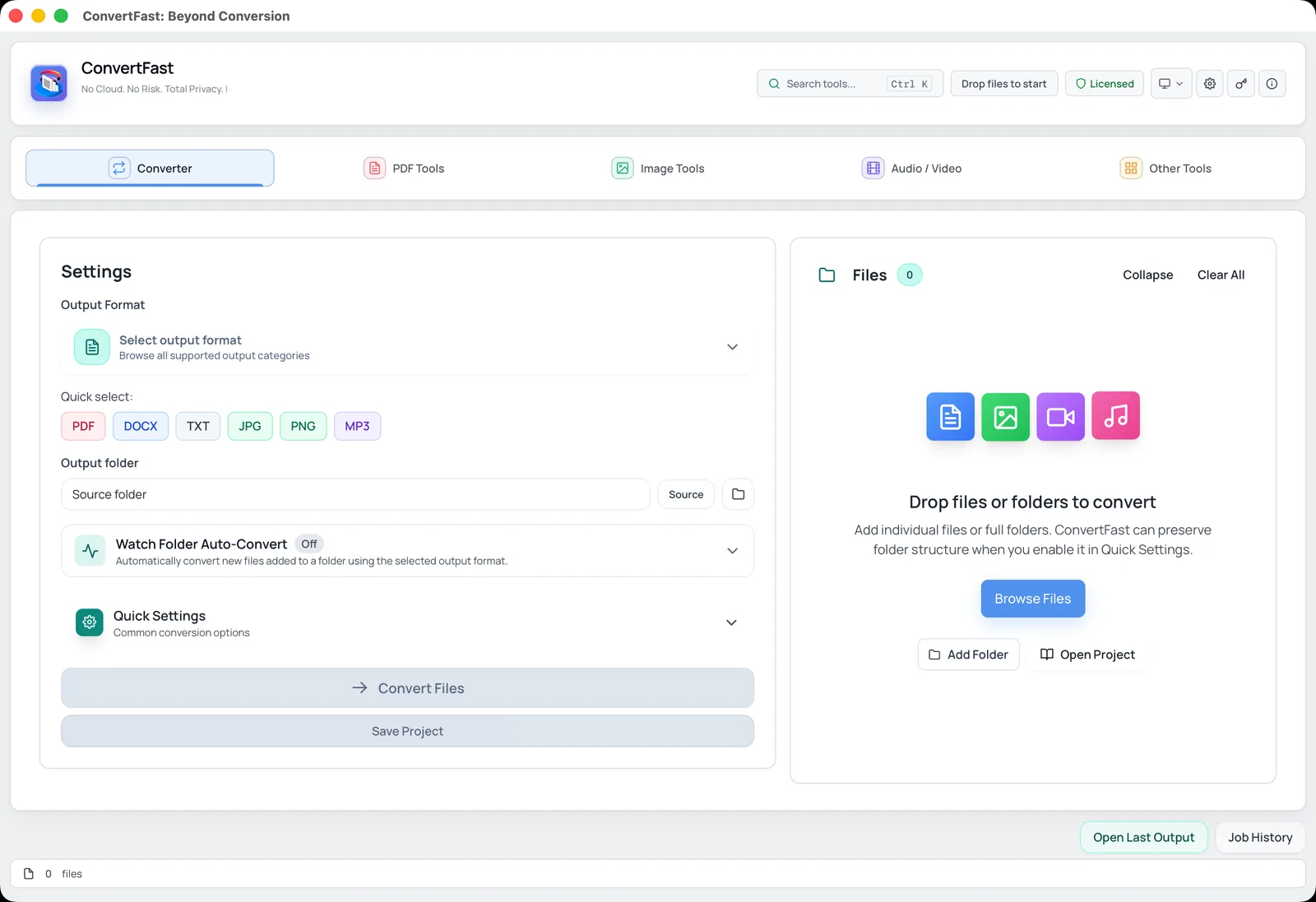
- 1Open ConvertFast and go to the Converter tab.
- 2Add the AVIF or WebP files, or a whole folder.
- 3Choose JPG for photos or PNG when you need transparency or lossless output.
- 4Pick an output folder and run the conversion.
- 5Open one result to confirm quality before converting the rest.
A simple way to test AVIF and WebP on your own images
Published comparisons only go so far, because file size depends heavily on what is in the picture. A foggy landscape, a busy street and a flat illustration all compress differently. The most reliable approach is a small test on your own material. Pick five to ten representative images, convert each to both formats at a similar visual quality, and compare the file sizes and how the results look when zoomed in.
Look at the places where compression usually shows: smooth gradients such as skies, fine texture such as foliage or hair, and sharp edges such as text. Compare at the size the image will actually be displayed rather than at extreme zoom, because that is what visitors see. If the AVIF is clearly smaller and looks the same, it is worth using. If the difference is small, WebP's simplicity and wider support may win.
Also consider the time and tooling cost. If you export a few images a month, encoding speed hardly matters. If you process thousands, slower AVIF encoding can add up, and a pipeline that supports only WebP might save you work. Whatever you choose, keep the originals so you can re-export later.
Finally, remember compatibility beyond the browser. If anyone downloads these images and tries to open them in an office program or sends them to a printer, JPG or PNG copies avoid headaches. It is easy to keep both: an optimized AVIF or WebP for the page, and a JPG for download.
Create smaller site images from your originals
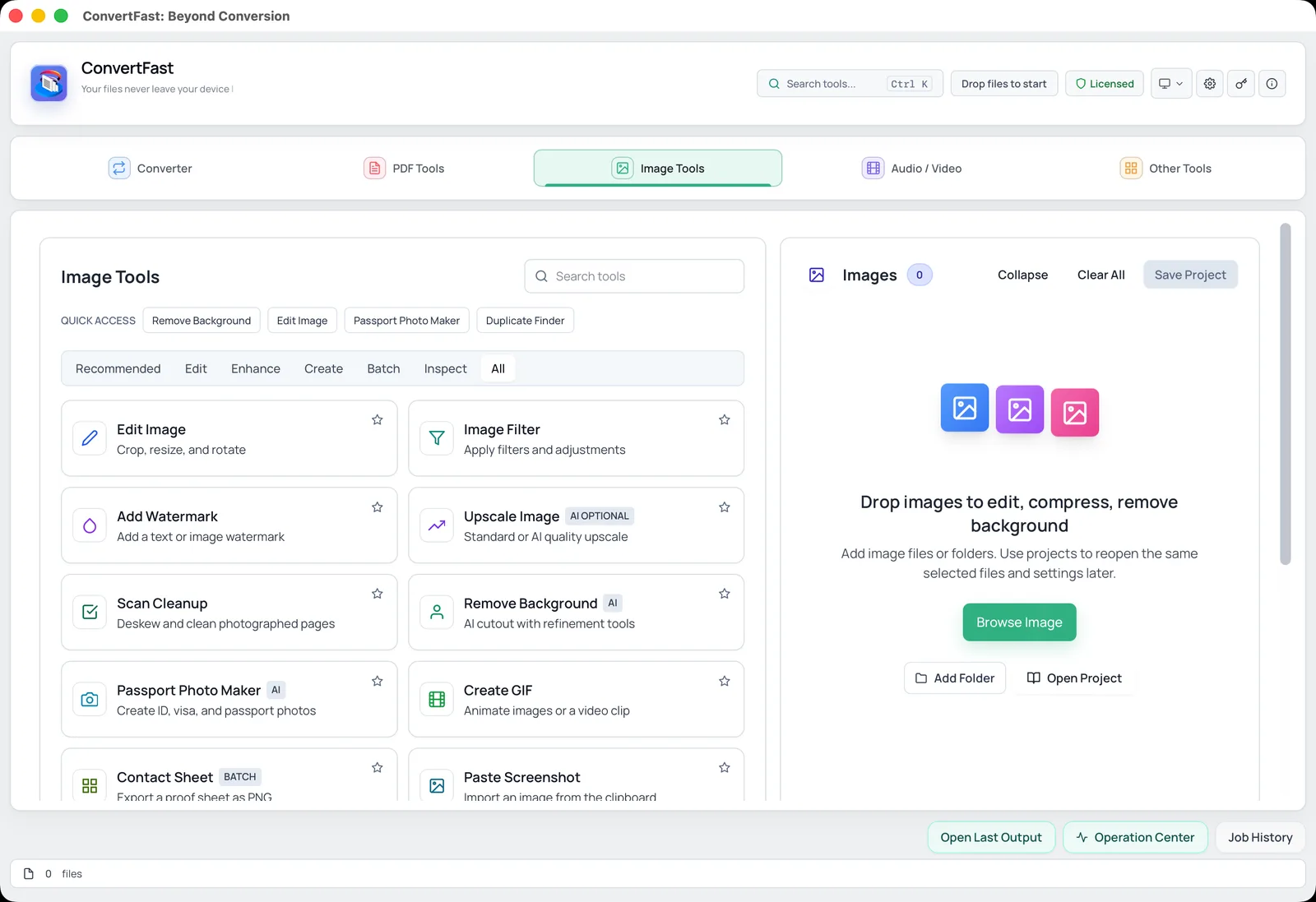
To prepare images for a website, resize them to the dimensions they will actually display at, then convert to the target format. Resizing before encoding usually saves more than switching formats, which is covered in the best image size for website speed. The Image Tools tab includes resizing and compression to a target size, so you can do both steps locally.
Keep your original high-resolution files and treat WebP or AVIF as the exported version. That way you can re-export later when new formats or settings come along.
Frequently asked questions
Is AVIF better than WebP?
On compression, often yes: AVIF files are usually smaller at similar quality. On compatibility and encoding speed, WebP is stronger. For a website, AVIF with a WebP or JPG fallback gives the best of both. For files others must open, JPG is safer than either.
Can I use AVIF for form uploads?
Rarely. Most portals accept only JPG or PNG, and some accept WebP. Convert a copy to JPG and check the portal's stated format and size limits, since requirements vary by site.
How do I convert AVIF to JPG on Windows?
Use a converter that reads AVIF. In ConvertFast, add the AVIF files in the Converter tab, choose JPG as the output, select an output folder and run it. It processes files locally and can handle a whole folder at once.
Does AVIF lose quality compared with the original?
AVIF can be lossy or lossless. Lossy AVIF discards some detail to save space, like JPG and lossy WebP do. Keep your original photo as the master file and export AVIF copies at a quality you check visually.
Should I convert all my website images to AVIF?
Not necessarily. Test a few images first, since savings vary and encoding is slower. Many sites serve AVIF where supported and fall back to WebP or JPG, which keeps every visitor covered.